> For the complete documentation index, see [llms.txt](https://docs.crowdwork.com/llms.txt). Markdown versions of documentation pages are available by appending `.md` to page URLs; this page is available as [Markdown](https://docs.crowdwork.com/for-theatres/cancelling-a-show-or-class.md).
# Cancelling a Show, Class, or Date
Called off a performance, a class session, or a whole run? Stop sales, move or refund your ticket holders, and let everyone know — in the right order.
Weather, illness, a venue problem — sometimes a performance, a class session, or a whole run has to be called off. Cancelling in CrowdWork is a short sequence of steps, and the order matters: taking a date off sale doesn't refund or notify anyone on its own, and removing a date from the schedule too early makes its ticket holders harder to reach.
{% hint style="info" %}
**The short version**
1. **Stop new sales** for the date (or pause the whole event).
2. **Decide what happens to each ticket holder** — move them to another date, move them to a different show or class, refund them, or refund them to a gift card.
3. **Tell your patrons** what happened and what you've done about it.
4. **Tidy up** — remove the date from the schedule, or archive the event.
{% endhint %}
Everything below works the same for shows (tickets) and classes (registrations).
## Step 1: Stop New Sales
Do this first, so nobody buys a ticket for a date you've already called off while you're working through the rest.
### Cancelling a single date in a series
Open the event, click **Edit Show** (or **Edit Class**), then **Edit Specific Dates**, select the date, and set **Maximum Global Quantity** to **0**. Sales stop for that date only; every other date keeps selling.
If the date uses [assigned seating](/for-theatres/setting-up-assigned-seating.md), the seating chart sets its capacity and **Maximum Global Quantity** has no effect. Set each tier's **Tier Quantity** to **0** on that date instead, then open the date on your public page to confirm it can't be bought.
While you're there, add a **Name** override such as "CANCELLED — Friday, October 2" — a zero-capacity date shows patrons a **Sold Out** button, and the new title tells them why.
{% hint style="warning" %}
**Don't remove the date from the schedule yet.** Adding it to **No shows on…** (**No classes on…**) deletes the date's customizations, including the "CANCELLED" title, and email campaigns can no longer target that date's ticket holders. Remove it at the end, if you want to. Both options are compared in [Stopping Sales on a Single Date](https://docs.crowdwork.com/for-theatres/editing-specific-dates-in-a-series#stopping-sales-on-a-single-date).
{% endhint %}
### Cancelling a whole show or class
Pause it. Go to your [Shows](https://crowdwork.com/dashboard/shows) or [Classes](https://crowdwork.com/dashboard/classes) dashboard, click the **•••** menu on the event's row, and choose **Pause Show** (or **Pause Class**). A paused event drops off your public page and can't be bought (anyone following an old link sees **Sales Closed**), and every existing ticket, registration, and order stays exactly as it was.
You can also do this from the event's edit screen: click the status button in the upper-right — it's labeled with the current status, such as **Show Active**.
Once tickets have been sold, the menu offers **Pause** and **Archive** but not **Delete** — an event with sales is part of your sales history. See [Pausing and Reactivating a Show or Class](https://docs.crowdwork.com/for-theatres/creating-a-show-or-class#pausing-and-reactivating-a-show-or-class).
## Step 2: Take Care of Your Ticket Holders
Nothing happens to anyone's ticket or payment until you act — patrons who bought for a cancelled date still hold a valid ticket for it. For each ticket holder, choose one of these:
| Option | Best when | Money |
| --------------------------------------- | ----------------------------------------- | ----------------------------------------------------------------------- |
| Move to another date of the same event | The show or class is rescheduling | Unchanged — their original payment covers the new date |
| Move to a different show or class | You're offering a swap | Unchanged — settle any price difference separately |
| Refund to their original payment method | They want their money back | Returned to their card; can take 7–10 business days to appear |
| Refund to a new gift card | You're offering credit for a future visit | Nothing goes back to the card; the amount becomes a gift card |
| Standby | You haven't decided yet | Unchanged — the ticket stays on file but stops counting toward capacity |
You can mix these — move most of the house to next week and refund the few who can't make it.
### Finding the ticket holders for a date
Everything in this step starts from the **Admissions** table on the event's page:
1. Go to your [Shows](https://crowdwork.com/dashboard/shows) or [Classes](https://crowdwork.com/dashboard/classes) dashboard and click the event.
2. Scroll down to **Admissions**.
3. Use the **Filter By Date** dropdown to pick the cancelled date. The table now lists only that date's tickets or registrations.
Tick the checkbox in the header row to select everyone at once, or tick individual rows. The **Actions** button then offers **Edit** (move or change status) and **Send Email**. Each row's **•••** menu offers **Issue Refund** for that order.
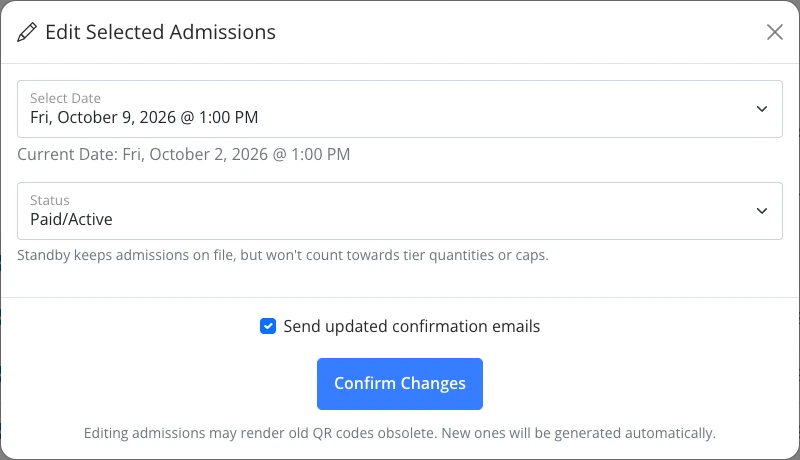
### Moving ticket holders to another date
1. In the Admissions table, filtered to the cancelled date, select the patrons you're moving.
2. Click **Actions → Edit**.
3. Choose the new date in **Select Date**.
4. Tick **Send updated confirmation emails** so each patron receives their new ticket automatically.
5. Click **Confirm Changes**.
Each patron's ticket and QR code now point to the new date. If you move only some of the tickets on an order, the moved tickets get a new QR code, so make sure the patron receives the updated confirmation. Moving doesn't change anyone's payment. Full details: [Moving Patrons to a Different Date](https://docs.crowdwork.com/for-theatres/managing-admissions#moving-patrons-to-a-different-date).
{% hint style="info" %}
**Moving patrons can oversell the new date.** CrowdWork doesn't block a move that goes over capacity, and moved tickets count toward the new date like any other sale. Check the new date's numbers in the Admissions overview before you move a full house onto it.
{% endhint %}
### Moving ticket holders to a different show or class
Moving someone to a completely different event is done from the patron's own profile, one patron at a time:
1. Click the patron's name in the Admissions table to open their profile.
2. Click the blue **Edit Customer** (or **Edit Student**) button.
3. In the **Purchases** table, tick the ticket or registration, then click **Actions → Edit**.
4. Choose the new event, date, and tier, tick **Send updated confirmation emails**, and click **Update Selected Admissions**.
Tickets move to other shows and registrations move to other classes. Full instructions: [Managing Exchanges](https://docs.crowdwork.com/for-theatres/managing-exchanges).
### Refunding ticket holders
Refunds are issued per order, from the Admissions table filtered to the cancelled date:
1. Click the **•••** at the end of a patron's row and choose **Issue Refund**. The order opens with the refund dialog showing.
2. In the **Refund Confirmation** dialog, tick **Email refund details automatically** so the patron gets a receipt for the refund.
3. Leave the partial refund fields empty for a full refund, and click **Issue Full Refund**. Confirm the amount when asked — a refund can't be undone.
4. Go back to the event's Admissions table and work down the list. Fully refunded rows are marked **Refunded**, so you can see who's done.
A full refund covers the whole order: every ticket on it, including any for other dates or shows. To refund only part of an order, use **Issue Partial Refund** and enter the amount. A partial refund doesn't mark any tickets as refunded, so afterwards set the cancelled date's tickets to **Standby** (**Actions → Edit**, then **Status**) to keep track of who's been handled. See [Finalizing a Refund](https://docs.crowdwork.com/for-theatres/issuing-refunds#finalizing-a-refund).
**Comps and free tickets** have nothing to refund. Just let those patrons know, using the email steps below.
### Offering credit instead of a cash refund
To keep the money in the house, refund to a gift card. In the **Refund Confirmation** dialog, tick **Create and refund to a new gift card instead of the original payment method**. CrowdWork creates a gift card for the refunded amount, and no money goes back to the patron's card. Tick **Email refund details automatically** too — the email includes the gift card code and how to use it.
The gift card option appears only when Gift Cards are turned on for your theatre — see [Setting Up Gift Cards](https://docs.crowdwork.com/for-theatres/setting-up-gift-cards). Many theatres offer both: credit by default, and a cash refund for anyone who asks.
{% hint style="warning" %}
**Cancelling a class paid on a payment plan?** The refund dialog shows a **Cancel remaining payment plan installments** box (with the number of payments left), ticked by default. Leave it ticked so the student's card isn't charged again for a class that isn't happening. Entering a partial refund amount unticks it, so check it again before you submit. See [Issuing Refunds](https://docs.crowdwork.com/for-theatres/issuing-refunds).
{% endhint %}
## Step 3: Tell Your Patrons
The emails CrowdWork sends in Step 2 — the updated confirmation and the refund receipt — tell patrons *what* changed, not *why*. A short personal note from you does that.
### Emailing everyone with a ticket for the date
1. In the event's Admissions table, filter to the date whose ticket holders you're writing to. If you've already moved people, that's the *new* date.
2. Select the patrons (the header checkbox selects everyone).
3. Click **Actions → Send Email**.
4. Write a subject and message, tick the Terms of Service box, and click **Send Email**.
A few things to know about this email:
* Your theatre's name is added to the start of the subject automatically.
* Each patron's ticket details — date, tier, and QR code — are included below your message, so a patron you've already moved sees their new ticket.
* One email goes to each order, even if the order has several tickets.
* Patrons rung up at the box office without an email address can't be emailed.
More on this email, including copying your box office on every send: [Contacting Attendees](https://docs.crowdwork.com/for-theatres/managing-admissions#contacting-attendees).
### Reaching a wider audience
To reach everyone who holds a ticket for any date of the event — for example, when a whole run is cancelled — send a **Transactional** campaign from [Emails](https://crowdwork.com/dashboard/emails) and target it with the **Event (show or class)** filter (add **Event date** to narrow it to one date). Transactional campaigns reach every matching patron, not just newsletter subscribers.
This audience also includes patrons you've already refunded, so write the message so it makes sense to them too, or use the Admissions table above, where you choose exactly who gets it. See [Choosing Your Audience](https://docs.crowdwork.com/for-theatres/email-marketing/choosing-your-audience#filter-fields).
If a send is blocked, contact support — sending limits apply to every theatre, and support can tell you where you stand.
### Don't forget your waitlist
If the date had a waitlist, those patrons are waiting on a date that isn't happening, and a zero-capacity date shows a **Sold Out** button with **Join Waitlist** on it, so more may sign up. Email them and clear them out — see [Removing Patrons from the Waitlist](https://docs.crowdwork.com/for-theatres/setting-up-waitlists#removing-patrons-from-the-waitlist).
## Step 4: Tidy Up
Once every ticket holder has been moved or refunded and told, decide how the cancellation should look going forward:
* **A single date:** leave it at zero capacity with its "CANCELLED" title, so patrons who land on it can see what happened — or add it to **No shows on…** (**No classes on…**) to remove it from your public page and calendar entirely. Removing it deletes any customizations saved on that date, but never touches tickets or orders. See [Which One Should You Use?](https://docs.crowdwork.com/for-theatres/editing-specific-dates-in-a-series#which-one-should-you-use) If your event has one schedule row per performance and the cancelled date is the first row, it has no trash icon; see [Schedule and End Date](/for-theatres/creating-a-show-or-class.md#schedule-and-end-date).
* **A whole show or class:** leave it paused if it may come back, or choose **Archive Show** (**Archive Class**) from the status menu to retire it. Archiving keeps every ticket, order, and report, and frees up its public URL. See [Archiving Instead of Deleting](https://docs.crowdwork.com/for-theatres/creating-a-show-or-class#archiving-instead-of-deleting).
## FAQs
Does pausing an event or zeroing a date refund my ticket holders?
No. Stopping sales only stops *new* purchases. Everyone who already bought keeps their ticket and their payment until you move or refund them in Step 2.
Are patrons notified automatically when I cancel?
Only by the emails you choose to send: ticking **Send updated confirmation emails** when you move someone, ticking **Email refund details automatically** when you refund someone, and any message you send with **Actions → Send Email**. Pausing an event or changing a date's capacity sends nothing.
Can I refund a whole date at once?
Refunds are issued order by order from each row's **•••** menu. With the Admissions table filtered to the cancelled date, work down the list. Fully refunded rows are marked **Refunded** so you can see who's left.
Can I give patrons credit instead of their money back?
Yes. Refund to a new gift card by ticking **Create and refund to a new gift card instead of the original payment method** in the refund dialog. See [Offering Credit Instead of a Cash Refund](https://docs.crowdwork.com/for-theatres/cancelling-a-show-or-class#offering-credit-instead-of-a-cash-refund).
A patron can't make the rescheduled date. What now?
Refund them from the new date's Admissions table (their ticket moved there), or move them again to a date that works.
What do patrons see if they visit the cancelled date?
A zero-capacity date shows a **Sold Out** button with whatever title you gave it. A date removed with **No shows on…** doesn't appear at all. A paused or archived event drops off your public page, and anyone with a direct link sees **Sales Closed**.
Can I just delete the event?
Only if it has never had a ticket or registration (refunded ones count) and no discount codes apply to it, including codes set to apply to all shows or all classes. Otherwise, archive it — archiving keeps your sales records. See [Deleting a Show or Class](https://docs.crowdwork.com/for-theatres/creating-a-show-or-class#deleting-a-show-or-class).
## Related Tasks
| Task | Guide |
| ---------------------------------------------- | ------------------------------------------------------------------------------------------------------------------------------------------------ |
| Stop sales on one date of a series | [Editing Specific Dates in a Series](https://docs.crowdwork.com/for-theatres/editing-specific-dates-in-a-series#stopping-sales-on-a-single-date) |
| Move patrons to another date, or email them | [Managing Admissions](https://docs.crowdwork.com/for-theatres/managing-admissions) |
| Move a patron to a different show or class | [Managing Exchanges](https://docs.crowdwork.com/for-theatres/managing-exchanges) |
| Refund an order, or refund to a gift card | [Issuing Refunds](https://docs.crowdwork.com/for-theatres/issuing-refunds) |
| Turn on gift cards | [Setting Up Gift Cards](https://docs.crowdwork.com/for-theatres/setting-up-gift-cards) |
| Email everyone who holds a ticket for an event | [Choosing Your Audience](https://docs.crowdwork.com/for-theatres/email-marketing/choosing-your-audience) |
| Clear out a waitlist | [Setting Up Waitlists](https://docs.crowdwork.com/for-theatres/setting-up-waitlists) |
| Pause, archive, or delete an event | [Creating a Show or Class](https://docs.crowdwork.com/for-theatres/creating-a-show-or-class#pausing-and-reactivating-a-show-or-class) |
## Need Help?
If a cancellation doesn't fit these steps, [contact our support team](https://docs.crowdwork.com/contacting-support).