> For the complete documentation index, see [llms.txt](https://docs.crowdwork.com/llms.txt). Markdown versions of documentation pages are available by appending `.md` to page URLs; this page is available as [Markdown](https://docs.crowdwork.com/for-theatres/reports-and-analytics.md).
# Reports & Analytics
Run, filter, save, and export financial reports from your CrowdWork dashboard — and learn which tool to reach for when you need charts, accounting-ready totals, or a raw CSV.
**Reports** turns your sales data into accounting-ready financial reports, right in the Dashboard. Pick a report, set your date range and filters, and get totals your bookkeeper can work with — then save the view so the whole team can re-run it, or export the transactions behind the numbers as a CSV.
> **Direct link:** [Reports Dashboard](https://crowdwork.com/dashboard/reports)
You'll find Reports in your Dashboard sidebar under **Analytics → Reports**.
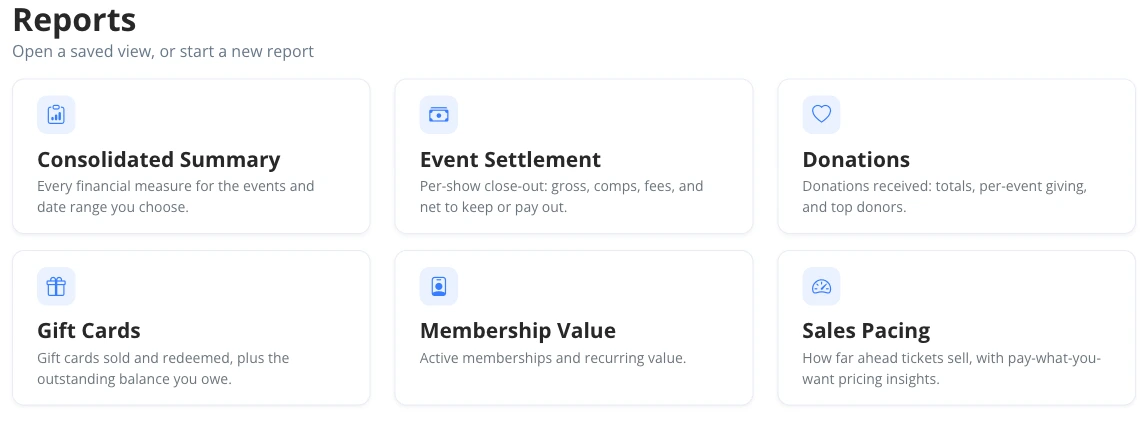
The Reports page with report cards and a saved view
***
## Who Can Use Reports
Reports is available to **Admin** users. For anyone else, use a **Custom** role: **Reports** is its own toggle under Platform Features in [Custom Permissions](https://docs.crowdwork.com/for-theatres/managing-staff-and-users/custom-permissions), separate from the **Charts** toggle — you can grant either one without the other. Other standard roles don't include Reports access; switch the user to Custom to grant it.
When a custom user's permissions are scoped to specific events, their reports automatically include only those events.
{% hint style="warning" %}
**Report exports include patron names and email addresses.** Grant Reports only to people who should see patron contact details — for a stakeholder who just needs to see how sales are going, the Charts toggle alone may be the better fit.
{% endhint %}
***
## The Reports Page
The Reports page is your starting point: open a saved view, or start a new report from one of the report cards. Each card names the report and the question it answers.
| Report | The question it answers |
| --------------------------------------------------------------------------------------------------------------------- | -------------------------------------------------------------------------------------------------------- |
| [**Consolidated Summary**](https://docs.crowdwork.com/for-theatres/reports-and-analytics/consolidated-summary-report) | How did we do overall? Every financial measure for the events and date range you choose. |
| [**Event Settlement**](https://docs.crowdwork.com/for-theatres/reports-and-analytics/event-settlement-report) | What did each show or class net? A per-event close-out for settling with producers and renters. |
| [**Donations**](https://docs.crowdwork.com/for-theatres/reports-and-analytics/donations-report) | What did patrons give? Totals, per-event giving, monthly trend, and top donors. |
| [**Gift Cards**](https://docs.crowdwork.com/for-theatres/reports-and-analytics/gift-cards-report) | What do we owe on gift cards? Outstanding balance, plus cards sold and redeemed in the period. |
| [**Membership Value**](https://docs.crowdwork.com/for-theatres/reports-and-analytics/membership-value-report) | What is the membership program worth? Recurring value, what members redeem, and retention. |
| [**Sales Pacing**](https://docs.crowdwork.com/for-theatres/reports-and-analytics/sales-pacing-report) | How far ahead do tickets sell — and what do pay-what-you-want buyers actually pay? |
| [**Discount Usage**](https://docs.crowdwork.com/for-theatres/reports-and-analytics/discount-usage-report) | Which codes were redeemed, by whom, and how often — including how many redeemers were brand-new patrons. |
{% hint style="info" %}
More report types are on the way — new cards appear on the Reports page as they become available.
{% endhint %}
***
## Filtering a Report
Set your filters at the top of any report, then click **Run Report**. The page updates in place.
The report filter bar with date range, channel, and event filters
* **Date range** — pick any start and end date, or use a preset: **Today**, **This week**, **This month**, **Last month**, or **YTD** (January 1 through today). A new report opens to the current calendar month.
* **Purchase date vs. Event date** — choose what the date range means. **Purchase date** groups sales by when the order was placed; **Event date** groups them by the showtime the ticket is for. Use Purchase date for "what did we sell in June?" and Event date for "what did our June performances earn?"
* **Channels** — narrow to **Online**, **POS**, or **Manual** sales, in any combination. Leave empty to include everything. Payment-plan orders count as Online; to see them itemized, use **View Line Items**, where each plan expands into per-installment rows.
* **Events** — search by show, class, or tag. Leave empty to include every event you can access.
{% hint style="info" %}
**Not every report uses every filter.** Donations filters by date only; Gift Cards adds a card-status filter; Membership Value adds member-status and tier filters. Each report's guide covers its own filters.
{% endhint %}
***
## Saving a Report
Once a report is filtered the way you like, click **Save Report** and give it a name. The saved view appears on the Reports page for everyone on your team who can open Reports — saved reports are shared with your whole theatre, not private to you.
* **Saved presets stay current.** A report saved with a preset like **This month** recomputes every time it's opened — in August it shows August. A report saved with an explicit start and end date always shows exactly that range.
* **Managing a saved report:** open it and use the **Manage Report** menu to **Update Report** (save the current filters back to it), **Save as a New Report** (keep the original and fork a copy), or **Delete Report**.
{% hint style="warning" %}
**Renaming, updating, or deleting a saved report affects your whole team** — anyone with access to Reports can change or remove any saved view, and a deleted view is gone for everyone.
{% endhint %}
***
## Line Items and CSV Export
Every financial report is backed by individual transactions, and you can always get to them:
* **View Line Items** opens the transaction-level list behind the report's totals, using the same filters — one row per admission, donation, gift card, or member, depending on the report. (The Gift Cards list ignores the date range — a card's balance only means something whole.) Payment-plan orders expand into per-installment rows, with **Row type**, **Plan status**, **Payment due**, and **Paid on** columns showing which installments are collected and which are still upcoming.
* **Export to CSV** downloads every line item behind the report for the current filters. The report's totals reconcile to this file — if the report says your net deposit was a certain amount, the rows in the CSV add up to that amount. (With payment plans still collecting, the CSV's net-deposit column adds up to the report's accrual-basis line, since it books each plan's full scheduled value.) Large exports show a progress bar while they prepare.
* **The Notes column** shows the internal staff notes on each row — the notes on that order plus the notes on the patron who placed it. Because notes are free-form, the on-screen cell shows only the beginning; click it to read the full text. The CSV carries all of it. See [Staff Notes](https://docs.crowdwork.com/for-theatres/staff-notes).
{% hint style="success" %}
**Reconciling with your accountant?** Run the report for the period, note the totals, then Export to CSV and hand over both — the spreadsheet is the audit trail for the report's numbers.
{% endhint %}
***
## Which Tool Do You Need?
CrowdWork has a few ways to get at your data, and they're built for different jobs:
| You want… | Use |
| -------------------------------------------------------------------------------------- | ---------------------------------------------------------------------------------------------------------------------------------------------------------- |
| Charts and trends over time — a visual read on how sales are moving | [Analytics](https://docs.crowdwork.com/for-theatres/reports-and-analytics/sales-analytics) |
| Accounting-ready totals that reconcile — settlements, liabilities, donations, deposits | [Reports](https://crowdwork.com/dashboard/reports) (this feature) |
| A raw spreadsheet of tickets, registrations, or orders to sort and slice yourself | The CSV exports on the Tickets, Registrations, and Orders screens — see [Exporting Your Data](https://docs.crowdwork.com/for-theatres/exporting-your-data) |
| A patron contact list | The Customers and Students exports — see [Exporting Your Data](https://docs.crowdwork.com/for-theatres/exporting-your-data) |
***
## One Word, Three Meanings: Reading "Net"
Different reports use "net" for different (correct) things. When two numbers don't match, check which "net" you're looking at:
* **Net sales** — sales on a billings basis: admissions and surcharges, minus discounts, membership benefits, and gift-card credit. This matches the `net total` column in CSV exports.
* **Net deposit / Net settlement** — the cash story: net sales plus donations, minus refunds and any fees your theatre absorbed. This is what actually lands in your account.
* **Net to Theatre** — used in the Membership Value report: membership revenue collected minus the retail value members redeemed.
***
## Related Tasks
| Task | Guide |
| ----------------------------------------------- | --------------------------------------------------------------------------------------------------------- |
| **View sales charts and trends** | [Sales Analytics](https://docs.crowdwork.com/for-theatres/reports-and-analytics/sales-analytics) |
| **Export raw tickets, orders, or patron lists** | [Exporting Your Data](https://docs.crowdwork.com/for-theatres/exporting-your-data) |
| **Control who on your team can see what** | [Custom Permissions](https://docs.crowdwork.com/for-theatres/managing-staff-and-users/custom-permissions) |
***
## Need Help?
If you run into a situation this guide doesn't cover, [contact our support team](https://docs.crowdwork.com/contacting-support) from your Dashboard. We're here to help!