> For the complete documentation index, see [llms.txt](https://docs.crowdwork.com/llms.txt). Markdown versions of documentation pages are available by appending `.md` to page URLs; this page is available as [Markdown](https://docs.crowdwork.com/for-theatres/setting-up-discount-codes.md).

# Setting Up Discount Codes

This page describes how to create and use discount codes.

Some call them rewards, coupons, or promo codes. Here at [CrowdWork](https://crowdwork.com), we call them "discount codes." And you have the flexibility to create as many as you need to provide exclusive promotions and incentives to your patrons. This article will guide you through the process of creating, managing and editing discount codes to make your theatre even more enticing! Click [**Discount Codes**](https://crowdwork.com/dashboard/discounts) in the Dashboard menu to get started.

> **Direct link:** [Discount Codes Dashboard](https://crowdwork.com/dashboard/discounts)

<figure><img src="https://2845098317-files.gitbook.io/~/files/v0/b/gitbook-x-prod.appspot.com/o/spaces%2F4jXdYra1roPbWLdqrOHI%2Fuploads%2FTGzLuzfLeZcF5EUld02f%2FDiscount%20Codes%20menu%20-%20Fourth%20Wall%20Tickets.png?alt=media&amp;token=8a6d2780-1552-4869-b808-86ff9cb4bfc8" alt="" width="313"><figcaption><p>Discount Codes in the Dashboard menu</p></figcaption></figure>

## Creating Your First Discount Code

After selecting the [**Discount Codes**](https://crowdwork.com/dashboard/discounts) menu, find and click the blue [**+ Create New Discount**](https://crowdwork.com/dashboard/discounts/new) button <img src="https://2845098317-files.gitbook.io/~/files/v0/b/gitbook-x-prod.appspot.com/o/spaces%2F4jXdYra1roPbWLdqrOHI%2Fuploads%2FYgcRKvzMHggSKkOxCCox%2FCreate%20New%20Discount%20button%20-%20Fourth%20Wall%20Tickets.png?alt=media&amp;token=9b63558b-5d6e-4009-bfbc-3037f46947d0" alt="Example of the Create New Discount button in the CrowdWork Dashboard" data-size="line"> to begin building your first campaign.

<figure><img src="https://2845098317-files.gitbook.io/~/files/v0/b/gitbook-x-prod.appspot.com/o/spaces%2F4jXdYra1roPbWLdqrOHI%2Fuploads%2F6kw55CR69fLbohnuXqnQ%2FDiscount%20Codes%20screen%20Create%20New%20Discount%20button%20-%20Fourth%20Wall%20Tickets.png?alt=media&amp;token=63aaa592-0339-441a-aafa-dd8cab876c12" alt="" width="563"><figcaption><p>Create New Discount button in the CrowdWork Dashboard</p></figcaption></figure>

***

## **Creating a New Discount Code**

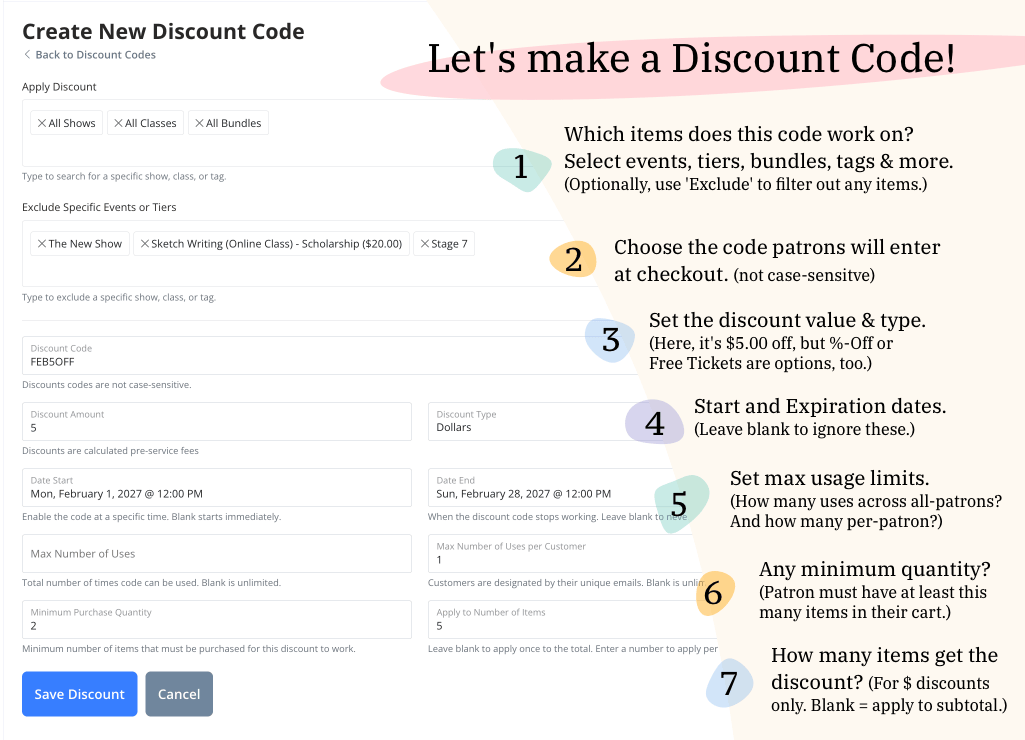
On the **Create New Discount Code** screen you'll set the specifics of your promotion or incentive. Let's explore the fields you'll encounter while crafting a new discount code. *Click the reference image below to enlarge it.*

<figure><img src="https://2845098317-files.gitbook.io/~/files/v0/b/gitbook-x-prod.appspot.com/o/spaces%2F4jXdYra1roPbWLdqrOHI%2Fuploads%2Fgit-blob-2841094dd2bf3365f7e65c920ecd964ba804cbf8%2FCreate%20New%20Discount%20Code%20Annotated%20-%20CrowdWork.png?alt=media" alt="Annotated screenshot of the Create New Discount Code form in the CrowdWork Dashboard, showing numbered callouts for each field" width="563"><figcaption><p>Create New Discount Code form in the CrowdWork Dashboard</p></figcaption></figure>

### Apply Discount

The **Apply Discount** field controls exactly which events, pricing tiers, or ticket types this code is valid for. You can assign a discount code to a specific bundle by selecting it here by name, alongside shows, classes, and tags. Type in the field to search by name, then select one or more of the following:

* **All Shows** — applies to every show in your account
* **All Classes** — applies to every class in your account
* **All** [**Bundles**](/for-theatres/setting-up-bundles.md) — applies to every bundle in your account
* **An entire event (All Tiers)** — applies to all pricing tiers within a specific show or class, displayed as *Event Name - All Tiers*
* **A specific pricing tier** — targets one price point within a show or class, displayed as *Event Name - Tier Name ($Price)*
* **A specific** [**Bundle**](/for-theatres/setting-up-bundles.md) — targets one bundle, displayed as *Bundle Name*
* **A** [**Tag**](https://docs.crowdwork.com/for-theatres/tags) — applies to all events with that tag
* **A** [**Membership Tier**](https://docs.crowdwork.com/for-theatres/setting-up-memberships) — applies when patrons purchase or renew a membership
* **Any ticket tier with a given name** — under **Dynamic Tier Names**, displayed as *Any tier named "General Admission" (12 tiers)*. Covers that tier on every event that has one, including events you create later (see the section just below)
* Any combination of the above

{% hint style="info" %}
**All Tiers vs. individual tiers:** Selecting *Event Name - All Tiers* includes all current pricing tiers for that event. Selecting individual tiers gives you precise control — for example, applying a discount only to a premium-priced tier while leaving general admission unaffected.
{% endhint %}

### "Any tier named…" — codes that cover events you haven't created yet

Most theatres reuse the same ticket-tier names on every event: every show sells a *General Admission*, a *Student*, a *VIP*. Picking those tiers one event at a time means hundreds of clicks, and the list goes stale the moment you add next month's shows.

The **Dynamic Tier Names** group in the **Apply Discount** field solves that. An *Any tier named "…"* option saves the *name* rather than the list. Each time a patron redeems the code, CrowdWork checks that event's ticket tiers and applies the discount to any tier carrying that name — so a show you create six months from now is covered the day you make it.

{% hint style="warning" %}
**It matches the whole name, not a keyword inside it.**

*Any tier named "General Admission"* matches a tier called *General Admission*, *general admission*, or *General Admission* with stray spaces around it — capitalization and surrounding whitespace are ignored. It does **not** match *General Admission + Featured Cocktail* or any other longer name. Those are separate names with their own options in the list.
{% endhint %}

The number in each option — *(12 tiers)* — is how many ticket tiers carry that name in your account **today**. An option reading *(no tiers currently)* is a rule you saved earlier whose name no longer matches anything; it stays in the list so a saved selection never silently disappears.

### Select all by keyword — a shortcut, not a rule

Beneath the **Apply Discount** field is a **Select all by keyword** box with a **Select All Matches** button. It looks like the tier-name rule above and does something different.

Type a word and it filters the options in front of you, matching that text *anywhere* in an option's label; click **Select All Matches** and everything currently matching is added to the field at once. A line underneath reports how many options match and how many aren't selected yet.

{% hint style="warning" %}
**The keyword box matches loosely — check what it grabbed.**

Typing `General Admission` selects the *Any tier named "General Admission"* rule **and** the *Any tier named "General Admission + Featured Cocktail"* rule, plus every individual *Event Name - General Admission* tier, plus any event whose own name contains those words. Read back the chips in the field afterwards and remove anything you didn't intend to discount.
{% endhint %}

### The coverage line — check this before you save

As you build a selection, a line under the field reports what it actually resolves to: *"Currently covers 34 ticket tiers across 12 events."* When a tier-name rule is part of the selection it adds *"Tier-name rules keep applying to events you add later."* If nothing matches, it says so: *"This selection doesn't match any ticket tiers right now."*

The count reflects your exclusions as well as your inclusions, and it counts your **current** events — a tier-name rule goes on covering events beyond that count as you create them. A rule that quietly matches nothing is the failure worth catching here: if the name is spelled differently on your events, the code will simply never apply and nothing will look broken.

### Exclude Specific Events or Tiers

The **Exclude Specific Events or Tiers** field *(optional)* works in combination with your **Apply Discount** selections. CrowdWork first assembles everything included by your Apply Discount selections, then removes anything you specify in the Exclude field.

This is useful when you want a broad discount with specific exceptions — for example:

* Apply to **All Shows**, then exclude one show that should not be discounted
* Apply to *Show Name - All Tiers*, then exclude a single premium-priced tier from receiving the discount

You can exclude individual shows and classes, whole ticket tiers of a specific event, [tags](https://docs.crowdwork.com/for-theatres/tags), and *Any tier named "…"* rules. Exclusions are about narrowing where a code works, so *All Shows*, *All Classes*, bundles and membership tiers aren't offered here — leave those out of the Apply Discount field instead.

What an exclusion *does* depends on which kind you pick:

* **Exclude an event or a tag** → the code stops working on those events entirely.
* **Exclude a ticket tier or a tier name** → the code still works on the event; it just won't discount that tier. Patrons buying the excluded tier pay full price, and the code still applies to everything else in their cart.

{% hint style="info" %}
**To exclude a tier everywhere, exclude the tier \_name**\_\*\* — not the individual tier.\*\*

Excluding *Event Name - VIP ($40)* excludes the VIP tier **on that one event only**. Excluding *Any tier named "VIP"* excludes it across every event that has one, including events you create later. When you want a standing rule, pick the **Any tier named…** option.
{% endhint %}

{% hint style="success" %}
**Example:** You want a 20% discount on all shows except your VIP seats — permanently, on every show you'll ever add. Set **Apply Discount** to *All Shows*, then add *Any tier named "VIP"* to the Exclude field. Every other tier is discounted automatically, on this season's shows and next season's.
{% endhint %}

### Required Fields

In addition to the Apply Discount field above, the following fields are also required:

* **Discount Code**: Enter a custom code that patrons will input to redeem the discount. Discount codes are case-insensitive and may include any combination of letters, numbers or symbols... even emojis! 😲 🤯 🤭
* **Discount Amount**: Enter a number to specify the value of the discount. Discounts are calculated before service fees are added, if applicable. Choosing the **Items** type relabels this field **Free Items per Order** — see [Items codes](#items-codes).
* **Discount Type**: Choose the type of discount:
  * **Percent**: Offers a percentage off the order subtotal.
  * **Dollars**: Provides a fixed dollar amount off. By default, this applies once to the order subtotal. Use the **Apply to Number of Items** field (below) to apply the discount per-item instead.
  * **Items**: Makes a set number of items in each order free, starting with the cheapest. This type has a second field of its own — see [Items codes — free items per order, and in total](#items-codes).

{% hint style="warning" %}
**Yea, 🐢 emojis are 💯 🆒 but some⏰ they can 🗑️ cause a little 👼 trouble 😈...**

Emojis in discount codes can sometimes cause issues when copy-pasting the code, as some platforms or input fields may not support certain emojis. Additionally, emojis can have varying interpretations and meanings across different devices and operating systems, potentially leading to confusion for patrons trying to redeem the discount.\
☢️ Use emojis at your own risk! ☢️
{% endhint %}

### Items codes — free items per order, and in total <a href="#items-codes" id="items-codes"></a>

Choosing **Items** as the Discount Type changes the fields at the top of the form, because an Items code has two separate numbers to set: how many items a single order gets free, and how many free items the code will ever hand out in total.

* **Free Items per Order** — this is the **Discount Amount** field, relabeled. It sets how many items in each order become free. CrowdWork applies it to the **cheapest** eligible items first, so a patron who puts a $40 ticket and a $15 ticket in one cart and redeems a one-item code gets the $15 one free. Items that already cost $0 are skipped.
* **Free Items in Total** *(optional)* — a lifetime pool shared across every order that uses the code. Leave it blank for no total cap. Once the pool is used up the code stops working altogether, and a patron who tries it is told *"This code has no free items remaining."*

The two work together: an order can never take more free items than the pool has left, so if you set **Free Items per Order** higher than **Free Items in Total**, each order is capped at the total.

As you type, the form writes out what your numbers add up to in plain English — for example, *"Each order gets up to 2 items free, and the code stops after 10 free items in total or 6 orders, whichever comes first."* If that sentence doesn't describe the promotion you had in mind, adjust the numbers before saving.

{% hint style="info" %}
**Free-item caps and use caps count different things — and both apply.**

**Free Items in Total** counts individual free items. [**Max Number of Uses** and **Max Number of Uses per Customer**](#optional-fields) count *orders* — one use is one checkout, however many items were in it. Set both and the code stops the moment either limit is reached, whichever comes first.
{% endhint %}

{% hint style="warning" %}
**Refunds don't return free items to the pool.**

A free item that has been redeemed counts against **Free Items in Total** permanently, even if the order is later refunded — the same way a refunded order still counts toward **Max Number of Uses**. To give the allowance back, raise the number on the code.
{% endhint %}

{% hint style="success" %}
**Example — "two free tickets to give away, on any show, in any combination":** Set **Discount Type** to **Items**, **Free Items per Order** to `2`, and **Free Items in Total** to `2`. One patron can claim both at once, or two patrons can claim one each. Either way the code stops working after the second.
{% endhint %}

### Optional Fields <a href="#optional-fields" id="optional-fields"></a>

The remaining fields are not required, but give you more granular control and flexibility:

* **Enable the Code During a Specific Time**: Define a date and time range when the discount code will be usable. This allows you to schedule codes in advance and have them automatically expire.
  * **Date Start**: Set the beginning date and time for the discount code to become effective. Leaving the start date blank means the discount code will work instantly.
  * **Date End**: Set the expiration date and time for the discount code to become invalid. Leaving the end date blank means the discount code will work indefinitely.
* **Max Number of Uses**: Limit the total number of times the code can be used, where one use is one order — however many items were in that order. Leaving this blank means the discount code will work for an unlimited number of uses.
* **Max Number of Uses per Customer**: Limit the number of uses per customer. Each customer is identified by their unique email address. Leaving this field empty allows unlimited uses per customer.
* **Minimum Purchase Quantity**: Set the minimum number of tickets or registrations that must be in the order before this code can be applied. Leave at `0` (or blank) for no minimum requirement.
* **Apply to Number of Items** *(dollar-type discounts only)*: Controls how a dollar-amount discount is applied at checkout. Leave blank to apply the discount once to the order subtotal (this is the default behavior, and setting it to `0` or `1` has the same effect). Enter a number to apply the discount individually to that many items — for example, setting this to `5` on a $5-off code means each of the first 5 tickets in the cart receives $5 off.

{% hint style="info" %}
**Per-item vs. subtotal — a quick comparison (dollar-type discounts):**

* **$5 off the subtotal** — Set Discount Amount to `5`, Discount Type to **Dollars**, and leave Apply to Number of Items blank. The $5 is deducted once from the order subtotal.
* **$5 off per ticket, up to 10 tickets** — Same setup, but enter `10` in Apply to Number of Items. Each of the first 10 tickets in the cart receives $5 off individually.
* **$5 off per ticket, unlimited** — Same setup, but enter a high number like `9999` in Apply to Number of Items.
  {% endhint %}

### Saving Your Code

Finally, click **Save Discount** to add the new discount code to your account. After saving your new code, you will be returned to the main [**Discount Codes** screen](#discount-codes-overview). By default, new discount codes are set to <img src="https://2845098317-files.gitbook.io/~/files/v0/b/gitbook-x-prod.appspot.com/o/spaces%2F4jXdYra1roPbWLdqrOHI%2Fuploads%2F5hk2ynHGQhNh47LPE4e7%2FActive%20dot%20-%20Fourth%20Wall%20Tickets.png?alt=media&amp;token=425e639d-5dcf-40a5-b673-1a030c6334d3" alt="" data-size="line">*Active* status. This indicates that the code will be effective either immediately or on its Start Date, if specified. [Read more about statuses.](#understanding-and-managing-discount-code-status)

{% hint style="info" %}
**What if two discounts have the same code?**

In the event that you need two identical codes, the code that was most recently created (the one closest to the top of the list) will take precedence.
{% endhint %}

***

## Creating Many Codes at Once <a href="#creating-many-codes-at-once" id="creating-many-codes-at-once"></a>

When you need a run of codes that all share the same settings — one per performer, one per press contact, a sheet of single-use codes for a promotion — create them in a single pass instead of filling in the form dozens of times. On the main [**Discount Codes**](https://crowdwork.com/dashboard/discounts) screen, click **Batch Create**, next to **+ Create New Discount**.

> **Direct link:** [Create Multiple Discount Codes](https://crowdwork.com/dashboard/discounts/batch)

The **Create Multiple Discount Codes** screen is the same form covered above, with one difference: in place of the single **Discount Code** field there is a **Discount Codes** box that takes a whole list. Everything else — Apply Discount, exclusions, type, amount, dates, usage limits — is filled in once and applied to every code in the batch.

1. Type or paste your codes into the **Discount Codes** box, **one per line or separated by commas**. Codes are not case-sensitive.
2. Or have CrowdWork invent them for you: under *Optionally generate random codes*, set **How Many**, add an optional **Prefix**, and click **Add**. Generated codes are appended to whatever is already in the box, so a batch can mix pasted and generated codes. They are six characters long and leave out the characters that are easiest to misread aloud, so `0`/`O` and `1`/`I`/`L` never appear.
3. Fill in the rest of the form exactly as you would for a single code, including **Apply Discount**.
4. Click **Create Codes**. You are returned to the Discount Codes screen with a confirmation of how many were created.

A few things worth knowing before you submit:

* **You can create up to 500 codes at once.** Enter more than that and the form asks you to trim the list.
* **Codes you already have are skipped, never overwritten.** The confirmation message names the ones it skipped, so you can see which of your list already existed.
* **It is all or nothing.** If any code in the batch can't be created, none of them are — you're never left with half a batch to clean up. Fix what the message reports and submit again; your list and settings are still on screen.
* **Every code starts Active**, exactly as a code created one at a time does. To hold a batch back, give it a **Date Start**, or pause the codes afterwards from the list.

{% hint style="info" %}
**They are ordinary discount codes once created.** Each one appears on its own row on the Discount Codes screen and can be edited, paused, or deleted individually — changing one does not change the rest of the batch. There is no "edit the whole batch" step afterwards, so get the shared settings right before you click Create Codes.
{% endhint %}

{% hint style="success" %}
**Handing out comps?** A batch of 100% codes gives every recipient their own code, so you can see exactly who redeemed what in the [Discount Usage report](https://docs.crowdwork.com/for-theatres/reports-and-analytics/discount-usage-report). For all the ways to issue complimentary tickets, see [Issuing Complimentary & Free Tickets](/for-theatres/issuing-comps.md).
{% endhint %}

***

## Discount Codes Overview

The main **Discount Codes** screen serves as your central hub for managing and monitoring all the codes in your CrowdWork account. Additionally, you can add a new discount code by clicking the blue **+ Create New Discount** button <img src="https://2845098317-files.gitbook.io/~/files/v0/b/gitbook-x-prod.appspot.com/o/spaces%2F4jXdYra1roPbWLdqrOHI%2Fuploads%2FYgcRKvzMHggSKkOxCCox%2FCreate%20New%20Discount%20button%20-%20Fourth%20Wall%20Tickets.png?alt=media&amp;token=9b63558b-5d6e-4009-bfbc-3037f46947d0" alt="Example of the Create New Discount button in the CrowdWork Dashboard" data-size="line">.

<figure><img src="https://2845098317-files.gitbook.io/~/files/v0/b/gitbook-x-prod.appspot.com/o/spaces%2F4jXdYra1roPbWLdqrOHI%2Fuploads%2F0kOg2XsSxxYoRCOAgLWA%2FDiscount%20Codes%20List%20View%20-%20Fourth%20Wall%20Tickets.png?alt=media&amp;token=7b01050c-921d-4a61-b41c-48ec4d1da015" alt="" width="563"><figcaption><p>Main Discount Codes admin screen on CrowdWork</p></figcaption></figure>

### Create New Discount

From this screen you can also begin creating a new discount code by clicking the blue **+ Create New Discount** button <img src="https://2845098317-files.gitbook.io/~/files/v0/b/gitbook-x-prod.appspot.com/o/spaces%2F4jXdYra1roPbWLdqrOHI%2Fuploads%2FYgcRKvzMHggSKkOxCCox%2FCreate%20New%20Discount%20button%20-%20Fourth%20Wall%20Tickets.png?alt=media&amp;token=9b63558b-5d6e-4009-bfbc-3037f46947d0" alt="Example of the Create New Discount button in the CrowdWork Dashboard" data-size="line">. This will allow you to set up a fresh discount code to attract and reward your patrons. [Read above for info on creating a new discount code.](#creating-a-new-discount-code) Beside it, **Batch Create** makes many codes at once from one set of settings — see [Creating Many Codes at Once](#creating-many-codes-at-once).

### Existing Codes

The table on this screen displays all the discount codes you have created, with the most recently created codes appearing at the top. It includes the following details for each:

* **ASSIGNED TO**: Displays where the discount can be applied — which events, tiers, tags, bundles, or memberships are eligible. A tier-name rule appears here as *Any tier named "General Admission"*. Names of individual **Tags**, **Shows**, or **Classes** in bold can be clicked to visit their respective admin page for further information and customization.
* **CODE**: This is the custom code that patrons will enter to receive the discount.
* **TYPE**: Indicates whether the code provides a discount in *Percent*, *Dollars*, or *Items*.
* **AMOUNT**: Displays the value of the discount — a *percentage*, an amount in *dollars off*, or the *number of free items* each order receives.
* **TIMES USED**: Shows how many orders have used the code. An [Items code with a **Free Items in Total** cap](#items-codes) also shows how much of that pool is gone, as *3/10 items*.
* **STATUS**: Indicates whether the code is currently <img src="https://2845098317-files.gitbook.io/~/files/v0/b/gitbook-x-prod.appspot.com/o/spaces%2F4jXdYra1roPbWLdqrOHI%2Fuploads%2F5hk2ynHGQhNh47LPE4e7%2FActive%20dot%20-%20Fourth%20Wall%20Tickets.png?alt=media&amp;token=425e639d-5dcf-40a5-b673-1a030c6334d3" alt="" data-size="line">*Active* or <img src="https://2845098317-files.gitbook.io/~/files/v0/b/gitbook-x-prod.appspot.com/o/spaces%2F4jXdYra1roPbWLdqrOHI%2Fuploads%2F6WJmlkB6lESSwlF6rQUp%2FPaused%20dot%20-%20Fourth%20Wall%20Tickets.png?alt=media&amp;token=dfa77abb-b40f-4669-9fd9-f9132062c09b" alt="" data-size="line">*Paused*. [Read more about statuses.](#understanding-and-managing-discount-code-status)
* **••• menu**: The button at the end of each row opens a short menu: **Edit**, [**Duplicate**](#duplicating-a-discount-code), and **Pause Discount** or **Activate Discount**. Deleting a code is done from its Edit screen. [Read more about Editing a Discount Code.](#editing-a-discount-code)

#### Searching and Exporting <a href="#searching-and-exporting" id="searching-and-exporting"></a>

Above the table, **Search by Code** filters the list as you type, and most column headings can be clicked to sort by that column. **Export to CSV** downloads every code in your account as a spreadsheet, including the settings the table doesn't show — start and end dates, both usage limits, the minimum purchase quantity, and the free-item pool with how much of it has been used.

#### Scrolling on Mobile <a href="#scroll-left-to-right" id="scroll-left-to-right"></a>

{% hint style="info" %}
**On mobile devices and smaller screens**, you may need to horizontally scroll on your list of discount codes to see the entire row.

<img src="https://2845098317-files.gitbook.io/~/files/v0/b/gitbook-x-prod.appspot.com/o/spaces%2F4jXdYra1roPbWLdqrOHI%2Fuploads%2FUEEaq9XZfJJ9Kl2SmR64%2FDiscount%20Codes%20-%20horizontal%20scroll%20on%20table%20-%20Fourth%20Wall%20Tickets.gif?alt=media&amp;token=9eaea887-6399-447c-8d45-742062ccb028" alt="" data-size="original">
{% endhint %}

***

## Editing a Discount Code

The **Edit Discount Code** screen provides everything you need to modify and manage a discount code.

### Accessing Edit Screen

To modify a discount code, start from the main [**Discount Codes**](https://crowdwork.com/dashboard/discounts) screen in your account Dashboard. Then locate the code you wish to edit within the list of all discounts. Then, click on the **Edit** link in the table row of that specific code.

{% hint style="info" %}
**On mobile devices and smaller screens**, you may need to scroll horizontally on your list of discount codes to see the entire row. The **Edit** link is located in the far right column of the table. [*See example image above*](#scroll-left-to-right).
{% endhint %}

### Editing Process

When editing a discount code, the process is similar to creating a new code ([see here](#creating-a-new-discount-code)). However, these additional features available:

* **Current Status**: The current status of the discount code is displayed at the top of the screen as either
  * **Discount Active** <img src="https://2845098317-files.gitbook.io/~/files/v0/b/gitbook-x-prod.appspot.com/o/spaces%2F4jXdYra1roPbWLdqrOHI%2Fuploads%2FIwu93FMO6h9s6jcjemby%2FEdit%20Screen%20Discount%20Code%20Status%20-%20Discount%20Active%20-%20Fourth%20Wall%20Tickets.png?alt=media&amp;token=2c43b070-0bd7-4d2a-b73d-e72400ba142e" alt="Discount Active" data-size="line">
  * **Discount Paused** <img src="https://2845098317-files.gitbook.io/~/files/v0/b/gitbook-x-prod.appspot.com/o/spaces%2F4jXdYra1roPbWLdqrOHI%2Fuploads%2F8ARMKSdM5bP73XgzkVgx%2FEdit%20Screen%20Discount%20Code%20Status%20-%20Discount%20Paused%20-%20Fourth%20Wall%20Tickets.png?alt=media&amp;token=592182f4-ef3e-4289-a3b5-1dfff966ca05" alt="Discount Paused" data-size="line"><br>
* **Status Toggle**: You can easily switch the status of the discount code between Active and Paused using the toggle button. The change will take effect immediately.\ <img src="https://2845098317-files.gitbook.io/~/files/v0/b/gitbook-x-prod.appspot.com/o/spaces%2F4jXdYra1roPbWLdqrOHI%2Fuploads%2FgvhclJVQIsi1I4MNlDR2%2FEdit%20Screen%20Discount%20Code%20Status%20-%20Pause%20Button%20-%20Fourth%20Wall%20Tickets.png?alt=media&amp;token=fd19b4c8-2a59-493d-949a-a62bba9df028" alt="Pause Discount button" data-size="original">\ <img src="https://2845098317-files.gitbook.io/~/files/v0/b/gitbook-x-prod.appspot.com/o/spaces%2F4jXdYra1roPbWLdqrOHI%2Fuploads%2FHxcVJq6JkGXc0uyxg313%2FEdit%20Screen%20Discount%20Code%20Status%20-%20Activate%20Button%20-%20Fourth%20Wall%20Tickets.png?alt=media&amp;token=e5a1ea14-a6d4-4013-91cf-f7f74554bb82" alt="Activate Discount button" data-size="original"><br>
* **Delete Button**: A red button is provided to delete the discount code from your account. Please note that this action is irreversible, and the code will be immediately and permanently removed from our system.\ <img src="https://2845098317-files.gitbook.io/~/files/v0/b/gitbook-x-prod.appspot.com/o/spaces%2F4jXdYra1roPbWLdqrOHI%2Fuploads%2FkD9LCNeAPh5408Wnk13Z%2FEdit%20Screen%20Discount%20Code%20Status%20-%20Delete%20Button%20-%20Fourth%20Wall%20Tickets.png?alt=media&amp;token=60c9dfef-d234-4cb5-abe2-0c2f4fbf4c5e" alt="Delete Discount button" data-size="original">

[Read more about Understanding and Managing Discount Code Status.](#understanding-and-managing-discount-code-status)

<figure><img src="https://2845098317-files.gitbook.io/~/files/v0/b/gitbook-x-prod.appspot.com/o/spaces%2F4jXdYra1roPbWLdqrOHI%2Fuploads%2FwK4CeQX4GBqwI8dSSdJR%2FEDIT%20Discount%20Code%20ACTIVE%20PAUSE%20DELETE%20BUTTONS%20-%20Fourth%20Wall%20Tickets.png?alt=media&amp;token=000cac6f-a1f2-43cc-996e-a7bc29ca6b98" alt="" width="563"><figcaption><p>Edit Discount Codes and Manage Status from the Edit Screen on CrowdWork</p></figcaption></figure>

### Duplicating a Discount Code <a href="#duplicating-a-discount-code" id="duplicating-a-discount-code"></a>

To build a new code from one you already have, go to the [**Discount Codes**](https://crowdwork.com/dashboard/discounts) screen, click the **•••** menu at the end of that code's row, and choose **Duplicate**. The copy is created straight away and appears at the top of the list.

The duplicate carries over everything: the discount type and amount, the dates, the usage limits, and the complete **Apply Discount** and **Exclude Specific Events or Tiers** selections. Those selections are the reason to use it — rebuilding a long list of events, tiers and tier-name rules by hand is the slow part of setting up a code.

{% hint style="warning" %}
**The copy keeps the same code, and arrives Paused.**

Duplicating does not invent a new code for you. Open the copy, change the **Discount Code** field to something unique, and then activate it. If you activate it without renaming it you will have two live codes with the same text, and only the most recently created one is honoured at checkout.
{% endhint %}

{% hint style="info" %}
**Need a lot of near-identical codes?** Duplicating one at a time is fine for two or three. For more, [create them as a batch](#creating-many-codes-at-once) — same settings, one list of codes, one click.
{% endhint %}

***

## Understanding and Managing Discount Code Status

Discount codes are powerful tools for theatres to attract and engage patrons through exclusive promotions and incentives. However, effectively managing discount codes requires a clear understanding of their status and how to control them. This section will delve into the meaning of discount code statuses, their practical use, and the best practices for managing them within your account.

### Meaning of Discount Code Status

Discount code status refers to whether a particular code is currently active and available for use, or paused/disabled and not valid for redemptions. Discount codes can have two primary statuses:

1. **Discount Active** <img src="https://2845098317-files.gitbook.io/~/files/v0/b/gitbook-x-prod.appspot.com/o/spaces%2F4jXdYra1roPbWLdqrOHI%2Fuploads%2FIwu93FMO6h9s6jcjemby%2FEdit%20Screen%20Discount%20Code%20Status%20-%20Discount%20Active%20-%20Fourth%20Wall%20Tickets.png?alt=media&amp;token=2c43b070-0bd7-4d2a-b73d-e72400ba142e" alt="" data-size="line">\
   *Active* status indicates that the discount is enabled and the code can be utilized by patrons for the selected events. However, even if a code is marked as Active, patrons can only redeem it within the specified Start and End Dates, if applicable.
2. **Discount Paused** <img src="https://2845098317-files.gitbook.io/~/files/v0/b/gitbook-x-prod.appspot.com/o/spaces%2F4jXdYra1roPbWLdqrOHI%2Fuploads%2F8ARMKSdM5bP73XgzkVgx%2FEdit%20Screen%20Discount%20Code%20Status%20-%20Discount%20Paused%20-%20Fourth%20Wall%20Tickets.png?alt=media&amp;token=592182f4-ef3e-4289-a3b5-1dfff966ca05" alt="" data-size="line">\
   When a discount is *Paused*, the code is temporarily disabled and cannot be used by patrons for discounts. This status is useful when you need to temporarily stop a promotion without deleting the code entirely.

Understanding these statuses helps theaters control the availability and usage of their discount codes effectively.

### Managing Discount Code Status

Managing discount code status on CrowdWork is straightforward and user-friendly. Here's a step-by-step guide to handling discount code statuses:

1. **View or Change Status**: The current status of each discount code is prominently displayed in two locations:
   * on the main **Discount Codes** overview screen as <img src="https://2845098317-files.gitbook.io/~/files/v0/b/gitbook-x-prod.appspot.com/o/spaces%2F4jXdYra1roPbWLdqrOHI%2Fuploads%2F5hk2ynHGQhNh47LPE4e7%2FActive%20dot%20-%20Fourth%20Wall%20Tickets.png?alt=media&amp;token=425e639d-5dcf-40a5-b673-1a030c6334d3" alt="" data-size="line">**Active** or <img src="https://2845098317-files.gitbook.io/~/files/v0/b/gitbook-x-prod.appspot.com/o/spaces%2F4jXdYra1roPbWLdqrOHI%2Fuploads%2F6WJmlkB6lESSwlF6rQUp%2FPaused%20dot%20-%20Fourth%20Wall%20Tickets.png?alt=media&amp;token=dfa77abb-b40f-4669-9fd9-f9132062c09b" alt="" data-size="line">**Paused**; and
   * at the top of the **Edit** screen for a specific code as <img src="https://2845098317-files.gitbook.io/~/files/v0/b/gitbook-x-prod.appspot.com/o/spaces%2F4jXdYra1roPbWLdqrOHI%2Fuploads%2FIwu93FMO6h9s6jcjemby%2FEdit%20Screen%20Discount%20Code%20Status%20-%20Discount%20Active%20-%20Fourth%20Wall%20Tickets.png?alt=media&amp;token=2c43b070-0bd7-4d2a-b73d-e72400ba142e" alt="Discount Active" data-size="line"> or <img src="https://2845098317-files.gitbook.io/~/files/v0/b/gitbook-x-prod.appspot.com/o/spaces%2F4jXdYra1roPbWLdqrOHI%2Fuploads%2F8ARMKSdM5bP73XgzkVgx%2FEdit%20Screen%20Discount%20Code%20Status%20-%20Discount%20Paused%20-%20Fourth%20Wall%20Tickets.png?alt=media&amp;token=592182f4-ef3e-4289-a3b5-1dfff966ca05" alt="Discount Paused" data-size="line"><br>
2. **Activating and Pausing**: On the **Edit** screen of a discount code, you can toggle the status of a discount code between active and paused by clicking the button next to the status indicator. The change will take effect immediately.\ <img src="https://2845098317-files.gitbook.io/~/files/v0/b/gitbook-x-prod.appspot.com/o/spaces%2F4jXdYra1roPbWLdqrOHI%2Fuploads%2FgvhclJVQIsi1I4MNlDR2%2FEdit%20Screen%20Discount%20Code%20Status%20-%20Pause%20Button%20-%20Fourth%20Wall%20Tickets.png?alt=media&amp;token=fd19b4c8-2a59-493d-949a-a62bba9df028" alt="Pause Discount button" data-size="original">\ <img src="https://2845098317-files.gitbook.io/~/files/v0/b/gitbook-x-prod.appspot.com/o/spaces%2F4jXdYra1roPbWLdqrOHI%2Fuploads%2FHxcVJq6JkGXc0uyxg313%2FEdit%20Screen%20Discount%20Code%20Status%20-%20Activate%20Button%20-%20Fourth%20Wall%20Tickets.png?alt=media&amp;token=e5a1ea14-a6d4-4013-91cf-f7f74554bb82" alt="Activate Discount button" data-size="original"><br>
3. **Deleting**: If a discount code needs to be removed entirely, use the red **Delete** button on the **Edit** screen. Be mindful that deleting a code is irreversible, and the code will be immediately and permanently removed from our system.\ <img src="https://2845098317-files.gitbook.io/~/files/v0/b/gitbook-x-prod.appspot.com/o/spaces%2F4jXdYra1roPbWLdqrOHI%2Fuploads%2FkD9LCNeAPh5408Wnk13Z%2FEdit%20Screen%20Discount%20Code%20Status%20-%20Delete%20Button%20-%20Fourth%20Wall%20Tickets.png?alt=media&amp;token=60c9dfef-d234-4cb5-abe2-0c2f4fbf4c5e" alt="Delete Discount button" data-size="original">

<figure><img src="https://2845098317-files.gitbook.io/~/files/v0/b/gitbook-x-prod.appspot.com/o/spaces%2F4jXdYra1roPbWLdqrOHI%2Fuploads%2FqqaofnouXS9CWjZo0fxp%2FEDIT%20Discount%20Code%20Paused%20ACTIVATE%20PAUSE%20DELETE%20BUTTONS%20-%20Fourth%20Wall%20Tickets.png?alt=media&amp;token=a08dbc50-5696-42d0-94cd-9ededfd93e99" alt="" width="563"><figcaption><p>Manage Discount Code Status from the Edit Screen on CrowdWork</p></figcaption></figure>

{% hint style="info" %}
**How do I see who used a code?** The [Discount Usage report](https://docs.crowdwork.com/for-theatres/reports-and-analytics/discount-usage-report) lists every code you ran with its redemptions, the total discount given, how many patrons were behind it, and how many of those were buying from you for the first time — plus a link straight to each order.
{% endhint %}

{% hint style="info" %}
**Giving out free tickets?** A 100% discount code is one way to issue complimentary tickets (comps) for staff, performers, or advance guests. For all the ways to issue comps — including free memberships for recurring access — see [Issuing Complimentary & Free Tickets](/for-theatres/issuing-comps.md).
{% endhint %}

***

## Looking for Something Beyond a Discount Code?

Discount codes are flexible, but CrowdWork also has dedicated features that might be a better fit depending on what you're trying to accomplish:

{% hint style="success" %}
**Offering ongoing free or discounted access to shows?** A [Membership](https://docs.crowdwork.com/for-theatres/setting-up-memberships) tier — even a free one at $0 — lets patrons reserve their own seats through the normal checkout flow without needing a code each time. Great for staff, performers, season subscribers, or community access programs. See [Setting Up Memberships](https://docs.crowdwork.com/for-theatres/setting-up-memberships) to get started, or try our [Memberships Quick Start Guide](https://docs.crowdwork.com/the-academy/crowdwork-academy/memberships-quick-start-guide).
{% endhint %}

{% hint style="success" %}
**Packaging multiple events together at a special price?** [Bundles](https://docs.crowdwork.com/for-theatres/setting-up-bundles) let you group tiers from different shows and classes into a single discounted purchase — like a "dinner and a show" deal or a multi-class workshop pack. Patrons buy the bundle as one transaction and receive admissions to each included event. See [Setting Up Bundles](https://docs.crowdwork.com/for-theatres/setting-up-bundles).
{% endhint %}

***

We know the world of theatre marketing can be overwhelming. By effectively managing discount codes, CrowdWork can help you optimize promotional efforts, engage patrons, and boost ticket sales. And if you ever need assistance or have further questions, [our team is always ready!](/contacting-support.md)