> For the complete documentation index, see [llms.txt](https://docs.crowdwork.com/llms.txt). Markdown versions of documentation pages are available by appending `.md` to page URLs; this page is available as [Markdown](https://docs.crowdwork.com/the-academy/crowdwork-academy/custom-styling-solutions/match-the-widget-to-your-brand.md).
# Style Your Widget (Start Here)
Copy one block of CSS, change a few colors at the top, and the CrowdWork widget matches your website. Light and dark versions included, no coding knowledge needed.
Your CrowdWork widget looks good the moment you embed it. One block of CSS makes it look like *your* website, and the only part you edit is the top few lines.
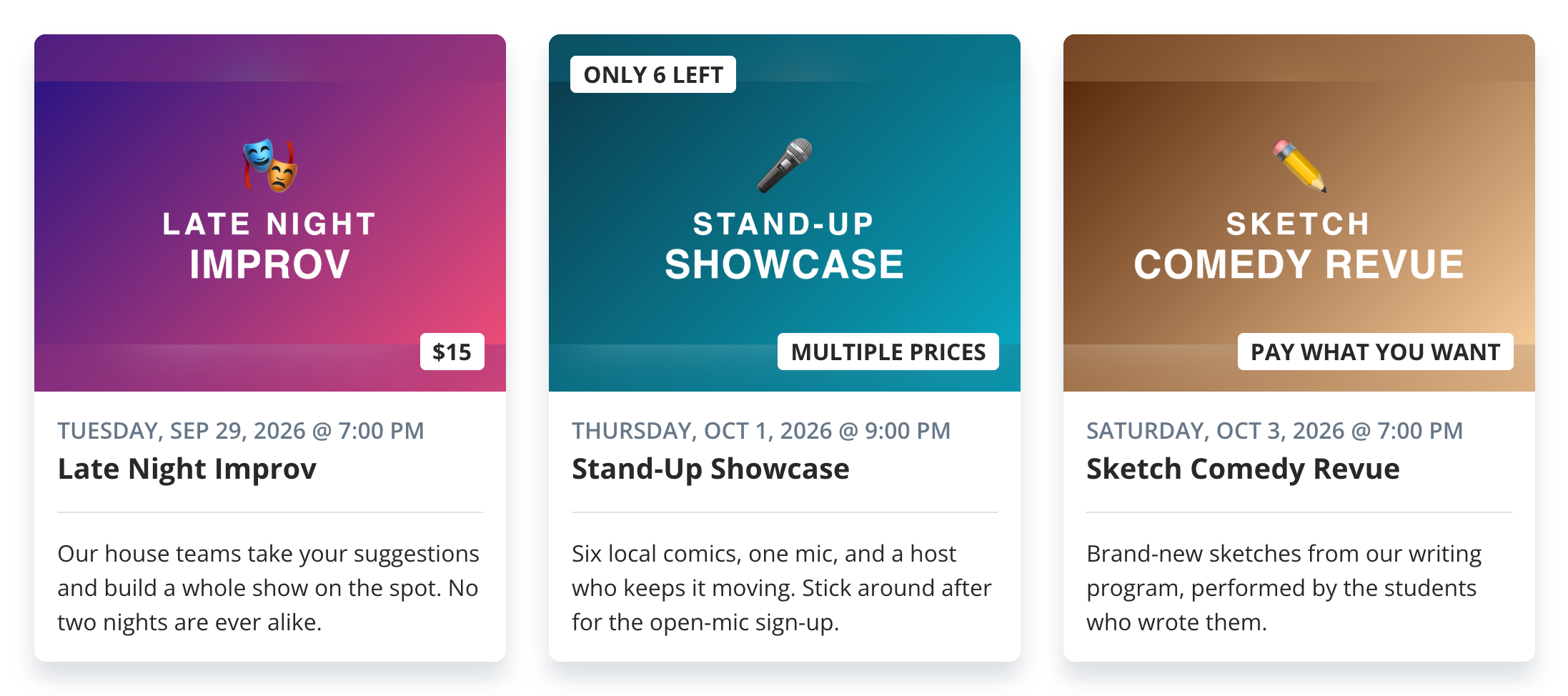
Before: the widget as it looks out of the box, with no custom CSS.
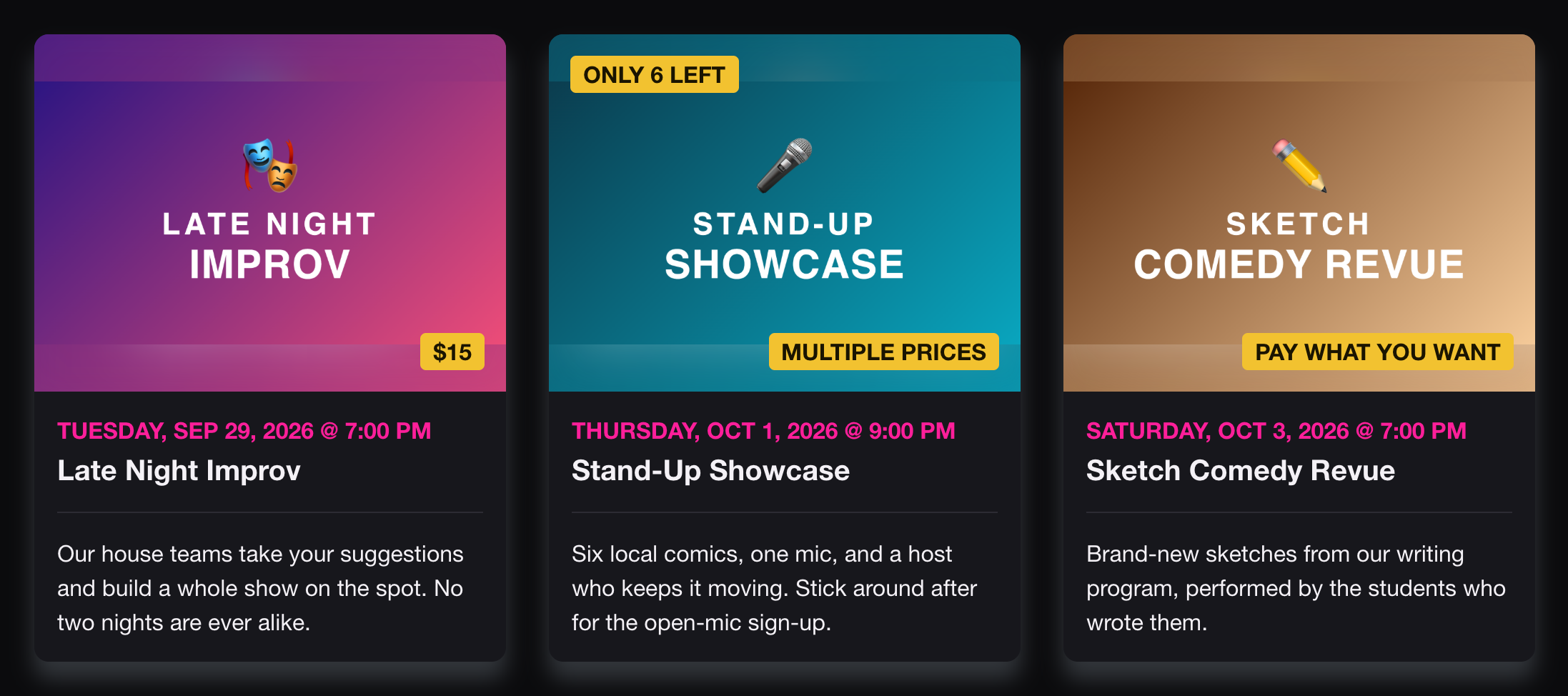
After: the same widget with the dark starter kit pasted in. Only the palette lines at the top were changed.
## Before You Start
* **Your widget is already on your website.** If not, start with [Embedding a Widget](https://docs.crowdwork.com/for-theatres/embedding-a-widget) and come back.
* **You know your brand colors as hex codes**: a `#` followed by six letters or numbers, like `#8c1c3c`. Your website builder's color or theme settings usually show them, or ask whoever designed your logo.
* **The kit only changes the CrowdWork widget.** The palette only sets color and size values, and every rule in the engine starts with `.fw-embed`, `.fw-embed-wrap` or `#fwCalendarModal`, the names the widget uses for itself, so the rest of your website stays exactly as it is.
## Step 1: Copy the Starter Kit
Edit the top section. Leave the engine alone.
```css
/* ===== YOUR PALETTE — edit these values ===== */
:root {
--cw-brand: #8c1c3c; /* dates, calendar arrows, Purchase button */
--cw-accent: #e0a526; /* price and "Only 6 left" labels */
--cw-bg: transparent; /* behind the whole widget (transparent = your page shows through) */
--cw-card: #ffffff; /* card and popup background */
--cw-text: #1f1a17; /* event names and descriptions */
--cw-muted: #6b6461; /* calendar day numbers, popup date line */
--cw-line: #eae4dc; /* dividers and calendar grid lines */
--cw-font: inherit; /* inherit = use your website's font */
--cw-radius: 12px; /* corner roundness: 0 for square */
--cw-brand-text: #ffffff; /* text on top of --cw-brand */
--cw-accent-text: #1d1d1d; /* text on top of --cw-accent */
}
/* ============================================================
CrowdWork widget theme — ENGINE
Paste this once, below your palette. Nothing here needs editing:
it just wires your palette colors to every part of the widget
(cards, calendar, and the calendar's event popup).
============================================================ */
/* Font. --cw-font: inherit works on purpose: the variable ends up
invalid, so font-family falls back to your page's own font. */
.fw-embed,
.fw-embed *:not(.fc-icon),
#fwCalendarModal .fw-modal-content,
#fwCalendarModal .fw-modal-content *:not(.btn-close) {
font-family: var(--cw-font) !important;
}
/* The widget's own frame */
.fw-embed,
.fw-embed.fw-cards {
background: var(--cw-bg) !important;
border-radius: var(--cw-radius) !important;
}
/* Cards */
.fw-embed .fw-card {
background-color: var(--cw-card) !important;
border-radius: var(--cw-radius) !important;
}
.fw-embed .fw-card .img-wrapper,
.fw-embed .fw-card .img-wrapper::before,
.fw-embed .fw-card .card-img-top {
border-top-left-radius: var(--cw-radius) !important;
border-top-right-radius: var(--cw-radius) !important;
}
.fw-embed .fw-card .card-title,
.fw-embed .fw-card .card-subtitle {
color: var(--cw-text) !important;
}
.fw-embed .fw-card .card-date {
color: var(--cw-brand) !important;
}
.fw-embed .fw-card hr {
background-color: var(--cw-line) !important;
opacity: 1 !important;
}
.fw-embed .fw-card .badge {
background-color: var(--cw-accent) !important;
color: var(--cw-accent-text) !important;
}
/* Calendar */
.fw-embed.fw-calendar {
--fc-border-color: var(--cw-line);
--fc-page-bg-color: var(--cw-card);
--fc-neutral-bg-color: var(--cw-line);
--fc-neutral-text-color: var(--cw-muted);
--fc-event-text-color: var(--cw-text);
--fc-today-bg-color: rgba(128, 128, 128, 0.15);
--fc-list-event-hover-bg-color: rgba(128, 128, 128, 0.12);
}
.fw-embed .fc-toolbar-title,
.fw-embed .fc-event-title,
.fw-embed .fc-event-time,
.fw-embed .fc-list-event-time,
.fw-embed .fc-list-event-title a {
color: var(--cw-text) !important;
}
.fw-embed .fc-col-header-cell-cushion,
.fw-embed .fc-daygrid-day-number,
.fw-embed .fc-list-day-text,
.fw-embed .fc-list-day-side-text {
color: var(--cw-muted) !important;
}
.fw-embed .fc-daygrid-day.fc-day-today {
background-color: rgba(128, 128, 128, 0.15) !important;
}
.fw-embed .fc-list-event {
border-bottom-color: var(--cw-line) !important;
}
.fw-embed.fw-calendar .fc-button-primary {
background-color: var(--cw-brand) !important;
border-color: var(--cw-brand) !important;
color: var(--cw-brand-text) !important;
}
/* Empty state */
.fw-embed .fw-empty {
color: var(--cw-muted) !important;
}
/* Loading and error panels (they sit next to .fw-embed, not inside it) */
.fw-embed-wrap .fw-embed-loading {
background-color: color-mix(in srgb, var(--cw-card) 40%, transparent) !important;
}
.fw-embed-wrap .fw-embed-loading.fw-initial,
.fw-embed-wrap .fw-embed-error {
background-color: var(--cw-card) !important;
}
.fw-embed-wrap .fw-embed-loading .spinner {
border-color: var(--cw-brand) !important;
border-right-color: transparent !important;
}
.fw-embed-wrap .fw-loading-label {
color: var(--cw-muted) !important;
}
.fw-embed-wrap .fw-error-title {
color: var(--cw-text) !important;
}
.fw-embed-wrap .fw-error-retry {
background-color: var(--cw-brand) !important;
color: var(--cw-brand-text) !important;
}
/* Calendar event popup (lives outside .fw-embed) */
#fwCalendarModal .fw-modal-content {
background-color: var(--cw-card) !important;
color: var(--cw-text) !important;
border-radius: var(--cw-radius) !important;
}
#fwCalendarModal .fw-modal-header,
#fwCalendarModal .fw-modal-footer {
border-color: var(--cw-line) !important;
}
#fwCalendarModal .fw-modal-title,
#fwCalendarModal .fw-modal-description,
#fwCalendarModal .fw-modal-description a {
color: var(--cw-text) !important;
}
#fwCalendarModal .fw-modal-subtitle {
color: var(--cw-muted) !important;
}
#fwCalendarModal .fw-modal-btn-purchase {
background-color: var(--cw-brand) !important;
color: var(--cw-brand-text) !important;
border-radius: var(--cw-radius) !important;
box-shadow: none !important;
}
#fwCalendarModal .fw-modal-btn-purchase:hover {
filter: brightness(0.9);
}
/* The close X is drawn on a pseudo-element so it takes --cw-text; masking the
button itself would also clip its keyboard focus ring. */
#fwCalendarModal .btn-close {
position: relative;
background-image: none !important;
opacity: 0.7 !important;
}
#fwCalendarModal .btn-close::before {
content: "";
position: absolute;
inset: 0;
background-color: var(--cw-text);
-webkit-mask: url("data:image/svg+xml,%3csvg xmlns='http://www.w3.org/2000/svg' viewBox='0 0 16 16'%3e%3cpath d='M.293.293a1 1 0 0 1 1.414 0L8 6.586 14.293.293a1 1 0 1 1 1.414 1.414L9.414 8l6.293 6.293a1 1 0 0 1-1.414 1.414L8 9.414l-6.293 6.293a1 1 0 0 1-1.414-1.414L6.586 8 .293 1.707a1 1 0 0 1 0-1.414z'/%3e%3c/svg%3e") center / 1em auto no-repeat;
mask: url("data:image/svg+xml,%3csvg xmlns='http://www.w3.org/2000/svg' viewBox='0 0 16 16'%3e%3cpath d='M.293.293a1 1 0 0 1 1.414 0L8 6.586 14.293.293a1 1 0 1 1 1.414 1.414L9.414 8l6.293 6.293a1 1 0 0 1-1.414 1.414L8 9.414l-6.293 6.293a1 1 0 0 1-1.414-1.414L6.586 8 .293 1.707a1 1 0 0 1 0-1.414z'/%3e%3c/svg%3e") center / 1em auto no-repeat;
}
#fwCalendarModal .btn-close:hover,
#fwCalendarModal .btn-close:focus-visible {
opacity: 1 !important;
}
#fwCalendarModal .btn-close:focus-visible {
outline: 2px solid var(--cw-text) !important;
outline-offset: 2px;
box-shadow: none !important;
}
```
## Step 2: Put In Your Colors
| Variable | What it changes | Tip |
| ------------------ | ---------------------------------------------------------------------- | ---------------------------------------------------------------------------------------------------------------------------------------------------------------------------------------------------------------------------------------------- |
| `--cw-brand` | Dates on cards, the calendar arrow buttons and the **Purchase** button | The color of your site's buttons or links. |
| `--cw-accent` | The price and **Only 6 left** labels on cards | Pick something that reads on top of a photo. |
| `--cw-bg` | The area behind the whole widget | Leave it `transparent` unless you want a panel behind the widget. The calendar has no card of its own, so its month title and day numbers sit right on this area. If they're hard to read against your page, set it to your `--cw-card` color. |
| `--cw-card` | The background of each card and of the calendar popup | White or near-white on a light site; a shade lighter than your page on a dark one. |
| `--cw-text` | Event names and descriptions | Near-black on light cards, near-white on dark ones. |
| `--cw-muted` | Calendar day numbers and the date line in the popup | A softer version of your text color that is still easy to read. |
| `--cw-line` | Dividers and calendar grid lines | A faint shade just off your card color. |
| `--cw-font` | The font for all widget text | `inherit` means your website's font, or write a font stack like `Georgia, serif`. |
| `--cw-radius` | How rounded the corners are | Use `0` for square corners. |
| `--cw-brand-text` | Text on top of your brand color | If the button text is hard to read, try white (`#ffffff`) or near-black (`#17171c`). The dark palette uses near-black on its bright pink. |
| `--cw-accent-text` | Text on top of your accent color | Only needs changing if your accent color is light. |
## Step 3: Paste It Into Your Site
The easiest place works on every website builder: **right above your widget code**, in the same block where you pasted it.
1. Open the page with your widget in your website editor, and open the block that holds the widget code (the Code, Embed, HTML or Custom HTML block).
2. Click at the very start of the widget code, before `
` and `` tags.
3. Save and publish, then check the page on your live site.
Here's what the block looks like with the kit added. The widget code underneath is a sample; keep your own.
```xml
```
{% hint style="info" %}
**Prefer one place for all your CSS?** If your website builder has a site-wide **Custom CSS** box, you can paste the kit there instead. Leave out the `` tags around it when you paste it above the widget code.
* **Nothing changed, but the page reloaded fine?** You pasted the palette without the engine. Paste the whole Step 1 block.
* **Two different looks fighting?** The kit is on the page twice. Keep one.
## Use an AI Assistant
An AI assistant like ChatGPT, Claude or Gemini can look at a screenshot of your website and fill in the palette for you. [Style Your Widget With AI](https://docs.crowdwork.com/the-academy/crowdwork-academy/custom-styling-solutions/style-your-widget-with-ai) has a ready-made message to copy, with a spot at the top for your website address, and walks you through the rest.
## Notes for AI Assistants
This section is written for AI assistants helping a theatre style the widget. Readers can skip it.
* **Edit only the palette.** Fill in the 11 variables in the `:root` block from Step 1 (`--cw-brand` through `--cw-accent-text`) using the table in Step 2. Copy the engine below the palette exactly as written. Don't shorten, rewrite or "improve" it.
* **Return one block.** The palette, then the full engine, wrapped in ``, so it can be pasted above the widget code in a single step. Mention that the tags are left out when pasting into a site-wide Custom CSS box.
* **Keep text readable.** `--cw-text` on `--cw-card`, `--cw-brand-text` on `--cw-brand`, and `--cw-accent-text` on `--cw-accent` should each reach a 4.5:1 contrast ratio. `--cw-muted` on `--cw-card` should too, since it carries the calendar day numbers.
* **Match the site's style.** Use the site's button or link color for `--cw-brand`. Leave `--cw-font` as `inherit` so the widget uses the page's own font; name a font only if the widget should differ from the text around it. Match `--cw-radius` to the site's buttons (`0` for square).
* **Dark websites.** Start from the dark palette in [On a Dark Website?](https://docs.crowdwork.com/the-academy/crowdwork-academy/custom-styling-solutions/match-the-widget-to-your-brand#on-a-dark-website). Leave `--cw-bg` as `transparent` unless the calendar's month title or day numbers would be hard to read against the page, in which case set it to the `--cw-card` color.
* **Take colors from what you can see.** Many page-reading tools return a website's text but not its styles. Use an attached screenshot for exact colors. If you had to estimate any color, say which ones, rather than presenting them as read from the site.
* **Beyond colors.** For layout changes (hiding descriptions, phone-only tweaks, styling one widget differently from another), use the [Widget CSS Reference (Advanced)](https://docs.crowdwork.com/the-academy/crowdwork-academy/custom-styling-solutions/embed-widget-styling-guide). Every selector must start with `.fw-embed` or `#fwCalendarModal`, the calendar popup, which sits outside `.fw-embed`.
* **Explain in plain words.** The person asking is usually not a web developer.
## Want to Go Further?
The [Widget CSS Reference (Advanced)](https://docs.crowdwork.com/the-academy/crowdwork-academy/custom-styling-solutions/embed-widget-styling-guide) covers shorter cards, flat cards, styling one widget differently from another, and tweaks for phones only.
{% hint style="info" %}
**About support:** custom CSS is yours to own. We can help with the widget itself, but troubleshooting custom styles falls outside our support scope. [Contact us](https://docs.crowdwork.com/contacting-support) with any other widget question.
{% endhint %}