> For the complete documentation index, see [llms.txt](https://docs.crowdwork.com/llms.txt). Markdown versions of documentation pages are available by appending `.md` to page URLs; this page is available as [Markdown](https://docs.crowdwork.com/for-theatres/managing-admissions.md).
# Managing Admissions
Learn how to view, edit, and manage ticket and class admissions from the event overview page, including moving patrons between dates, using Standby status, and contacting attendees.
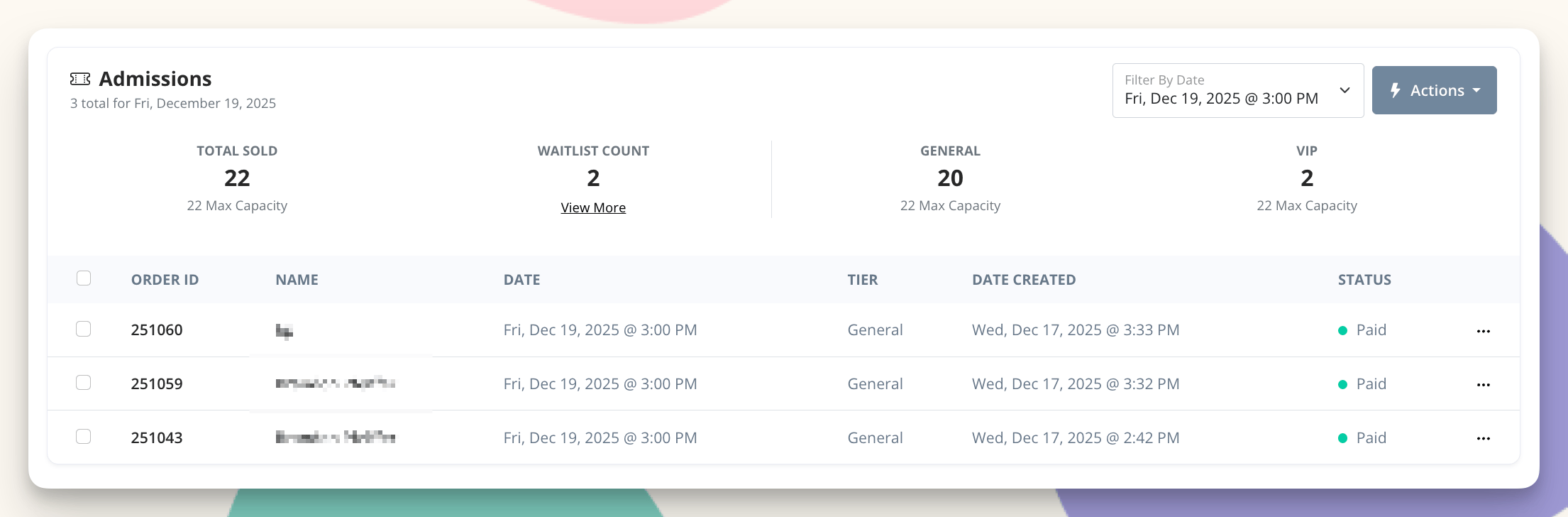
The Admissions section on each event's overview page is your central hub for managing who's attending your shows and classes. From here you can view attendance, move patrons between dates, mark tickets as Standby, and communicate directly with attendees.
***
## Finding the Admissions Table
1. Navigate to **Shows** or **Classes** in your Dashboard sidebar
2. Click on the event you want to manage
3. Scroll down to the **Admissions** section
The Admissions table displays all tickets (for shows) or registrations (for classes) for the selected event.
***
## Understanding the Admissions Overview
Above the Admissions table, you'll see key stats for the selected date:
| Stat | Description |
| ------------------ | ------------------------------------------------------------------------------ |
| **Total Sold** | Total tickets or registrations sold for this occurrence |
| **Waitlist Count** | Number of patrons on the waitlist (click "View More" to see the full waitlist) |
| **Tier Counts** | Breakdown by ticket tier, showing sold vs. capacity for each |
### Filtering by Date
If your event has multiple occurrences (dates/times), use the **Filter By Date** dropdown in the top right of the Admissions section to switch between them. This lets you view admissions for a specific performance or class session.
***
## The Admissions Table
The table displays all admissions for the selected occurrence with the following columns:
| Column | Description |
| ----------------- | ---------------------------------------------------------- |
| **Checkbox** | Select one or more admissions for bulk actions |
| **Order ID** | The unique order number (click to view full order details) |
| **Name** | Patron's name |
| **Date** | The occurrence date and time |
| **Tier** | Which ticket tier they purchased |
| **Date Created** | When the order was placed |
| **Status** | Current status (Paid/Active, Refunded, or Standby) |
| **Actions (•••)** | Individual actions menu (Edit, Send Email, etc.) |
***
## Selecting and Editing Admissions
You can select one or more admissions to perform bulk actions.
### Selecting Admissions
1. Check the box to the left of any admission you want to modify
2. Select multiple admissions by checking multiple boxes
3. Use the checkbox in the header row to select all visible admissions
### Using the Actions Menu
After selecting one or more admissions, click the **Actions** button at the top right of the table. Available actions include:
* **Edit** — Modify the selected admissions (change date or status)
* **Send Email** — Contact the selected patrons directly
Steps to Edit an Admission from an Event Overview
***
## Editing Admissions
The Edit function allows you to move patrons to a different date or change their admission status.
### Moving Patrons to a Different Date
{% hint style="warning" %}
**Same event only.** The steps below move a patron between dates of the **same** show or class. To move a patron to a **completely different event**, see [Managing Exchanges](https://docs.crowdwork.com/for-theatres/managing-exchanges) instead — or click the patron's name in the Admissions table to go directly to their profile.
{% endhint %}
🎬 [Watch: Moving patrons between dates and events (1:37)](https://cln.sh/mXKG5CYH)
If a patron needs to attend a different occurrence of the same event:
1. Check the box next to their admission
2. Click **Actions** → **Edit**
3. In the modal, use the **Select Date** dropdown to choose a new occurrence
4. Click **Confirm Changes**
{% hint style="info" %}
**Tip:** Check "Send updated confirmation emails" if you want the patron to receive an automatic notification about their new date.
{% endhint %}
{% hint style="warning" %}
**Note:** Editing admissions may render old QR codes obsolete. New ones will be generated automatically.
{% endhint %}
{% hint style="success" %}
**Need to move a patron to a completely different show or class?** Click the patron's name anywhere it appears — in this Admissions table, on the Tickets or Registrations screen, or in Customers or Students — to open their profile. Then click **Edit** → select the admission → **Actions** → **Edit**. From there you can change the event, date, and tier. Full instructions: [Managing Exchanges](https://docs.crowdwork.com/for-theatres/managing-exchanges)
{% endhint %}
### Changing Admission Status
Admissions can have one of the following statuses:
| Status | Description |
| --------------- | ------------------------------------------------------------ |
| **Paid/Active** | The default status for valid, active admissions |
| **Standby** | The admission is on file but doesn't count toward capacity |
| **Refunded** | The admission has been refunded (set via the refund process) |
#### What is Standby?
**Standby** is a special status that keeps the admission record on file but removes it from your capacity counts. This is useful when:
* A patron can't attend but you're not ready to issue a full refund
* You want to hold their information while freeing up their seat
* The patron might want to be moved to a different date later
* You need to temporarily release a spot for waitlisted patrons
{% hint style="success" %}
**Standby vs. Refund:** Use Standby when you want to keep the patron's record on file without their ticket counting against capacity. Use Refund when you're returning their payment and fully canceling their admission. See [Issuing Refunds](/for-theatres/issuing-refunds.md) for refund instructions.
{% endhint %}
### How to Mark an Admission as Standby
1. Check the box next to the admission you want to modify
2. Click **Actions** → **Edit**
3. Change the **Status** dropdown from "Paid/Active" to "Standby"
4. Click **Confirm Changes**
The admission will remain in your records but won't count toward tier quantities or capacity caps, freeing up that spot for other patrons (including those on your [waitlist](/for-theatres/setting-up-waitlists.md)).
Edit Selected Admissions modal
***
## Contacting Attendees
Need to reach out to specific patrons? You can email them directly from the Admissions table.
### Sending Emails to Selected Patrons
1. Check the boxes next to the patrons you want to contact
2. Click **Actions** → **Send Email**
3. Compose your message in the email form (confirm the email adheres to our policies)
4. Click **Send Email**
This is useful for:
* Notifying patrons of schedule changes
* Sending reminders before the event
* Communicating important venue information
* Following up after moving someone to Standby
{% hint style="info" %}
**Want a copy of what you send?** Add your box office address to **CC Email Addresses** in [Theatre Settings — Email Communication](https://docs.crowdwork.com/for-theatres/customizing-your-theatre-settings#email-communication) and it's copied on every email you send from here. Note that it's a CC, so patrons can see the address, and you get one copy per recipient.
{% endhint %}
Steps to Email Attendees from an Event Overview
Steps to Email Attendees from an Event Overview
***
## Individual Admission Actions
For actions on a single admission, click the three dots **•••** at the right end of any row. Options include:
* **Order Details** — See the full order details
* **View Custom Submissions** — See the custom checkout fields related to this admission (if any)
* **Issue Refund** — Begin the refund process (see [Issuing Refunds](/for-theatres/issuing-refunds.md))
Steps to access individual admission actions from an Event Overview
***
## Checking In Attendees
When it comes time to check-in your patrons, instead of using the event overview and admissions table, you'll check in attendees from the Dashboard or using the CrowdWork POS mobile app.
### Check-In from the Dashboard
* **Shows** - Visit the [Tickets](https://crowdwork.com/dashboard/tickets) screen and select the ✅ checkmark next to the ticket.
* **Classes** - Visit the [Registrations](https://crowdwork.com/dashboard/registrations) screen and select the ✅ checkmark next to the registration.
### Check-In from the POS App
The CrowdWork POS app is designed for easy check-in at the door:
* View all ticket holders for an event
* Tap to check in individuals or entire groups
* Check-ins sync automatically between the app and Dashboard
For detailed instructions, see [Setting Up Point of Sale (POS)](/for-theatres/setting-up-point-of-sale-pos.md).
***
## Related Tasks
| Task | Guide |
| ------------------------------------------------------ | ------------------------------------------------------------------------------- |
| **Issue a refund** | [Issuing Refunds](/for-theatres/issuing-refunds.md) |
| **Move patron to different event** | [Managing Exchanges](/for-theatres/managing-exchanges.md) |
| **Add new tickets for a patron** | [Adding Tickets for a Patron](/for-theatres/adding-tickets-for-a-patron.md) |
| **Issue complimentary or free tickets** | [Issuing Complimentary & Free Tickets (Comps)](/for-theatres/issuing-comps.md) |
| **Invite waitlisted patrons** | [Setting Up Waitlists](/for-theatres/setting-up-waitlists.md) |
| **Leave an internal note on a show, class, or patron** | [Staff Notes](https://docs.crowdwork.com/for-theatres/staff-notes) |
| **Check in at the door** | [Setting Up Point of Sale (POS)](/for-theatres/setting-up-point-of-sale-pos.md) |
***
## FAQs
Can I edit multiple admissions at once?
Yes! Select multiple admissions using the checkboxes, then click Actions → Edit. All selected admissions will be updated with the same changes (new date or status).
What happens when I mark someone as Standby?
Their admission stays on file but no longer counts toward your capacity. The seat becomes available for purchase by others. You can change them back to Paid/Active at any time, or move them to a different date.
Can I undo a Standby status?
Yes. Select the admission, click Actions → Edit, and change the Status back to "Paid/Active." Note that if the event is now at capacity, this may put you over your limit.
Does editing an admission change the payment?
No. Moving a patron to a different date or changing their status does not affect their payment. Refunds or additional charges must be handled separately. See [Issuing Refunds](/for-theatres/issuing-refunds.md).
Can I move someone to a different date of the same show or class?
Yes. From the event overview page, scroll to the Admissions table, select the patron's admission, click **Actions** → **Edit**, and choose the new date. See [Moving Patrons to a Different Date](https://docs.crowdwork.com/for-theatres/managing-admissions#moving-patrons-to-a-different-date) above.
Can I move someone to a completely different show or class?
Yes. Click the patron's name to open their profile, then click **Edit** → select the admission → **Actions** → **Edit**. From the edit modal you can change the event, date, and tier. Full instructions: [Managing Exchanges](https://docs.crowdwork.com/for-theatres/managing-exchanges).
Can I move a show ticket to a class, or a class registration to a show?
No. Show tickets can only be moved to other shows, and class registrations can only be moved to other classes. If you need to cancel one and create the other, issue a refund on the original admission and then add a new ticket or registration from the patron's profile. See [Issuing Refunds](https://docs.crowdwork.com/for-theatres/issuing-refunds) and [Adding Tickets for a Patron](https://docs.crowdwork.com/for-theatres/adding-tickets-for-a-patron).
How do I see who's on the waitlist?
Click "View More" below the Waitlist Count in the Admissions overview, or navigate to [**Waitlist**](https://crowdwork.com/dashboard/waitlist) in your Dashboard sidebar. See [Setting Up Waitlists](/for-theatres/setting-up-waitlists.md) for complete waitlist management instructions.
Can I check people in from the website?
Yes, visit either [Tickets](https://crowdwork.com/dashboard/tickets) (for Shows) or [Registrations](https://crowdwork.com/dashboard/registrations) (for classes). However, the POS mobile app provides a better experience for check-in at the door. Check-ins sync between the app and Dashboard automatically. See [Setting Up Point of Sale (POS)](/for-theatres/setting-up-point-of-sale-pos.md).
Can I add new tickets for a patron and collect payment at the same time?
Yes. From any customer's profile, click the blue **Edit Customer** button, then click the **+ Add Tickets** button to open the Add Tickets modal. You can select the event, date, and tier, then optionally collect payment by card or cash — including entering card details directly for phone sales. See [Adding Tickets for a Patron](/for-theatres/adding-tickets-for-a-patron.md) for full instructions.
***
## Need Help?
If you have questions about managing admissions or need assistance with a specific situation, [contact our support team](/contacting-support.md).