πSetting Up Waitlists
Learn how to use CrowdWork's native waitlist feature to capture demand for sold-out events and easily notify patrons when spots become available.
Are you a patron looking to join a waitlist? When an event is sold out, you'll see a "Join Waitlist" button on the event page. Click it, and you'll be notified if spots open up!
The following guide is for venue administrators and managers who want to configure and manage waitlists for their events.

What Are Waitlists?
Waitlists turn "sold out" from a dead end into an opportunity. When your events reach capacity, interested patrons can add themselves to a waitlist, and you can notify them when spots become available.
CrowdWork's native waitlist feature:
Captures demand automatically when events sell out
Tracks by occurrence β each waitlist submission is tied to a specific date/time
Stores submissions in one central dashboard for all your events
Enables direct outreach with built-in email functionality
Displays waitlist counts on your event overview pages
Works for both shows and classes with flexible settings
Good news! Waitlist collection is enabled by default for all new accounts. If you're already up and running, your sold-out events are likely already capturing waitlist submissions.
Configuring Waitlist Settings
Waitlist collection is controlled at the theatre level in your Checkout Options settings.

Accessing Waitlist Settings
Navigate to Theatre Details in your Dashboard sidebar
Scroll down to the Checkout Options section
Find the Collect Waitlist Submissions dropdown
Direct link: Theatre Checkout Options
Waitlist Collection Options
Everywhere (default)
Collect waitlist submissions for all sold-out shows and classes
Only Shows
Collect waitlist submissions only for sold-out shows
Only Classes
Collect waitlist submissions only for sold-out classes
Do Not Collect
Disable waitlist collection entirely
What Your Patrons See
When an event reaches its max capacity, the experience changes automatically for your patrons.
The Waitlist Button
When a show or class is sold out for a specific date/time:
The "Get Tickets" or "Register" button transforms into a "Join Waitlist" button
Clicking the button opens a simple modal explaining that they'll receive an email if space becomes available
Patrons confirm by clicking "Join Waitlist" in the modal
The patron is added to the waitlist for that specific occurrence (date and time), not the event as a whole.

Logged-In vs. New Patrons
Logged-in patrons: Automatically added to the waitlist with one click
New visitors: Prompted to sign in or create an account first, then redirected back to join the waitlist
Already on the Waitlist
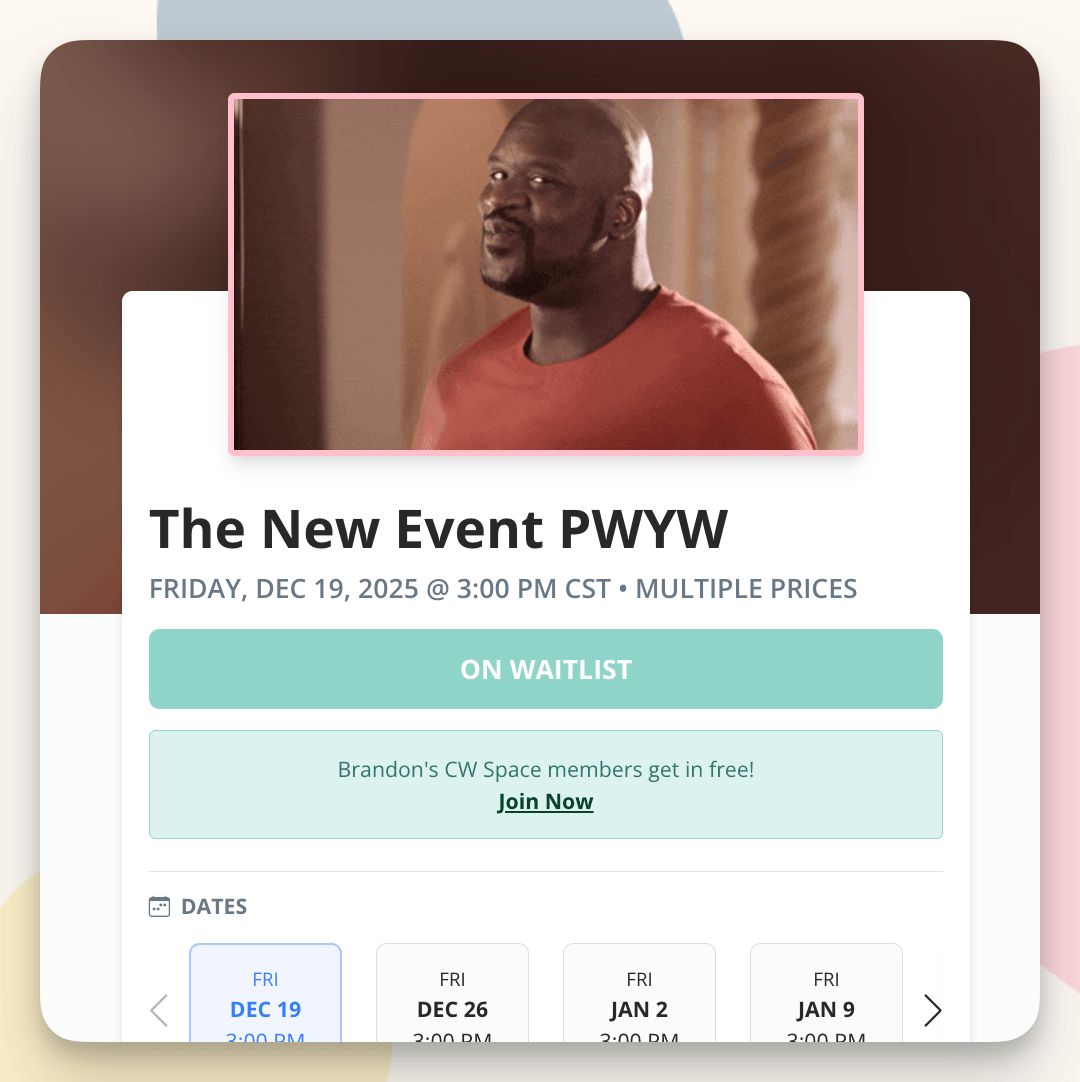
If a patron returns to the event page after joining the waitlist, they'll see a message indicating they're already on the waitlist for that event.

Managing Your Waitlist
Viewing All Waitlist Submissions
Access your complete waitlist from the Dashboard sidebar:
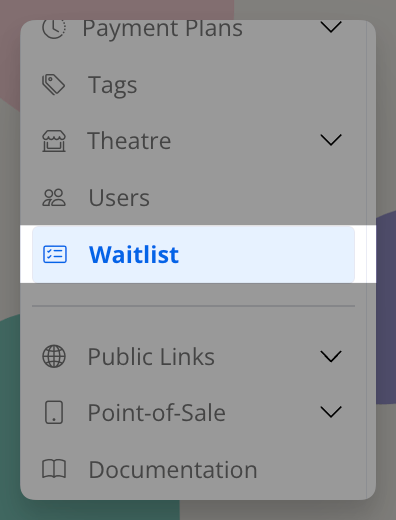
Click Waitlist in the left-hand menu
View all waitlist submissions across all your events
Direct link: Waitlist Dashboard

Filtering Your Waitlist
Use the filters at the top of the waitlist page to narrow down submissions:
Filter by Event
Show only submissions for a specific event
Filter by Date
Show only submissions for a specific occurrence/date
Filter by Email
Search for a specific patron by email address
Waitlist Count on Event Pages
For a quick view of waitlist demand, check your event's overview page:
Navigate to any event in your Dashboard
Scroll down to the Admissions section
The Waitlist Count displays how many people are waiting for that event
Click the "View More" link below the count to jump directly to the waitlist filtered for that specific event and date.

Inviting Patrons from the Waitlist
When spots open up, here's how to notify your waitlisted patrons.
Step 1: Make Spots Available
Before inviting anyone from the waitlist, you need to have tickets available for them to purchase. Here are the most common ways spots become available:
Refunding an Existing Ticket
The most common scenario is when a ticket holder can no longer attend and requests a refund. After you issue a refund, their ticket is released and becomes available for purchase.
Marking an Admission as Standby
If a patron can't attend but you're not ready to issue a full refund (or they want to potentially attend a different date), you can mark their admission as Standby. This releases their spot without fully canceling their ticket.
To mark an admission as Standby:
Go to the event's overview page in your Dashboard
Scroll down to the Admissions section
Check the box next to the admission you want to modify
Click the Actions button at the top right of the table
Select Edit
Change the Status dropdown from "Paid/Active" to "Standby"
Click Confirm Changes

Other Ways to Add Availability
You can also make spots available by:
Increasing max capacity on the event
Adding capacity to an existing tier
Creating a new tier (consider making it password-protected for waitlist patrons)
Adding a new date/occurrence β see our Academy guide on using waitlists to promote new dates
Important: If your max capacity is still met, patrons will still see "Join Waitlist" instead of the purchase button. Spots must be available for them to complete a purchase.
Step 2: Select Waitlist Recipients
Go to the Waitlist page in your Dashboard
Use the checkboxes on the left side of each row to select who you want to invite
You can select individual patrons or multiple at once

Step 3: Send the Invitation Email
Click the Actions button at the top right of the table
Select Send Email
The email form opens with pre-filled defaults:
Subject: "A waitlist spot has opened up!"
Body: A message explaining that a spot is available with a link to purchase
Customize the message if needed (especially if using a password-protected tierβinclude the password!)
Check the Terms of Service agreement box
Click Send Email
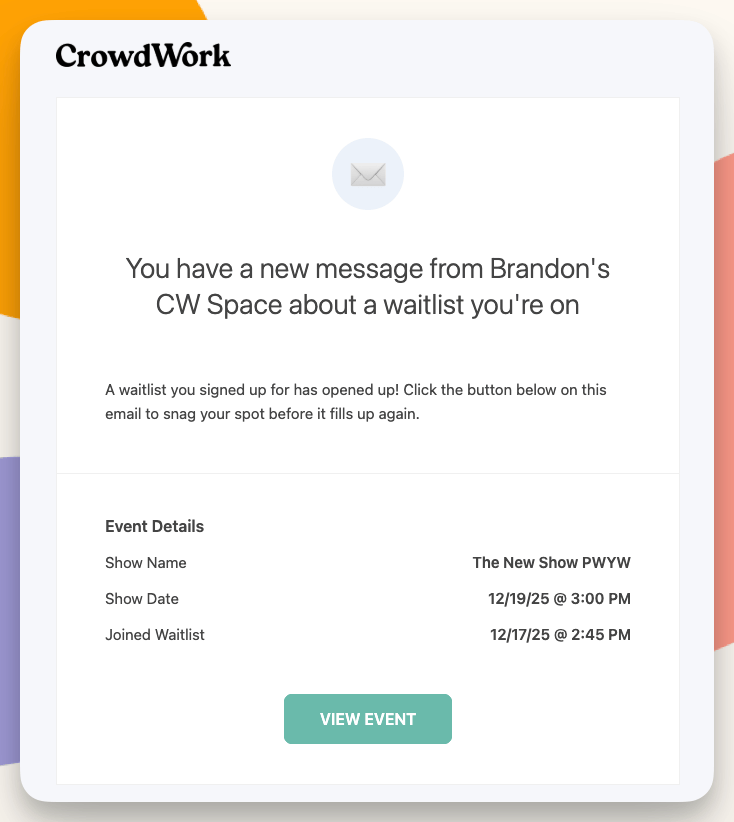
The email automatically includes event details and a button linking patrons directly to the event page where they can complete their purchase.

Step 4: Patrons Receive Email & Respond
Invited patrons receive an email with:
The subject line you specified (prefixed with your theatre name)
Your custom message
Event details (name, date, time)
A button to view the event and purchase tickets
The button links directly to the same occurrence (date/time) they originally joined the waitlist for. Patrons then follow the normal checkout process to claim their spot for that occurrence of the event.

The Complete Workflow
Here's the typical waitlist process from start to finish:
Event sells out β Your show or class reaches max capacity
Waitlist activates β The "Join Waitlist" button automatically appears
Patrons sign up β Interested people add themselves to the waitlist
You monitor demand β Check the Waitlist page or event overview to see interest
Spots open up β A ticket holder requests a refund, you mark an admission as Standby, or you add capacity
You invite patrons β Select waitlisted individuals and send them an email
Patrons purchase β They click the link in the email and complete checkout
Best Practices
How Many People Should You Email?
When spots open, you might wonder how many waitlisted patrons to invite. Consider:
Invite more than you have spots for β Not everyone will respond immediately (or at all). Industry data suggests about 40% of waitlisted patrons convert when given the opportunity.
Send in waves β Start with a portion of your waitlist, give them time to respond, then invite more if spots remain.
Set a deadline β In your email, mention a timeframe (e.g., "Spots are first-come, first-served and may fill quickly").
How Long Should You Wait Before Emailing More?
There's no one-size-fits-all answer, but here are some guidelines:
1+ weeks away
Give 24-48 hours before emailing additional people
A few days away
Give 12-24 hours before the next wave
Tomorrow/same day
Email everyone immediatelyβit's now or never!
Using Password-Protected Tiers
For fairness and to reward your waitlisted patrons:
Create a new tier with a limited quantity
Set a password (e.g., "WAITLIST2024")
Include the password in your email to waitlisted patrons
They use the password at checkout to access the reserved tier
This prevents random visitors from snagging the newly added spots.
Using Waitlists to Promote New Dates
Want to direct waitlisted patrons to a completely new date or event? Since the default email link goes back to the original occurrence, you'll need to customize your message. Check out our Academy guide for detailed steps on using waitlists to promote new dates or events.
Tracking Waitlist Activity
Emails Sent Column
On the Waitlist page, you'll see columns showing:
Emails Sent β How many invitation emails each person has received
Last Email Sent β The date and time of the most recent email
This helps you track who you've already contacted and avoid sending duplicate invitations.
Waitlist Count on Event Overview
The Admissions section on each event's overview page shows:
Total tickets sold
Waitlist count for that date
Quick link to view the waitlist
FAQs
We Want Your Feedback!
This is version one of our native waitlist feature, and we're actively developing improvements based on your input. If you have suggestions, feature requests, or run into any issues, please reach out to our support team or submit a feature request.
Need Help?
If you have questions about configuring waitlists or need assistance with your waitlist workflow, contact our support team.
Last updated
Was this helpful?