
🎟️Adding Tickets for a Patron

How to add tickets or class registrations directly from a customer's profile in the Dashboard, including how to collect payment by card or cash for phone sales and off-site transactions.

Admins can add tickets β€” or class registrations β€” to any patron's account directly from the Dashboard β€” no need to use the public event page or the POS app. This is the recommended method for phone sales, walk-up requests, or any situation where you need to create a ticket and optionally collect payment in a single step.

Direct links: Customersarrow-up-right β€’ Studentsarrow-up-right


When to Use This

  • Taking a ticket or registration order over the phone

  • Adding complimentary or manually-arranged tickets for shows or classes

  • Selling tickets for events far enough in the future that they may not appear in the POS app

  • Any time you want to collect card or cash payment while creating the ticket record

circle-info

POS app vs. Dashboard: The POS app is optimized for in-person check-ins and door sales of events happening within the next week. The Dashboard is better suited for phone orders, future events, and situations where you want a full order record tied to a patron profile.


Step 1: Edit the Patron

Edit Customer button

Navigate to Customersarrow-up-right or Studentsarrow-up-right in your Dashboard sidebar. You can search by name or email to locate the patron.

  • Click the patron's name (left-most column) or the View link (right-most column)

  • Then, click the Edit button atop their profile

If the patron doesn't have an account yet, create one first by clicking: + Add New Customerarrow-up-right –or– + Add New Studentarrow-up-right


Step 2: Open the Add Tickets Modal

Add Tickets button

On the patron's profile, click the + Add Tickets button.

A modal will appear with all the fields needed to create the ticket and, optionally, collect payment.


Step 3: Select Event, Date, and Tiers

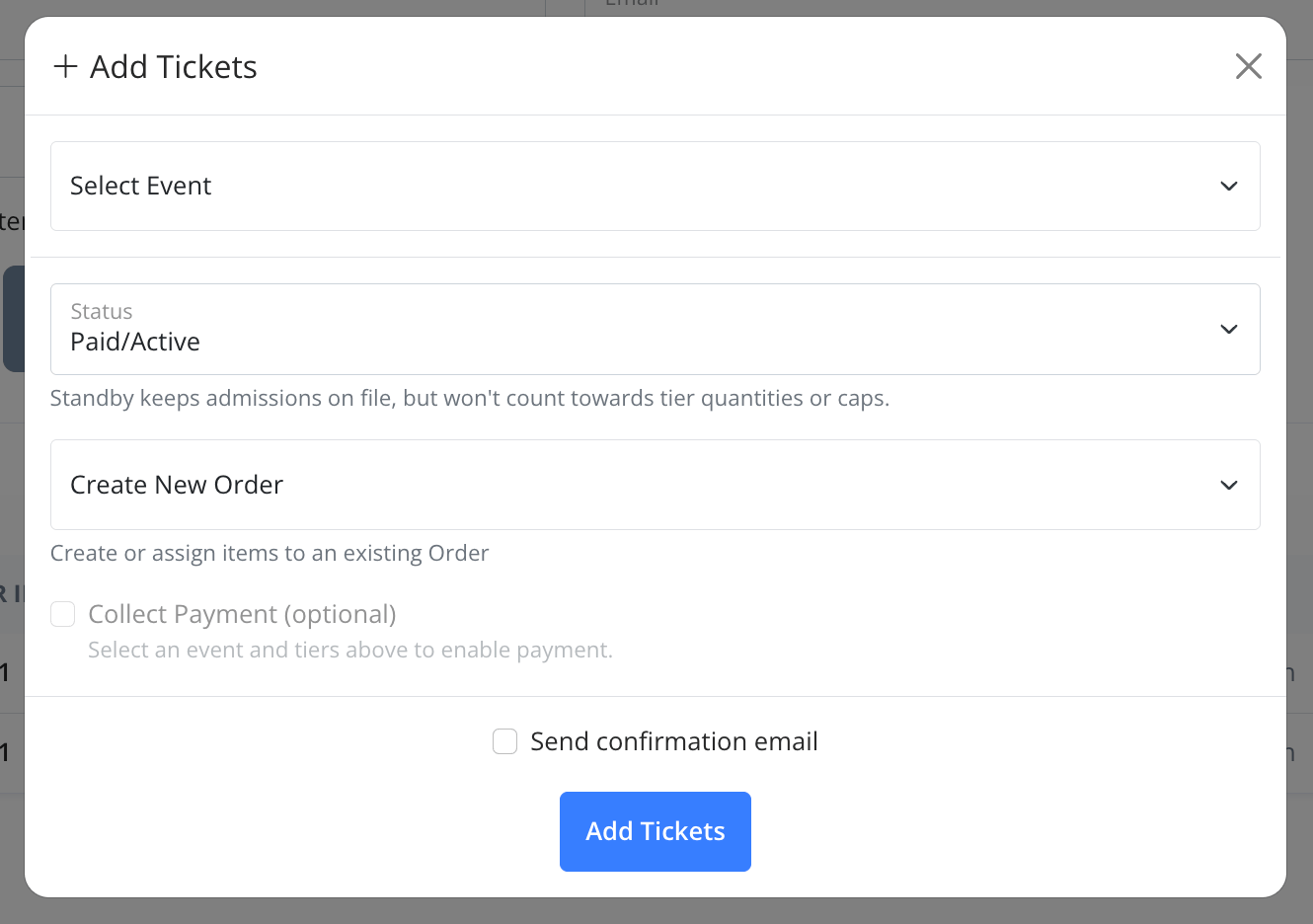
Add Tickets modal with event, date, and tier selection
  1. Use the Event dropdown to select the show or class. Events are grouped by Active, Paused, and Archived.

  2. Once an event is selected, a Date dropdown will appear β€” choose the specific occurrence the patron will attend.

  3. Tier quantity dropdowns will appear for each available ticket tier, showing the tier name and price. Set the quantity for each tier the patron wants.


Step 4: Set Status and Order

Status controls how the ticket is recorded:

Status
Description

Paid/Active

Default. Ticket is active and counts toward tier quantities and capacity.

Standby

Ticket is on file but does not count toward tier quantities or capacity caps. Useful for reservations or waitlist holds.

Existing Order (optional): By default, a new order will be created. If you want to add these tickets to an existing order for this customer, use the dropdown to select it.


Step 5: Collect Payment (Optional)

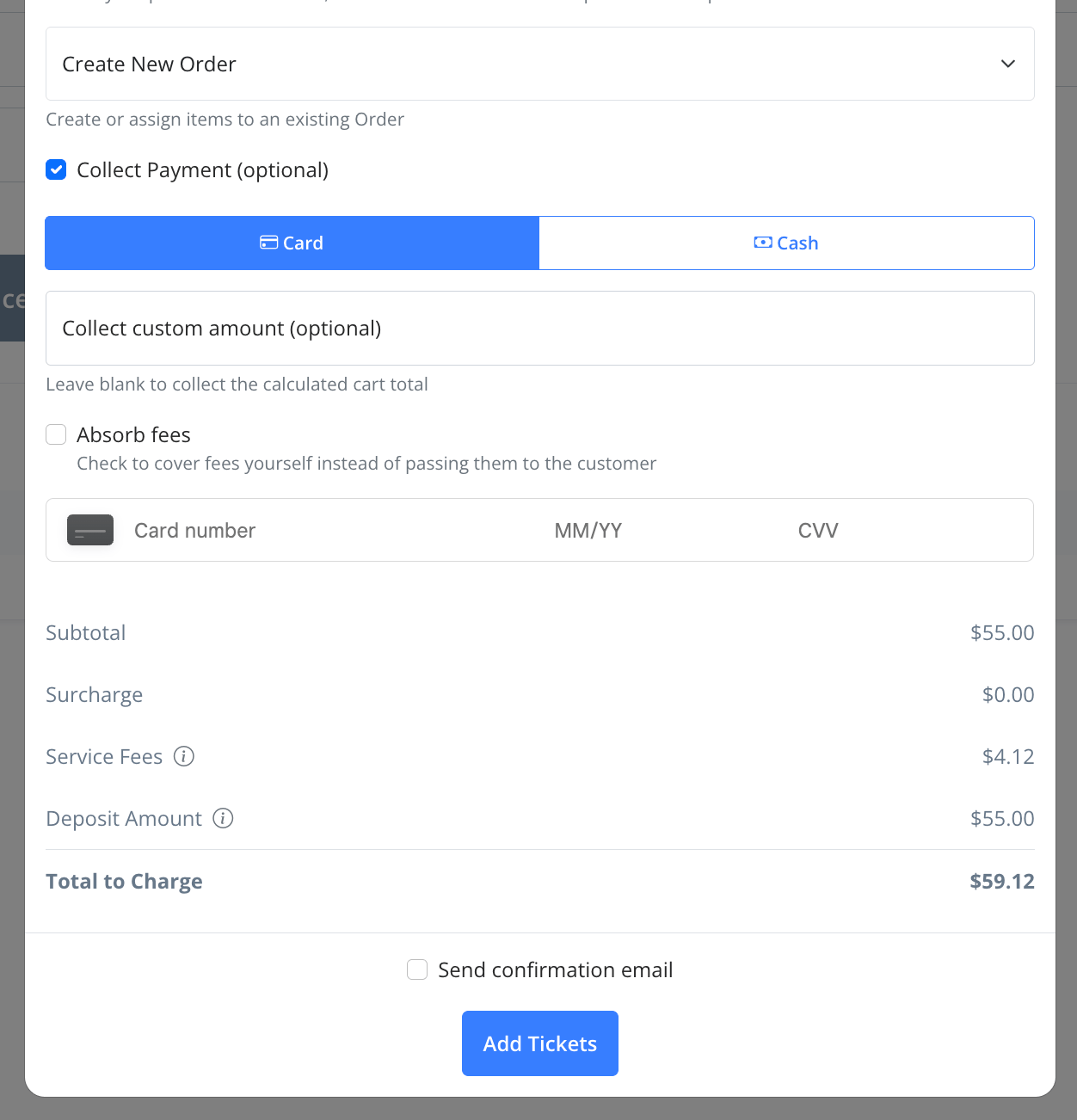
Add Tickets modal showing payment collection form with card details

Payment collection is optional. If you're adding complimentary tickets or recording an offline transaction, leave Collect Payment unchecked and skip to Step 6.

To collect payment, check the Collect Payment checkbox. This enables the payment section.

Choosing a Payment Method

Select Card or Cash using the toggle:

  • Card β€” Enter the patron's card details directly in the form. Ideal for phone sales where the patron reads their card number to you.

  • Cash β€” Records the transaction as a cash payment. No card entry required.

Custom Amount (Optional)

Leave the Collect custom amount field blank to charge the calculated cart total based on the tiers selected. Enter a dollar amount to override and charge a specific amount instead.

Absorb Fees (Card payments only)

Check Absorb fees if you want to cover the service fees yourself rather than passing them to the patron. This overrides your theatre's global fee settings for this single transaction β€” useful when you want to offer a courtesy to a specific patron without changing your theatre-wide defaults.

When fees are absorbed, the Service Fees line in the breakdown will show the amount as "(absorbed)" and the Total to Charge will reflect only the ticket price.

Fee Breakdown

Before submitting, review the fee summary:

Line Item
Description

Subtotal

Total ticket price before fees

Surcharge

Any surcharge configured for your theatre

Service Fees

CrowdWork and credit card processing fees combined

Deposit Amount

The amount deposited to your account after fees

Total to Charge

The amount the patron will be charged


Step 6: Send Confirmation Email (Optional)

Check Send confirmation email if you want the patron to receive an order confirmation. The confirmation is sent to the email address on their customer profile.


Step 7: Submit

Click Add Tickets to complete the transaction. The tickets will appear in the patron's order history and in your Tickets or Registrations screens.


Task
Guide

Edit or exchange an existing ticket

Manage admissions from the event page

Sell tickets in person at the door


FAQs

chevron-rightCan I add tickets to an event that's already sold out?hashtag

Yes. Adding tickets through the Dashboard bypasses the public ticket purchase flow, so you can add tickets regardless of whether the event shows as sold out on your public page. Be aware this will put you over your set capacity.

chevron-rightWhat's the difference between Paid/Active and Standby?hashtag

Paid/Active is the normal status β€” the ticket is valid and counts toward your tier quantities and capacity caps. Standby keeps the ticket record on file but it doesn't count toward capacity. Use Standby for holds, tentative reservations, or when a patron might attend but you're not ready to confirm their spot.

chevron-rightDoes absorbing fees here change my theatre's global fee settings?hashtag

No. The Absorb fees checkbox on this form applies only to this single transaction. Your theatre-wide fee settings in Theatre Details are not affected.

chevron-rightWhy isn't the Collect Payment checkbox enabled yet?hashtag

The payment section becomes active once you've selected an event and at least one tier quantity. Select your event, date, and tier quantities first, then the Collect Payment option will become available.

chevron-rightCan I use this for phone sales?hashtag

Yes, this is one of the primary use cases. Select Card as the payment method and enter the patron's card details as they read them to you over the phone. The transaction is processed immediately and a confirmation email can be sent to the patron.

chevron-rightWhy use this instead of the POS app for phone sales?hashtag

The POS app displays a limited number of upcoming events to keep load times fast, so events further in the future may not appear there. The Dashboard Add Tickets modal shows all active events. It also creates a full order record tied to the customer profile, which is useful for tracking and reporting.


Have questions or need help with a specific situation? Contact our support teamarrow-up-right.

Last updated

Was this helpful?