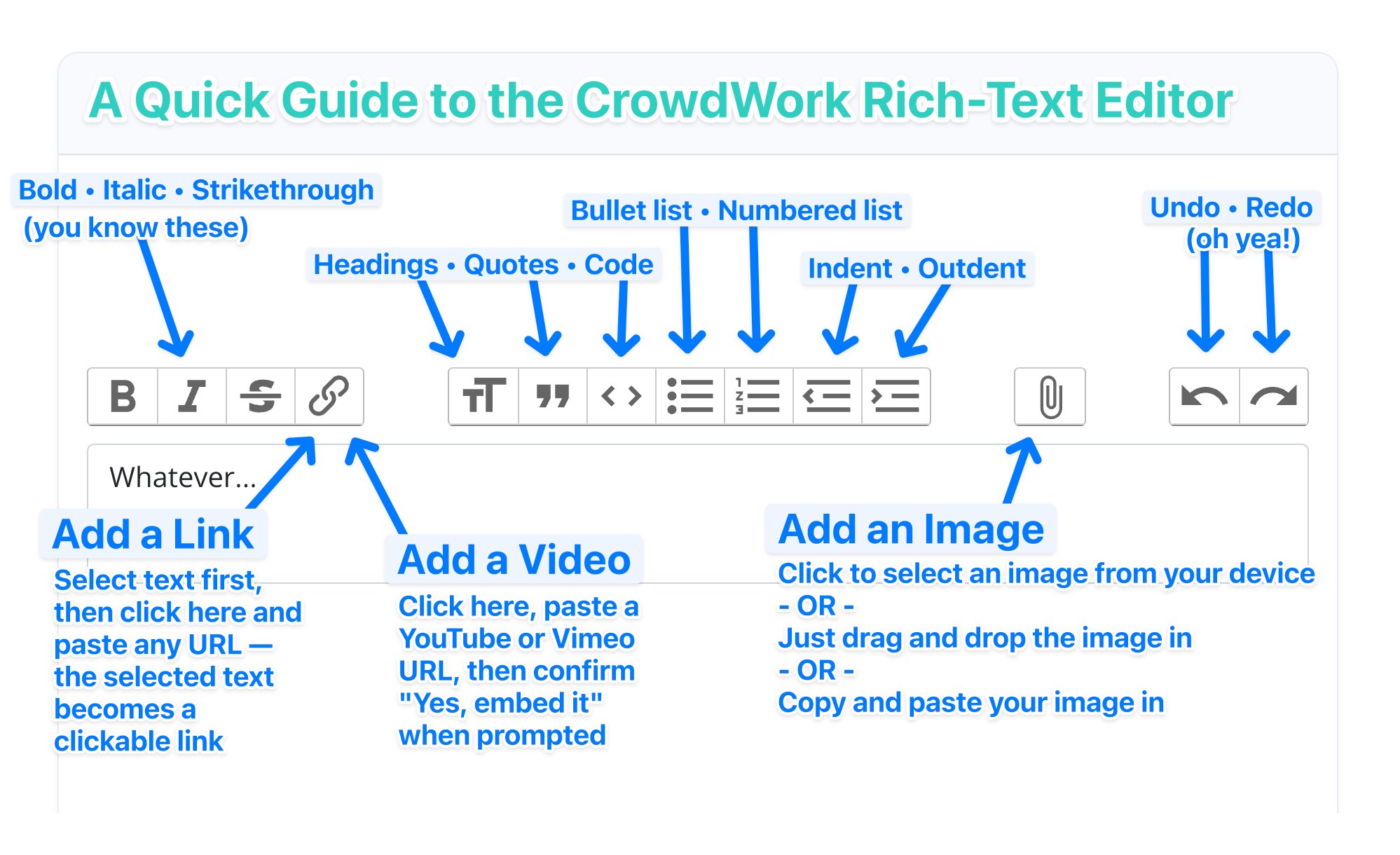
The rich text editor toolbar. The attachment button (paperclip) is only available in Show/Class Description and Confirmation Email fields.
The rich text editor toolbar. The attachment button (paperclip) is only available in Show/Class Description and Confirmation Email fields.
 | Link | Attaches a URL to selected text — also triggers the video embed prompt when a YouTube or Vimeo URL is detected |
| **TT** | Heading | Toggles selected text between heading and body text size |
| " " | Blockquote | Formats selected text as an indented block quote |
| `<>` | Code | Formats selected text as inline monospace code |
| ☰ | Bullet List | Creates an unordered (bulleted) list |
| 1☰ | Numbered List | Creates an ordered (numbered) list |
| ⇐☰ | Decrease Indent | Moves the current list item one level to the left |
| ☰⇒ | Increase Indent | Moves the current list item one level to the right, creating a nested sub-list |
|
| Link | Attaches a URL to selected text — also triggers the video embed prompt when a YouTube or Vimeo URL is detected |
| **TT** | Heading | Toggles selected text between heading and body text size |
| " " | Blockquote | Formats selected text as an indented block quote |
| `<>` | Code | Formats selected text as inline monospace code |
| ☰ | Bullet List | Creates an unordered (bulleted) list |
| 1☰ | Numbered List | Creates an ordered (numbered) list |
| ⇐☰ | Decrease Indent | Moves the current list item one level to the left |
| ☰⇒ | Increase Indent | Moves the current list item one level to the right, creating a nested sub-list |
|  | Attach File | Opens a file picker to upload an image directly into the editor |
| ↩ | Undo | Undoes the last action |
| ↪ | Redo | Redoes the last undone action |
{% hint style="info" %}
**The attachment button** **is only available in Show Description, Class Description, Show Confirmation Email, and Class Confirmation Email fields.** The Global Descriptions in Theatre Settings — Show, Class and Membership — along with the Membership Tier Description and a tier's Confirmation Email Details, support text formatting only.
{% endhint %}
***
## Adding Images
Images can be added to Show and Class **Descriptions** and **Confirmation Email** fields. There are three ways to do it — use whichever is easiest for your workflow.
### Method 1: Use the Attachment Button
1. Click the **paperclip** icon in the toolbar
2. Select your image file from your computer
3. The image inserts immediately at the cursor position
### Method 2: Drag and Drop
1. Open your file manager or desktop so you can see both it and the editor
2. Drag your image file directly into the editor
3. Drop it where you want it to appear
### Method 3: Copy and Paste
1. Copy any image to your clipboard (right-click → Copy Image, or use a screenshot tool)
2. Click inside the editor where you want the image
3. Paste with **Ctrl+V** (Windows) or **⌘V** (Mac)
{% hint style="warning" %}
**Images are not supported** in the Global Show, Class or Membership Descriptions, the Membership Tier Description, or a tier's Confirmation Email Details. These fields support text formatting only.
{% endhint %}
***
## Embedding a YouTube or Vimeo Video
You can embed a video directly into a show or class description so it appears as a playable video on your event's public page. The embed option is a bit subtle — here's exactly how it works.
1. Type some text in the description that you want to use as the link (e.g., "Watch the trailer")
2. Select (highlight) that text
3. Click the **Link** button in the toolbar
4. Paste a YouTube or Vimeo video URL into the link field
5. CrowdWork will detect that it's a video link and display a prompt: **"This looks like a link to a YouTube video. Would you like to embed it?"**
6. Click **Yes, embed it**
7. The video will appear as an embedded player in the editor
| Attach File | Opens a file picker to upload an image directly into the editor |
| ↩ | Undo | Undoes the last action |
| ↪ | Redo | Redoes the last undone action |
{% hint style="info" %}
**The attachment button** **is only available in Show Description, Class Description, Show Confirmation Email, and Class Confirmation Email fields.** The Global Descriptions in Theatre Settings — Show, Class and Membership — along with the Membership Tier Description and a tier's Confirmation Email Details, support text formatting only.
{% endhint %}
***
## Adding Images
Images can be added to Show and Class **Descriptions** and **Confirmation Email** fields. There are three ways to do it — use whichever is easiest for your workflow.
### Method 1: Use the Attachment Button
1. Click the **paperclip** icon in the toolbar
2. Select your image file from your computer
3. The image inserts immediately at the cursor position
### Method 2: Drag and Drop
1. Open your file manager or desktop so you can see both it and the editor
2. Drag your image file directly into the editor
3. Drop it where you want it to appear
### Method 3: Copy and Paste
1. Copy any image to your clipboard (right-click → Copy Image, or use a screenshot tool)
2. Click inside the editor where you want the image
3. Paste with **Ctrl+V** (Windows) or **⌘V** (Mac)
{% hint style="warning" %}
**Images are not supported** in the Global Show, Class or Membership Descriptions, the Membership Tier Description, or a tier's Confirmation Email Details. These fields support text formatting only.
{% endhint %}
***
## Embedding a YouTube or Vimeo Video
You can embed a video directly into a show or class description so it appears as a playable video on your event's public page. The embed option is a bit subtle — here's exactly how it works.
1. Type some text in the description that you want to use as the link (e.g., "Watch the trailer")
2. Select (highlight) that text
3. Click the **Link** button in the toolbar
4. Paste a YouTube or Vimeo video URL into the link field
5. CrowdWork will detect that it's a video link and display a prompt: **"This looks like a link to a YouTube video. Would you like to embed it?"**
6. Click **Yes, embed it**
7. The video will appear as an embedded player in the editor
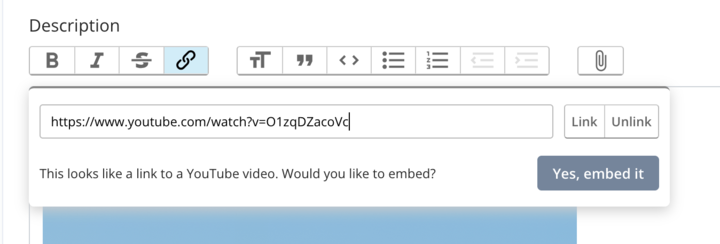
After pasting a YouTube or Vimeo URL as a link, this prompt appears. Click "Yes, embed it" to add an inline video player.