> For the complete documentation index, see [llms.txt](https://docs.crowdwork.com/llms.txt). Markdown versions of documentation pages are available by appending `.md` to page URLs; this page is available as [Markdown](https://docs.crowdwork.com/the-academy/crowdwork-academy/selling-tickets-to-livestream-events.md).
# Selling Tickets to Livestream Events
How to use CrowdWork's ticketing features to sell access to livestreamed performances, including streaming-only and hybrid in-person/virtual events.
### How Theatres Are Using CrowdWork for Virtual and Hybrid Events
While CrowdWork doesn't have a native streaming integration, many theatres have successfully used our ticketing features to sell access to livestreamed performances. Whether you're offering a streaming-only event or a hybrid experience with both in-person and virtual options, this guide covers the approaches that have worked for other venues.
{% hint style="info" %}
**Important:** CrowdWork handles the ticketing—you'll need to use an external streaming platform (Zoom, YouTube Live, Vimeo, etc.) to deliver the actual stream. This guide focuses on how to sell tickets and communicate streaming access to your patrons.
{% endhint %}
***
## Why Consider Livestreaming?
Even if you haven't thought about livestreaming before, it's worth considering as an additional revenue stream. Here's why theatres are adding virtual options:
* **Bonus revenue with minimal overhead:** Once your show is happening anyway, a livestream ticket—even at a low price point—is nearly pure profit
* **Expand your audience globally:** Performers can share the event link with friends, family, and fans who can't make it to your venue in person
* **Convert sold-out disappointment into sales:** When your in-person show sells out, livestream tickets give waitlisted patrons another way to attend
* **Lower the barrier to entry:** Inexpensive virtual tickets let new audiences sample your programming before committing to an in-person visit
* **Weather-proof your revenue:** Bad weather keeping people home? Virtual attendees aren't affected
{% hint style="success" %}
**You don't need fancy equipment to start.** Many theatres have found success with surprisingly simple setups—even a smartphone on a tripod streaming to a private channel. The key is getting started and learning what works for your venue.
{% endhint %}
***
## Simple Streaming Setups
You don't need a professional broadcast studio to offer livestreams. Here are some approaches theatres have used, from simplest to more advanced:
### Basic Setup (Minimal Investment)
* **Equipment:** Smartphone or tablet on a tripod
* **Platform:** Zoom, Facebook Live, or YouTube Live
* **Best for:** Testing the waters, smaller shows, classes
### Intermediate Setup
* **Equipment:** Webcam or camcorder, basic microphone, laptop
* **Platform:** Zoom, YouTube Live, Vimeo
* **Best for:** Regular streaming, better audio quality
### Advanced Setup
* **Equipment:** Multiple cameras, mixing software (OBS), dedicated audio
* **Platform:** YouTube Live, Vimeo, dedicated streaming services
* **Best for:** High-production-value streams, larger audiences
***
## Choosing a Streaming Platform
The key question for paid livestreams is: **How do you keep the stream private so only ticket buyers can access it?**
Here's how popular platforms handle privacy:
| Platform | Privacy Options | Pros | Cons |
| ----------------- | --------------------------------------------------------------- | --------------------------------------------------------------------- | -------------------------------------------------- |
| **Zoom** | Meeting password, waiting room, registration required | Easy access control; familiar to most users; host can admit attendees | Viewer limits on some plans; less "broadcast" feel |
| **YouTube Live** | Unlisted videos (not searchable, but anyone with link can view) | Free; unlimited viewers; good quality | Not truly private—links can be shared |
| **Vimeo** | Password protection, domain restrictions, private links | Strong privacy controls; professional quality | Paid plans required for livestreaming |
| **Facebook Live** | Private groups, events for specific audiences | Easy if audience already uses Facebook | Requires Facebook accounts; less control |
{% hint style="warning" %}
**"Unlisted" ≠ "Private":** YouTube's unlisted videos won't appear in search results, but anyone with the link can watch and share it. For true access control, Zoom or Vimeo's password protection offers more security.
{% endhint %}
### Recommendations by Use Case
**For maximum privacy/control:** Zoom with a meeting password or waiting room. You can admit only verified ticket holders.
**For ease of use with large audiences:** YouTube Live (unlisted) is simple and handles unlimited viewers, though links can technically be shared.
**For professional quality with privacy:** Vimeo with password protection balances quality and access control, though it requires a paid plan.
**For casual/community streams:** Facebook Live to a private group works well if your audience is already on Facebook.
***
## Two Main Approaches
| Approach | Best For | Key Consideration |
| -------------------------------------------------------- | -------------------------------------------------- | ---------------------------------------------------- |
| [**Streaming-Only Event**](#streaming-only-events) | Events with no in-person attendance | Simpler setup, one ticket type |
| [**Hybrid Event**](#hybrid-events-in-person--livestream) | Events offering both in-person AND virtual tickets | Requires careful capacity and communication planning |
***
## Streaming-Only Events
> **Best for:** Virtual performances, online classes, remote workshops\
> **Difficulty:** ⭐ (Beginner)\
> **Setup time:** 10-15 minutes
For events where all attendees will watch via livestream:
### Step 1: Create Your Event
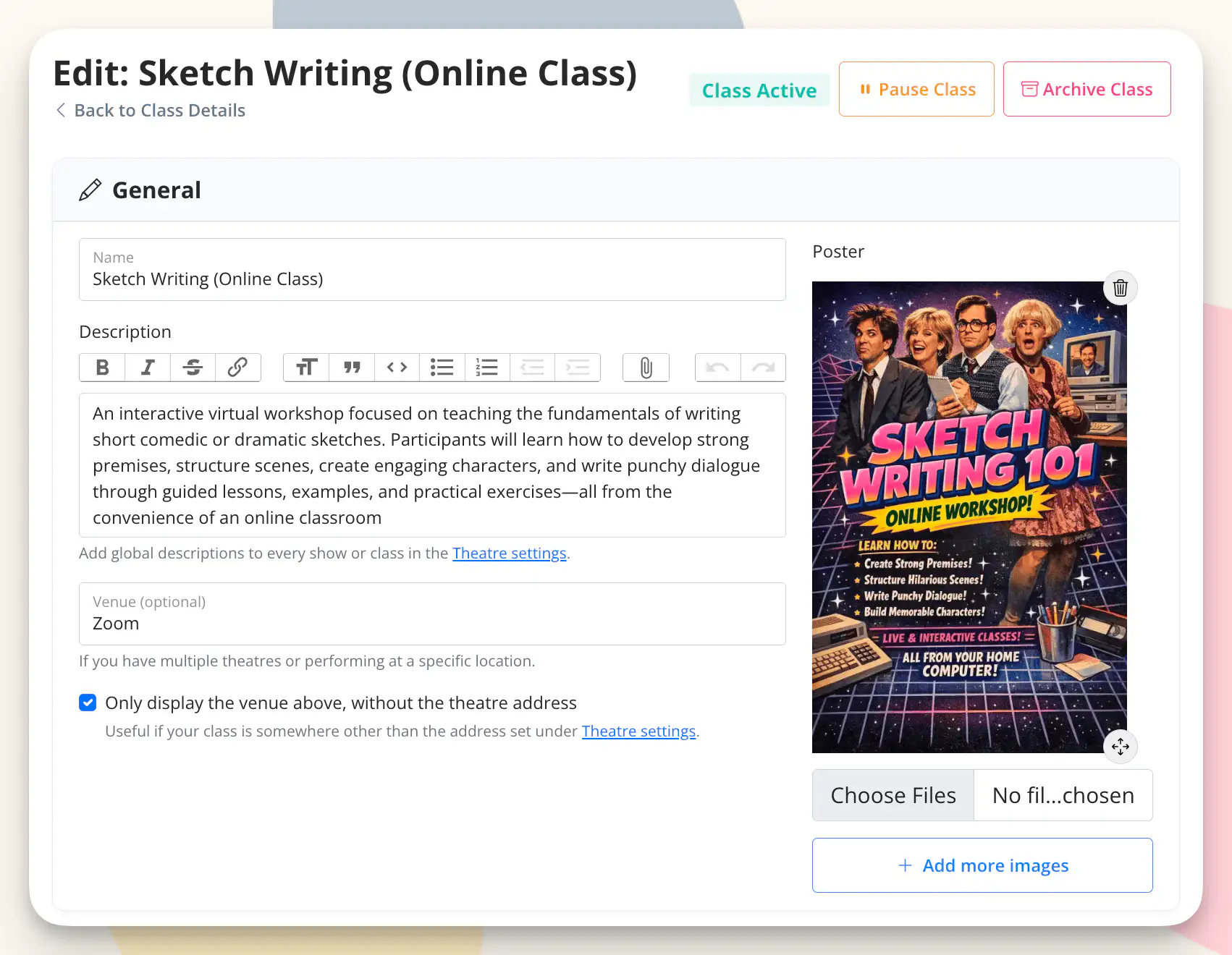
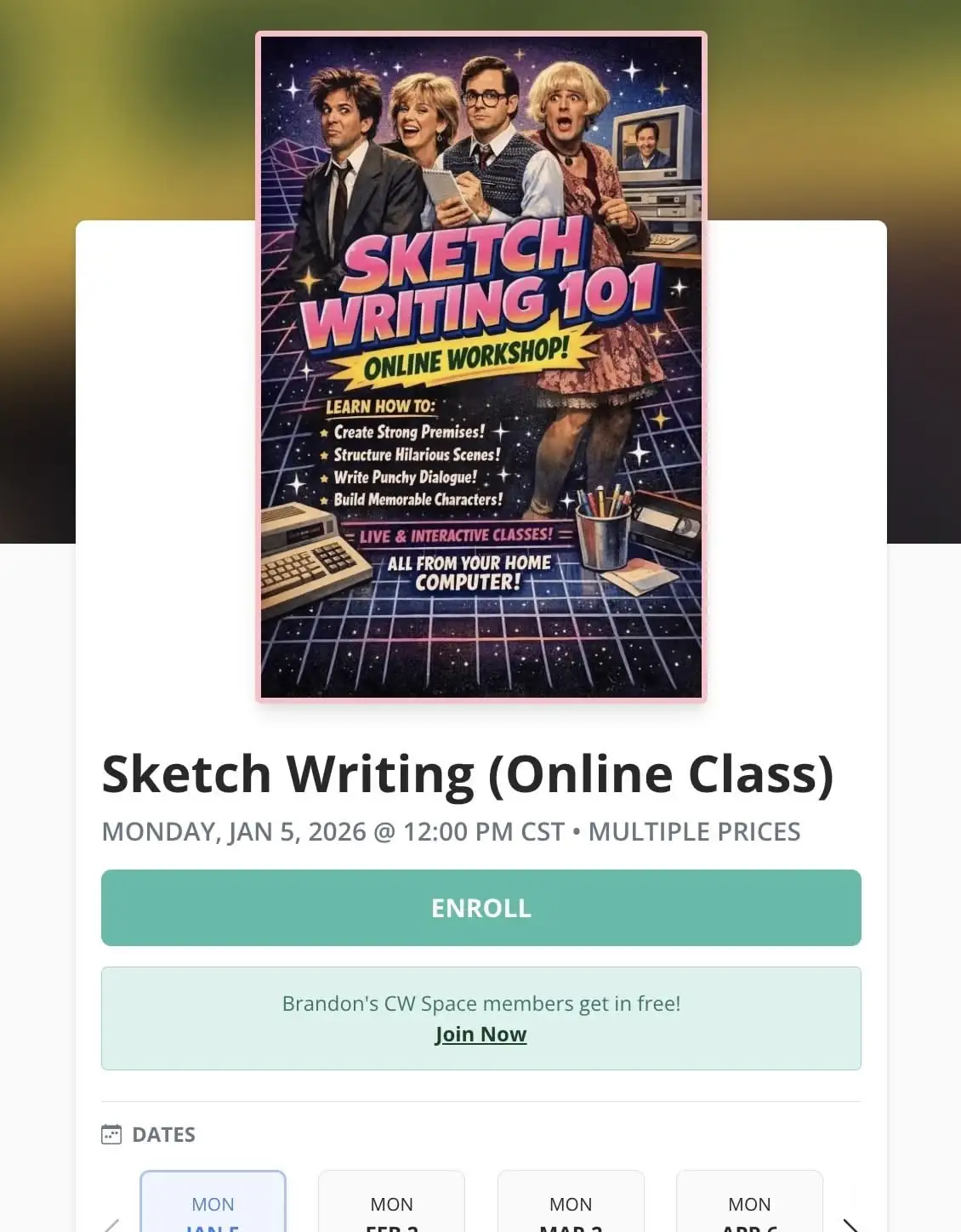
Create your show or class as you normally would:
* Set your event name, date, and time
* Add a description explaining this is a livestream event
* Set your ticket price and quantity (leave quantity blank for unlimited virtual seats)
{% hint style="info" %}
**Make the buy button match the experience.** Use the **Checkout Button Label** in the Fine-Tune section to override the default — try `Watch Livestream`, `Get Stream Access`, or `Register to Watch` so patrons immediately understand what they're buying. See [Creating a Show or Class](https://docs.crowdwork.com/for-theatres/creating-a-show-or-class#fine-tune) for details.
{% endhint %}
### Step 2: Add Streaming Info to the Confirmation Email
Navigate to your event's edit page and scroll to the **Confirmation Email** section. This is where you'll communicate streaming details to ticket buyers.
{% hint style="warning" %}
**Video embeds don't work in confirmation emails.** Email clients don't support embedded video players. If you want to include a video link for patrons, the best practice is to insert a screenshot of the video (with a play button visible) as an image, then link that image to the video URL. Patrons see a familiar thumbnail, click it, and go directly to the video. See [Using the Rich Text Editor](https://docs.crowdwork.com/for-theatres/using-the-rich-text-editor) for help adding images and links.
{% endhint %}
#### **Option A: Include the stream link directly**
If your streaming platform uses a static link (like a Zoom meeting room), you can include it right in the confirmation email:
> **Your Livestream Access** Join the show using this link: \[your Zoom/YouTube link] The stream will go live at \[time]. We recommend joining 5-10 minutes early.
#### **Option B: Promise to send the link before showtime**
If you prefer to send the link closer to the event (recommended for most theatres):
> **Livestream Ticket Confirmed!** Your livestream link will be sent to this email address approximately 1 hour before showtime. If you haven't received it by \[specific time], please contact us at \[your email/phone].
{% hint style="warning" %}
**Pro Tip:** Whatever timing you promise, beat it by 30-60 minutes. If you say "1 hour before," send it 90 minutes or 2 hours before. Excited patrons often check early, and sending ahead of schedule prevents anxious support requests.
{% endhint %}
### Step 3: Send the Streaming Link (If Not Included in Confirmation)
Before your event, use CrowdWork's email feature to send the streaming link to all ticket holders. See [Contacting Attendees](https://docs.crowdwork.com/for-theatres/managing-admissions#contacting-attendees) for detailed instructions.
1. Navigate to your event's overview page
2. Select the ticket holders you want to email
3. Compose your email with the streaming link and any last-minute instructions
**Timing recommendations from theatres:**
* 2-3 days before: Good for complex events requiring patron preparation
* 2-3 hours before: Balances freshness with giving patrons time to prepare
* 30-60 minutes before: Reduces risk of link sharing, but may cause support requests
***
## Hybrid Events: In-Person + Livestream
> **Best for:** Performances offering both venue attendance and virtual viewing\
> **Difficulty:** ⭐⭐ (Moderate)\
> **Setup time:** 15-20 minutes
Hybrid events require more planning since the **Confirmation Email goes to ALL ticket buyers regardless of ticket type**. Here are two approaches:
### Approach A: Single Event with Multiple Tiers
This keeps everything in one place for easier management and lets patrons choose their experience at checkout.
#### **Setup:**
1. Create your event as normal
2. Add multiple pricing tiers:
* "In-Person Ticket" - Set a specific **Tier Quantity** to prevent overselling your venue
* "Livestream Ticket" - Leave **Tier Quantity** blank for unlimited (or set a limit if desired)
3. **Do NOT set a Maximum Global Quantity** - This would limit livestream sales when in-person sells out
#### **Handling the Confirmation Email:**
Since all ticket buyers receive the same confirmation email, you have two options:
**Option 1: Include streaming info for everyone** (Works if livestream is cheaper or same price)
If your livestream ticket is priced lower than or equal to in-person, you can include the stream link for all buyers. In-person attendees get a "bonus" virtual option, and everyone receives clear instructions.
> **Thank you for your purchase!**
>
> **In-Person Attendees:** Doors open at \[time]. Please bring your ticket confirmation.
>
> **Livestream Viewers:** Your streaming link will be sent to this email approximately 1 hour before showtime.
**Option 2: Send streaming link separately** (Recommended for most hybrid events)
Use the confirmation email to set expectations, then manually email only livestream ticket holders before the event:
> **Thank you for your purchase!**
>
> **In-Person Attendees:** Doors open at \[time]. Please bring your ticket confirmation.
>
> **Livestream Ticket Holders:** Your streaming link will be sent separately to this email approximately 1 hour before showtime. If you don't receive it by \[time], contact \[your email/phone].
Then before the event (see [Contacting Attendees](https://docs.crowdwork.com/for-theatres/managing-admissions#contacting-attendees)):
1. Go to your event overview
2. Use the **Tier** column in the Admissions table to identify livestream ticket holders, then check the boxes next to their names
3. Click **Actions** → **Send Email** to send them the streaming link
{% hint style="info" %}
**Analytics Benefit:** Even if you include the stream link for everyone, creating separate ticket tiers helps you track how many patrons specifically chose the virtual option vs. in-person.
{% endhint %}
### Approach B: Separate Events for In-Person and Livestream
If you need completely different communications for each audience, create two separate events:
1. **Main Event:** Your in-person show with venue capacity limits – *Big Saturday Show \[In-Person]*
2. **Livestream Event:** A separate event for virtual attendees – *Big Saturday Show \[LIVESTREAM]*
While this can certainly work, we don't usually recommend it simply because of the potential to create confusion for yourself (managing multiple events/attendees) and for your patrons (less visibility that both events exist, potential to select wrong event). However, if you do use two separate events, name them clearly and cross promote them in the events' descriptions.
| Pros: | Cons: |
| -------------------------------------------------------------------------------------------------------------------------------------------------------------------- | ---------------------------------------------------------------------------------------------------------------------------------------- |
|
Completely separate confirmation emails
Cleaner reporting per audience type
Different descriptions and imagery for each experience
|
Managing two events
Can't see total attendance in one place
Patrons must navigate to the correct event
|
***
## Pricing Strategies
There's no established "best practice" for livestream pricing—theatres have found success with different approaches:
| Strategy | Rationale |
| ------------------------------------- | ---------------------------------------------------------------------------------- |
| **Livestream cheaper than in-person** | Maximizes virtual ticket sales; treats streaming as bonus revenue |
| **In-person cheaper than livestream** | Encourages in-person attendance; positions streaming as premium/convenience option |
| **Same price for both** | Simplifies decision-making; positions both as equal value |
| **Pay What You Want for livestream** | Removes price barrier; lets patrons decide value |
Consider your goals: Are you trying to fill seats? Maximize total revenue? Reach new audiences who can't attend in person? Your pricing should reflect your priorities.
***
## Using the Event Description
{% hint style="warning" %}
**Reminder:** Don't put your streaming link in the event **Description** field. The description is publicly visible to anyone who visits the event page, not just ticket buyers.
{% endhint %}
The event description **is** useful for:
* Explaining that this event offers a livestream option
* Describing what the virtual experience includes
* Setting expectations about how/when the link will be delivered
* Listing technical requirements (browser, internet speed, etc.)
{% hint style="info" %}
**Tip:** The event description supports rich text formatting — you can add bold text, links, and images to make your livestream details stand out. See [Using the Rich Text Editor](https://docs.crowdwork.com/for-theatres/using-the-rich-text-editor) for details.
{% endhint %}
***
## Customer Support Tips
Theatres have learned a few things about supporting livestream ticket holders:
1. **Provide contact info:** Include an email address or phone number for livestream questions. Without it, patrons may contact CrowdWork support, and we may not be staffed at your showtime.
2. **Expect some inquiries:** No matter how clear your instructions, some patrons will reach out. Have someone available to respond in the hour before showtime.
3. **Under-promise, over-deliver:** If you say the link arrives "1 hour before," send it 90 minutes before. This dramatically reduces "where's my link?" messages.
4. **Include troubleshooting basics:** In your streaming link email, include simple troubleshooting tips (refresh the page, try a different browser, check internet connection).
***
## Pairing with Other CrowdWork Features
### 👥 Memberships + 📺 Livestreaming
Use [Memberships](https://docs.crowdwork.com/the-academy/crowdwork-academy/memberships-quick-start-guide) to offer exclusive online content:
* Create an **unlisted** livestream event (won't appear on public calendar)
* Share the event link only with members
* Great for monthly online performances, Q\&As, or behind-the-scenes content
{% hint style="warning" %}
**Members must be logged in.** For membership pricing to apply at checkout, patrons need to be signed in to their account. If a member clicks an unlisted event link while not logged in, they'll see the full ticket price instead of their membership rate. Remind members to log in first, or include a login reminder alongside the event link.
{% endhint %}
### ⏳ Waitlists + 📺 Livestreaming
When an in-person event sells out, use your [Waitlist](https://docs.crowdwork.com/for-theatres/setting-up-waitlists) as a marketing opportunity:
* Email waitlisted patrons about the livestream option
* Optionally offer a discount code as a consolation for missing out on in-person seats
* Turn a "sold out" disappointment into a sale
### 🤑 Discount Codes + 📺 Livestreaming
Create special promotions for virtual attendance:
* Offer waitlisted patrons a discount on livestream tickets
* Create early-bird livestream pricing
* Partner with other organizations to offer their audiences discounted virtual access
***
## Common Questions
Q: Can I include the streaming link in the confirmation email automatically?
Yes! Use the **Confirmation Email** section when editing your event. This content is sent immediately after purchase AND included in automatic reminder emails before the event. Note: The same content is sent to all attendees regardless of their ticket tier.
Q: Can I send different confirmation emails to different ticket tiers?
No, the confirmation email is the same for all ticket tiers on an event. If you need completely separate communications, create separate events for in-person and livestream (see [Approach B](#approach-b-separate-events-for-in-person-and-livestream) above).
Q: How do I email only the people who bought livestream tickets?
From your event overview page, use the **Tier** column in the Admissions table to identify which patrons purchased the livestream tier. Check the boxes next to those patrons, then click **Actions** → **Send Email** to message just that group. See [Contacting Attendees](https://docs.crowdwork.com/for-theatres/managing-admissions#contacting-attendees) for step-by-step instructions.
Q: What streaming platforms do other theatres use?
Common choices include Zoom, YouTube Live, Vimeo, and Facebook Live. Each has different features and pricing. CrowdWork doesn't integrate directly with any platform—you'll share links manually through confirmation emails or the email feature.
Q: Should I limit how many livestream tickets I sell?
Most theatres leave livestream quantity unlimited since there's no physical capacity constraint. However, some limit sales if their streaming platform has viewer caps or if they want to create scarcity/urgency.
Q: When do automatic reminder emails go out?
Automatic reminders are sent early morning on the day of your event. They include the content from your **Confirmation Email** section, so any streaming instructions you add there will be included in reminders too.
***
## Quick Setup Checklist
**For Streaming-Only Events:**
* [ ] Create event with streaming-appropriate title/description
* [ ] Set ticket price (leave quantity blank for unlimited)
* [ ] Add streaming instructions to Confirmation Email section
* [ ] Plan when/how you'll send the actual streaming link
* [ ] Prepare support contact info for day-of questions
**For Hybrid Events:**
* [ ] Create event with multiple tiers (In-Person and Livestream)
* [ ] Set Tier Quantity for in-person (NOT Global Max Quantity)
* [ ] Leave Livestream tier quantity blank (or set limit if needed)
* [ ] Add clear instructions for BOTH audiences in Confirmation Email
* [ ] Plan how you'll send streaming link (all buyers vs. livestream only)
***
### Need Help?
Have questions about setting up livestream ticketing for your venue? [Reach out to our support team](https://docs.crowdwork.com/contacting-support)—we're happy to help you find the right approach for your situation.