> For the complete documentation index, see [llms.txt](https://docs.crowdwork.com/llms.txt). Markdown versions of documentation pages are available by appending `.md` to page URLs; this page is available as [Markdown](https://docs.crowdwork.com/for-theatres/exporting-your-data.md).
# Exporting Your Data
Learn how to export your sales data, patron lists, tickets, registrations, and checkout field submissions from your CrowdWork dashboard.
CrowdWork lets you export your data as CSV files from several places in the dashboard — for accounting, mailing lists, attendance records, and more. This page covers all the available exports and where to find them.
{% hint style="info" %}
**This guide is for venues and ticket sellers.** If you are a customer looking to remove your data, please [contact our support team](/contacting-support.md) from the email address associated with your account.
{% endhint %}
{% hint style="info" %}
**Your staff notes come along in these exports.**
The Tickets, Registrations, Orders, Customers, and Students exports each carry a `notes` column holding the internal notes your team left on those records — always the last column, before any custom checkout field columns. See [Staff Notes](https://docs.crowdwork.com/for-theatres/staff-notes).
{% endhint %}
***
## Choosing What to Include in Your Export
When you export tickets, registrations, or orders, an **Export to CSV** window opens so you can choose what to include. Every option is selected by default — uncheck anything you don't need, then click **Download CSV**.
The Export to CSV window with its three optional toggles
| Option | What it adds |
| ---------------------------- | ----------------------------------------------------------------------------------------------------------------------------------------------------------------------------------------------------------------------------- |
| **Financial Data** | All financial columns — subtotal, discounts, gift cards, fees, net total, amount deposited, and refunds. |
| **Itemize Payment Plans** | A sub-option of Financial Data. Lists each payment plan installment on its own row, so every scheduled and completed payment is visible. Uncheck it to keep each payment plan order on a single row with its totals combined. |
| **Custom Field Submissions** | Adds a column for each custom checkout field, with the patron's response. |
### How rows are organized: the `row type` column
Because a single order can involve more than one transaction, the export uses a **`row type`** column. There are three types:
* **`purchase`** — The main row for an admission or order, carrying the event, tier, patron, and tag details. For standard orders, the financial totals live here too.
* **`payment plan`** — An itemized installment. These rows appear only when **Itemize Payment Plans** is checked. Each scheduled payment gets its own row, with the `payment plan status`, `payment due date`, and `paid on` columns filled in.
* **`refund`** — A refund issued against the order, with the refunded amount shown as a negative value in the `deposited` column. Refund rows appear whenever financial data is included, regardless of the Itemize setting.
On a payment plan order with itemizing on, the `purchase` row shows what was bought, and the `payment plan` rows beneath it (sharing the same `order id`) break out each installment's financials. The money lives on the installment rows — the `purchase` row's financial columns are intentionally left blank so amounts aren't double-counted. With itemizing off, that same order appears as a single `purchase` row with the installment totals combined.
| `order id` | `row type` | `tier name` | `net total` | `deposited` | `payment plan status` | `payment due date` |
| ---------- | -------------- | --------------- | ----------- | ----------- | --------------------- | ------------------ |
| 1042 | `purchase` | Workshop Series | | | | |
| 1042 | `payment plan` | | $100.00 | $100.00 | paid | Jan 15 |
| 1042 | `payment plan` | | $100.00 | | upcoming | Feb 15 |
{% hint style="success" %}
**Reconciling deposits:** To find the true net amount deposited for any order, add up the `deposited` column across all of its rows — installments add to it, and refunds subtract from it.
{% endhint %}
{% hint style="info" %}
**A note on payment plan fees:** Payment plans always pass processing fees to the patron, one charge per installment — even if your theatre normally absorbs fees. See [Setting Up Payment Plans](https://docs.crowdwork.com/for-theatres/setting-up-payment-plans) for details.
{% endhint %}
***
## Exporting Tickets or Registrations
You can export a list of all tickets or registrations for a specific show or class, including patron names, email addresses, ticket tiers, order dates, and custom checkout field responses.
> **Direct links:** [Tickets Dashboard](https://crowdwork.com/dashboard/tickets) | [Registrations Dashboard](https://crowdwork.com/dashboard/registrations)
**To export tickets or registrations for a specific event:**
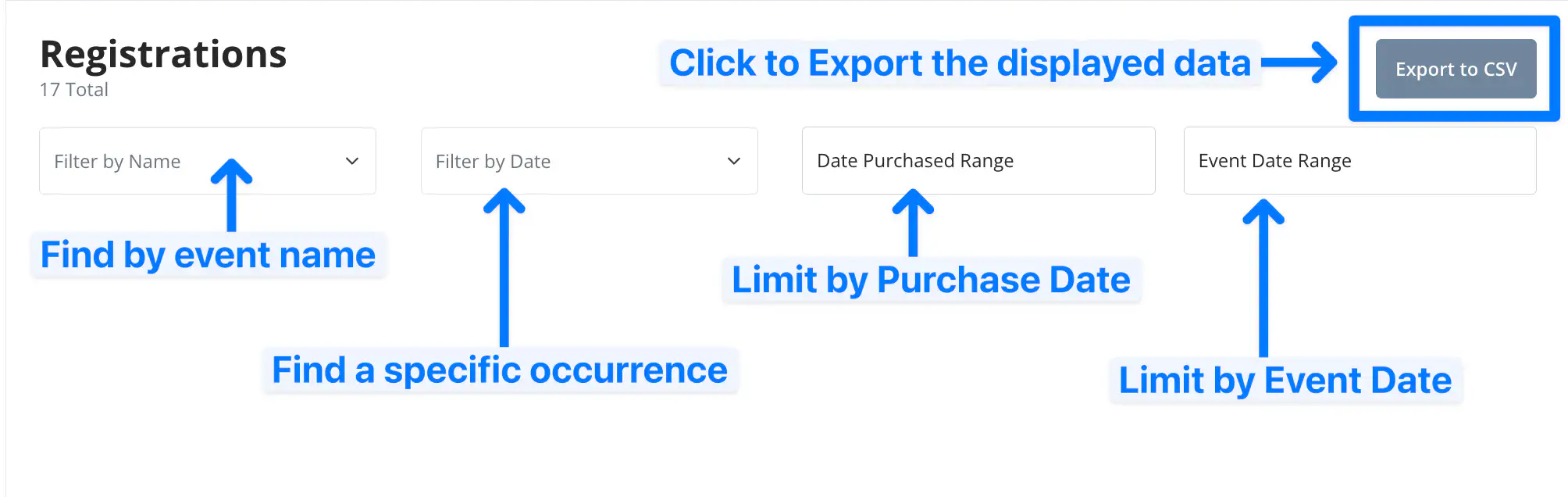
1. Go to **Dashboard → Tickets** (or **Registrations**)
2. Use the **Filter by Name** dropdown to select a specific event
1. Optionally, use the **Filter by Date** dropdown to select a specific occurrence, or leave as-is to include all
2. Optionally, use the **Date Purchased Range** or **Event Date Range** options to filter further
3. Click **Export to CSV**, choose what to include, then **Download CSV**
The downloaded file includes one row per admission with patron details, financial data, and any custom checkout field responses collected at checkout. The Tickets and Registrations exports share the same column structure. For what each option does — and how payment plan installments and refunds appear as their own rows — see [Choosing What to Include in Your Export](https://docs.crowdwork.com/for-theatres/exporting-your-data#choosing-what-to-include-in-your-export).
Ticket & Registration Export — Column Reference
**Admission & Event Details**
| Column | Description |
| -------------- | ------------------------------------------------------------------------------------------------- |
| `admission id` | Unique identifier for this individual ticket or registration |
| `order id` | Identifier for the order this admission belongs to — multiple admissions can share the same order |
| `event id` | Unique identifier for the show or class |
| `event name` | Name of the show or class |
| `event time` | Scheduled date and time of the event occurrence |
| `tier name` | Name of the ticket or registration tier purchased |
| `tier cost` | Face-value price of the tier |
**Patron Information**
| Column | Description |
| -------------- | ---------------------------------------------------------------------------- |
| `patron name` | Name of the patron on this admission |
| `patron email` | Patron's email address |
| `patron phone` | Patron's phone number, if provided |
| `newsletter` | Whether the patron opted into your newsletter at checkout (`true` / `false`) |
**Transaction Details**
| Column | Description |
| -------------------- | ----------------------------------------------------------------------------------------------------- |
| `pay what you want?` | Whether this tier uses Pay What You Want pricing (`true` / `false`) |
| `transaction date` | Date and time of the transaction. On a `payment plan` installment row, this is the installment's date |
| `row type` | Whether the row is a `purchase`, a `payment plan` installment, or a `refund` |
| `status` | Current status of the admission: `paid` or `refunded` |
| `source` | How the admission was created: `online`, `pos`, or `manual` |
| `used` | Whether the ticket has been checked in / scanned (`true` / `false`) |
| `internal tags` | Tags visible only to your staff in the Dashboard |
| `public tags` | Tags visible to patrons |
**Financial — Pricing & Discounts**
| Column | Description |
| ------------------- | ---------------------------------------------------------------------------- |
| `subtotal` | Base ticket price before any discounts or fees are applied |
| `discount used?` | Whether a discount code was applied (`true` / `false`) |
| `discount code` | The discount code used, if any |
| `discount amount` | Dollar amount discounted from the tier cost |
| `gift card used?` | Whether a gift card was applied (`true` / `false`) |
| `gift card code` | The gift card code used, if any |
| `gift card amount` | Amount applied from a gift card |
| `membership amount` | Discount amount applied via a membership, if any |
| `surcharge` | Surcharge amount added when fees are passed through to the patron |
| `donation` | Donation amount collected at checkout, if your theatre has donations enabled |
**Financial — Fees**
| Column | Description |
| ---------------- | ---------------------------------------------------------------------------------------------------------------- |
| `CrowdWork fees` | CrowdWork's service fee on this admission |
| `processor fees` | Payment processor fee (e.g. Square) on this admission |
| `total fees` | Combined total of CrowdWork fees and processor fees |
| `fees handled` | How fees were handled at time of purchase: `passed_through` (patron pays fees) or `absorbed` (theatre pays fees) |
**Financial — Totals**
| Column | Description |
| -------------------- | ------------------------------------------------------------------------------------------------------------------------------------------ |
| `net total` | The amount after discounts, memberships, and credits are applied and surcharges are added, before fees and donations |
| `total without fees` | The order-level total before fees were added |
| `total charged` | Amount the patron actually paid, including any passed-through fees |
| `deposited` | Amount deposited to your account after fees (if absorbed) and donations. A `refund` row shows the refunded amount here as a negative value |
**Understanding the `deposited` column**
The `deposited` column is your best at-a-glance number for what lands in your account. It starts from the net total, adds donations, and subtracts fees if your theatre absorbs them. To get the net for an entire order, add up `deposited` across all of its rows — payment plan installments add to it, and refunds subtract from it.
**About refunds**
Refunds appear as their own `refund` row beneath the order they apply to, with the refunded amount shown as a negative value in the `deposited` column. This is true for both full and partial refunds.
**Payment Plan & Order Metadata**
| Column | Description |
| ---------------------------- | --------------------------------------------------------------------------------------------------------------------------------------------------------------------------------------------------------------- |
| `payment plan?` | Whether this admission was purchased via a payment plan (`true` / `false`) |
| `payment plan status` | On a `payment plan` row, the status of that installment: `upcoming`, `paid`, `failed`, or `canceled` (the values `pending` and `paused` may also appear in rare or legacy cases). Blank on non-installment rows |
| `payment due date` | On a `payment plan` row, when the installment is or was scheduled to be paid |
| `paid on` | On a `payment plan` row, when the installment was actually paid |
| `bundle purchase?` | Whether this admission was part of a bundle purchase (`true` / `false`) |
| `payment type` | How the patron paid: `free`, `card`, `cash`, or `manual`. For a payment plan, this lists the method used for each installment |
| `original bundled tier cost` | Original individual tier price when purchased as part of a bundle; `$0.00` when not a bundle purchase |
**Staff Notes**
| Column | Description |
| ------- | ----------------------------------------------------------------------------------------------------------------------------------------------------------------------------------------------------------------------------------------------------------------------------------------------------------------------------- |
| `notes` | Internal staff notes on the order and on the patron who placed it, as plain text. Multiple notes are separated by a vertical bar (`\|`), newest first. These are order-level, so the same text repeats on every admission row belonging to that order. See [Staff Notes](https://docs.crowdwork.com/for-theatres/staff-notes) |
**Custom Checkout Fields**
Any custom checkout fields you have created will appear as additional columns at the end of the export. Each field name becomes its own column header, and the patron's response appears as the value. See [Custom Checkout Fields](https://docs.crowdwork.com/for-theatres/custom-checkout-fields) for details on creating and managing these fields.
***
## Exporting Orders
The Orders export gives you every transaction across all your events in one file — ideal for accounting, bookkeeping, and end-of-period reconciliation. Where the Tickets and Registrations exports give you one row per admission, the Orders export works at the order level: one row per order, with the events and quantities summarized.
> **Direct link:** [Orders Dashboard](https://crowdwork.com/dashboard/orders)
**To export your orders:**
1. Go to **Dashboard → Orders**
2. Optionally use **Filter by Order ID** or **Dates Purchased** to narrow the results
3. Click **Export to CSV**, choose what to include, then **Download CSV**
The same options and `row type` behavior apply here — see [Choosing What to Include in Your Export](https://docs.crowdwork.com/for-theatres/exporting-your-data#choosing-what-to-include-in-your-export) for how payment plan installments and refunds appear as their own rows.
Order Export — Column Reference
**Order & Patron Details**
| Column | Description |
| ------------------ | ---------------------------------------------------------------------------------------------------------------------------------------------------------------------------------------------- |
| `order id` | Unique identifier for the order |
| `transaction date` | Date and time of the transaction |
| `patron name` | Name of the patron who placed the order |
| `patron email` | Patron's email address |
| `patron phone` | Patron's phone number, if provided |
| `newsletter` | Whether the patron opted into your newsletter at checkout (`true` / `false`) |
| `items` | Everything in the order — event names for tickets and registrations (each event listed once), plus any gift cards, donations, and memberships, separated by vertical bars |
| `quantity` | Number of admissions in the order |
| `events` | The event names for the tickets and registrations in the order only (each listed once); gift cards, donations, and memberships are not included here |
| `event times` | Scheduled date(s) and time(s) of those events |
| `row type` | Whether the row is a `purchase`, a `payment plan` installment, or a `refund` |
| `status` | Overall status of the order, combined from its admissions: `paid`, `refunded`, `standby`, or `partially refunded`. An order spanning multiple statuses shows them joined, e.g. `paid, standby` |
| `source` | How the order was created: `online`, `pos`, or `manual` |
| `internal tags` | Tags visible only to your staff in the Dashboard |
| `public tags` | Tags visible to patrons |
**Financial**
| Column | Description |
| -------------------- | ------------------------------------------------------------------------------------------------------------------------------------------ |
| `subtotal` | Base order total before any discounts or fees are applied |
| `discount used?` | Whether a discount code was applied (`true` / `false`) |
| `discount code` | The discount code used, if any |
| `discount amount` | Dollar amount discounted from the order |
| `gift card used?` | Whether a gift card was applied (`true` / `false`) |
| `gift card code` | The gift card code used, if any |
| `gift card amount` | Amount applied from a gift card |
| `membership amount` | Discount amount applied via a membership, if any |
| `surcharge` | Surcharge amount added when fees are passed through to the patron |
| `donation` | Donation amount collected at checkout, if your theatre has donations enabled |
| `CrowdWork fees` | CrowdWork's service fee on this order |
| `processor fees` | Payment processor fee (e.g. Square) on this order |
| `total fees` | Combined total of CrowdWork fees and processor fees |
| `net total` | The amount after discounts, memberships, and credits are applied and surcharges are added, before fees and donations |
| `total without fees` | The order total before fees were added |
| `total charged` | Amount the patron actually paid, including any passed-through fees |
| `deposited` | Amount deposited to your account after fees (if absorbed) and donations. A `refund` row shows the refunded amount here as a negative value |
| `fees handled` | How fees were handled: `passed_through` (patron pays fees) or `absorbed` (theatre pays fees) |
**Payment Plan & Metadata**
| Column | Description |
| --------------------- | --------------------------------------------------------------------------------------------------------------------------------------------------------------------------------------------------------------- |
| `payment plan?` | Whether the order was purchased via a payment plan (`true` / `false`) |
| `payment plan status` | On a `payment plan` row, the status of that installment: `upcoming`, `paid`, `failed`, or `canceled` (the values `pending` and `paused` may also appear in rare or legacy cases). Blank on non-installment rows |
| `payment due date` | On a `payment plan` row, when the installment is or was scheduled to be paid |
| `paid on` | On a `payment plan` row, when the installment was actually paid |
| `bundle purchase?` | Whether the order included a bundle purchase (`true` / `false`) |
| `payment type` | How the patron paid: `free`, `card`, `cash`, or `manual`. For a payment plan, this lists the method used for each installment |
**Staff Notes**
| Column | Description |
| ------- | ----------------------------------------------------------------------------------------------------------------------------------------------------------------------------------------------------------------------------- |
| `notes` | Internal staff notes on the order and on the patron who placed it, as plain text. Multiple notes are separated by a vertical bar (`\|`), newest first. See [Staff Notes](https://docs.crowdwork.com/for-theatres/staff-notes) |
**Custom Field Submissions**
If you include custom field submissions, each custom checkout field appears as an additional column at the end, with the patron's response as the value.
***
## Exporting Your Customer or Student List
You can export your full patron list — or a filtered subset — as a CSV. This is useful for newsletters, mailing lists, and patron outreach.
> **Direct links:** [Customers Dashboard](https://crowdwork.com/dashboard/customers) | [Students Dashboard](https://crowdwork.com/dashboard/students)
**To export all customers or students:**
1. Go to **Dashboard → Customers** (or **Students**)
2. Optionally use the **Filters** to narrow results by date, event, or other criteria
3. Click the **Export CSV** button
{% hint style="info" %}
**Customers vs. Students:** Customers are patrons who have purchased show tickets. Students are patrons who have registered for classes. Each has its own list and export. If you need both, export them separately and combine as needed.
{% endhint %}
Customer Export — Column Reference
| Column | Description |
| --------------------- | ------------------------------------------------------------------------------------------------------------------------------------------------------------------------------------------------- |
| `id` | Unique identifier for this customer record |
| `customer name` | Patron's name |
| `customer email` | Patron's email address |
| `phone` | Patron's phone number, if provided |
| `newsletter` | Whether the patron has opted into your newsletter (`true` / `false`) |
| `total purchases` | Total number of show ticket purchases by this patron |
| `total donations` | Total donation amount from this patron across all purchases |
| `first show purchase` | Date and time of this patron's first ticket purchase |
| `notes` | Internal staff notes on this customer, as plain text. Multiple notes are separated by a vertical bar (`\|`), newest first. See [Staff Notes](https://docs.crowdwork.com/for-theatres/staff-notes) |
Student Export — Column Reference
| Column | Description |
| ---------------------- | ------------------------------------------------------------------------------------------------------------------------------------------------------------------------------------------------ |
| `id` | Unique identifier for this student record |
| `student name` | Patron's name |
| `student email` | Patron's email address |
| `phone` | Patron's phone number, if provided |
| `newsletter` | Whether the patron has opted into your newsletter (`true` / `false`) |
| `total registrations` | Total number of class registrations by this patron |
| `first class purchase` | Date and time of this patron's first class registration |
| `notes` | Internal staff notes on this student, as plain text. Multiple notes are separated by a vertical bar (`\|`), newest first. See [Staff Notes](https://docs.crowdwork.com/for-theatres/staff-notes) |
***
## Exporting Custom Checkout Field Submissions
If you collect additional information from patrons during checkout using Custom Checkout Fields, you can export all responses from the Submissions page.
> **Direct link:** [Checkout Field Submissions](https://crowdwork.com/dashboard/custom-fields/responses)
1. Go to **Dashboard → Checkout Fields → Submissions**
2. Optionally filter by field or event
3. Click the **Export CSV** button
{% hint style="success" %}
**Also included in ticket and registration exports:** Custom checkout field responses are included in the Tickets and Registrations CSV exports as well — so if you're already pulling an event-level report, you don't need a separate export.
{% endhint %}
Custom Field Submissions Export — Column Reference
Each row represents one field response from one patron. If a patron answered multiple fields during checkout, each answer appears as its own row.
| Column | Description |
| ------------------- | ------------------------------------------------------------- |
| `id` | Unique identifier for this submission |
| `event name` | Name of the show or class this submission is associated with |
| `event time` | Scheduled date and time of the event occurrence |
| `event type` | Whether the event is a `show` or `class` |
| `customer name` | Patron's name (populated when the event is a show) |
| `customer email` | Patron's email (populated when the event is a show) |
| `customer phone` | Patron's phone (populated when the event is a show) |
| `student name` | Patron's name (populated when the event is a class) |
| `student email` | Patron's email (populated when the event is a class) |
| `student phone` | Patron's phone (populated when the event is a class) |
| `ticket id` | Associated ticket admission ID (populated for shows) |
| `registration id` | Associated registration admission ID (populated for classes) |
| `submitted at` | Date and time the field response was submitted |
| `field name` | Name of the custom checkout field |
| `field description` | Description text of the custom checkout field, if any |
| `field required` | Whether the field was required at checkout (`true` / `false`) |
| `value` | The patron's response |
***
## Viewing Sales Reports and Analytics
Exports aren't the only way to see your numbers — CrowdWork has two built-in views, both under **Analytics** in your Dashboard sidebar:
* **Analytics (Charts)** — a visual overview of your sales performance: revenue totals, ticket counts, and trends over time. See [Sales Analytics](https://docs.crowdwork.com/for-theatres/reports-and-analytics/sales-analytics).
* **Reports** — accounting-ready financial reports (settlements, donations, gift-card liability, and more), each with its own line-item CSV export. See [Getting Started with Reports](https://docs.crowdwork.com/for-theatres/reports-and-analytics).
> **Direct links:** [Analytics Dashboard](https://crowdwork.com/dashboard/analytics) | [Reports Dashboard](https://crowdwork.com/dashboard/reports)
{% hint style="info" %}
**Need to share analytics access?** You can give a board member or stakeholder read-only access to your Analytics charts without sharing any other data. See [Custom Permissions](https://docs.crowdwork.com/for-theatres/managing-staff-and-users/custom-permissions) for details.
{% endhint %}
***
## Quick Reference
| What You Want to Export | Where to Go |
| ------------------------------------------------------- | -------------------------------------------------------------------------------------------------------------------------------------- |
| Tickets for a specific show |