> For the complete documentation index, see [llms.txt](https://docs.crowdwork.com/llms.txt). Markdown versions of documentation pages are available by appending `.md` to page URLs; this page is available as [Markdown](https://docs.crowdwork.com/for-theatres/managing-staff-and-users/custom-permissions.md).
# Custom Permissions
Custom permissions let you build a tailored access level for any user — scoped to specific events and only the features they actually need.
Not every team member fits neatly into a standard role. Custom permissions let you go beyond the built-in roles and build exactly the right access level for a specific person — whether that's a producer who should only see their own show, an outside accountant reviewing your order history, or a board member who just needs to see the sales numbers.
{% hint style="info" %}
**New to user roles?** Custom permissions build on top of the standard role system. If you haven't set up users yet, start with the [Managing Staff & Users guide](https://docs.crowdwork.com/for-theatres/managing-staff-and-users) first.
{% endhint %}
***
## Start Here: Common Scenarios
Most people only need custom permissions for a handful of situations. Find yours below and follow the checklist — you don't need to read the whole page.
***
### 🎭 A Producer Who Should Only See Their Own Show
**The situation:** You have multiple producers running separate shows, and you don't want them seeing each other's ticket sales, customers, or data.
**How to set it up:**
1. Go to [Dashboard → Users](https://crowdwork.com/dashboard/users) and find the user
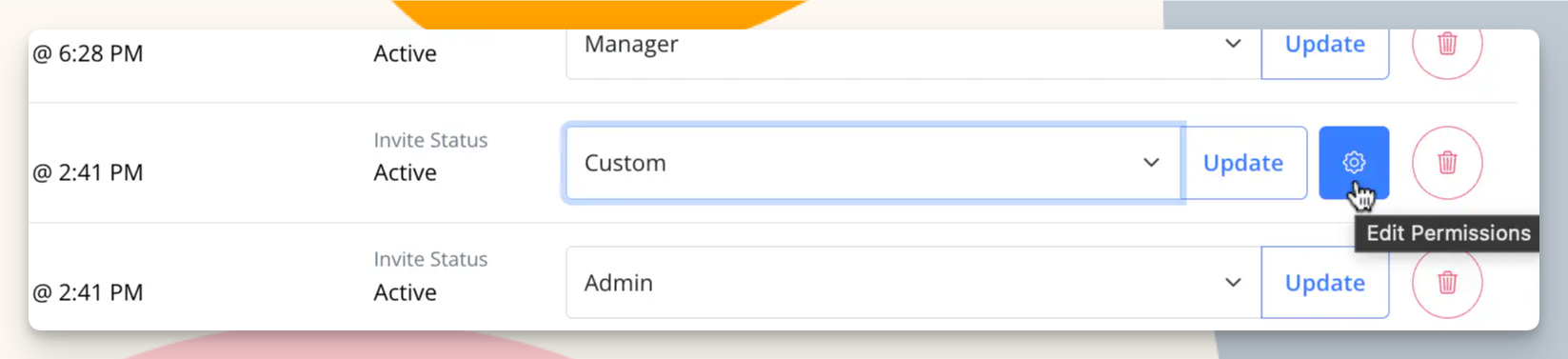
2. Change their role to **Custom**, then click the gear icon (⚙️) that appears
3. In the **Events** field, search for and select their specific show
4. If they only need to see the show, leave the extra checkboxes unchecked — view access is on by default. Check **Edit Only** if they also need to make changes to the show itself.
5. Under **Other Permissions**, enable **View Only** for:
* Customers
* Orders
6. Leave everything else unchecked
7. Click **Save Permissions**
**What this does:** The producer can see their show, their ticket buyers, and their orders — nothing else. Their analytics will automatically show only data for that show. The "Create Show" option won't even appear in their interface.
***
### 📊 An Outside Accountant or Financial Auditor
**The situation:** Someone external needs to review your order history and transaction records — but they should have no ability to touch anything else.
**How to set it up:**
1. Go to [Dashboard → Users](https://crowdwork.com/dashboard/users) and find the user (or invite them first)
2. Change their role to **Custom**, then click the gear icon (⚙️)
3. Leave the **Events** field blank — they don't need event access
4. Under **Other Permissions**, enable **View** only for:
* Orders
5. Leave all Platform Features unchecked
6. Click **Save Permissions**
**What this does:** The auditor can log in and see order history. That's it. No customer data, no shows, no financial tools — just the transaction records they need to do their job.
***
### 📈 A Stakeholder Who Just Needs to See Analytics
**The situation:** A board member, investor, or director wants to check in on sales performance without having any ability to edit events or access patron data.
**How to set it up:**
1. Go to [Dashboard → Users](https://crowdwork.com/dashboard/users) and find the user
2. Change their role to **Custom**, then click the gear icon (⚙️)
3. Leave the **Events** field blank
4. Leave all **Other Permissions** unchecked
5. Under **Platform Features**, enable **Charts**
6. Click **Save Permissions**
**What this does:** The stakeholder can view your Analytics charts dashboard. They can't see individual orders, customer records, or anything else. If they should also run financial reports, enable **Reports** as well — keep in mind that report exports include patron names and email addresses. If you want to scope their view to specific shows, add those events in the Events field — analytics and reports will automatically filter to match.
***
### 🎟️ A Box Office Volunteer for One Specific Show
**The situation:** A volunteer is working the door for one specific show and needs to check in tickets via POS, but shouldn't have access to anything else.
**How to set it up:**
1. Go to [Dashboard → Users](https://crowdwork.com/dashboard/users) and find the user
2. Change their role to **Custom**, then click the gear icon (⚙️)
3. In the **Events** field, search for and select their specific show
4. Leave the extra checkboxes unchecked — view access is on by default, which is all they need
5. Leave all **Other Permissions** and **Platform Features** unchecked
6. Click **Save Permissions**
{% hint style="info" %}
All roles — including Custom — have access to the POS app for in-person sales and check-ins by default.
{% endhint %}
***
## How to Assign Custom Permissions
{% hint style="info" %}
**You must be an Admin** to assign or edit user permissions. Go to [Dashboard → Users](https://crowdwork.com/dashboard/users) to get started.
{% endhint %}
1. Locate the user in your [Users list](https://crowdwork.com/dashboard/users)
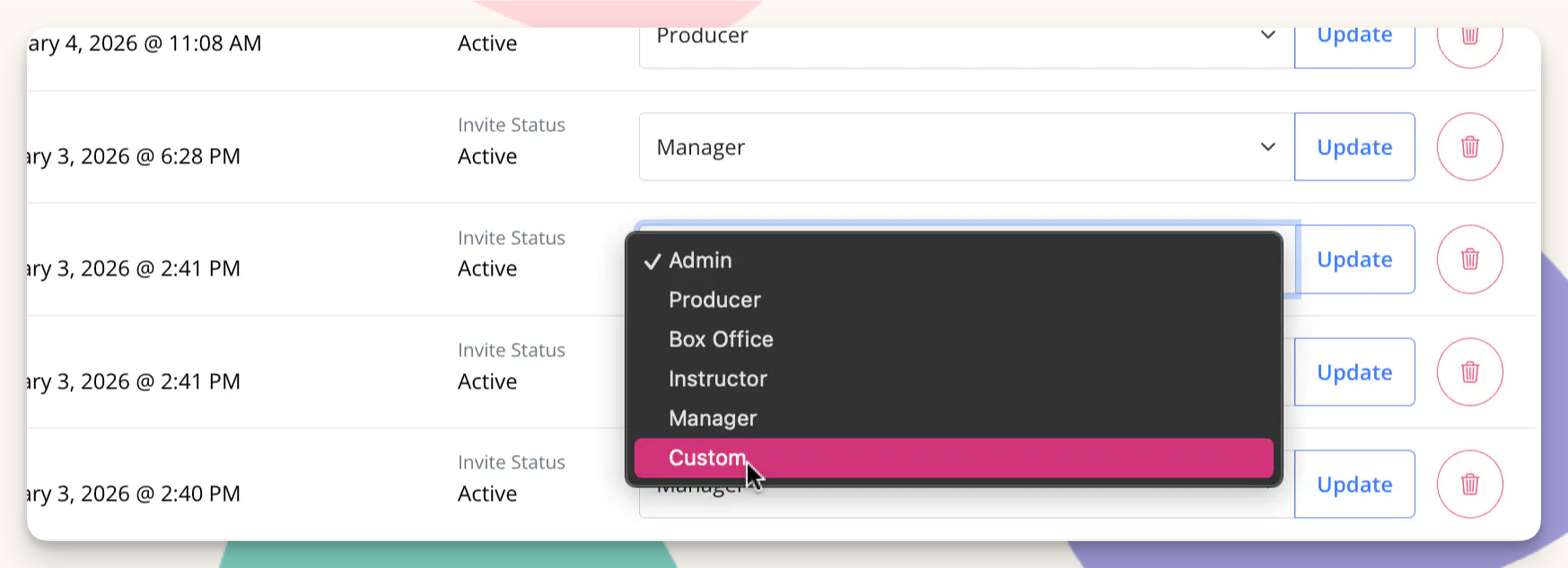
2. Open the role dropdown for that user and select **Custom**
3. Click **Update** to save the role change
4. A gear icon (⚙️) will appear next to the role dropdown — click it to open the permissions editor
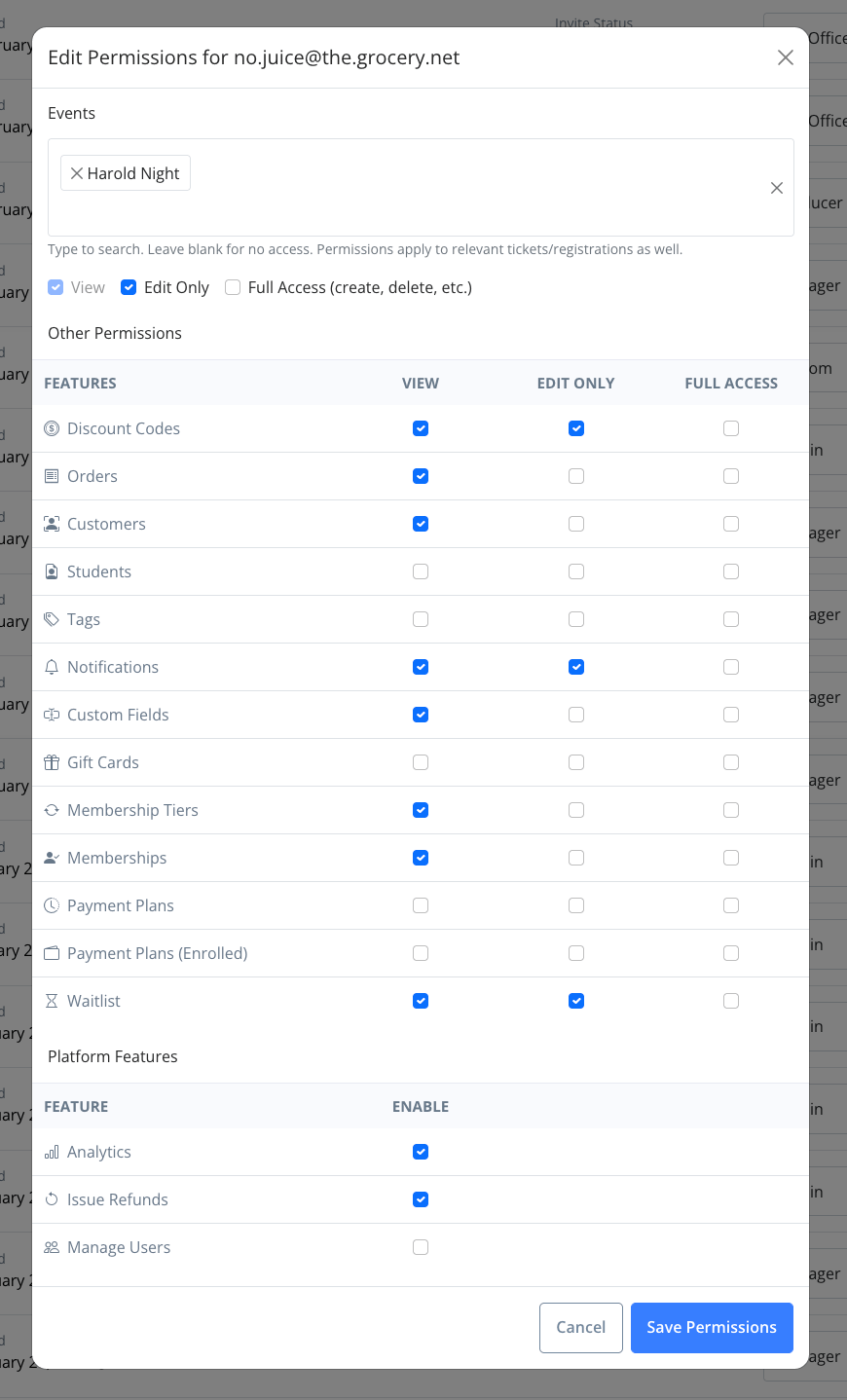
5. Configure access using the sections below, then click **Save Permissions**
***
## Understanding the Permissions Editor
The permissions editor has three sections. Work through them top to bottom.
### Step 1: Select Events
This is where you control which shows or classes this user can access.
* **Type to search** for a specific show or class and select it — you can add multiple
* **Leave blank** if this user doesn't need access to any events
Every user with event access can view those events by default — that's the baseline. Use the checkboxes below the event selector to grant additional capabilities if needed:
* **Edit Only** — the user can modify event details (name, dates, pricing, etc.) but cannot create new events or delete existing ones
* **Full Access (create, delete, etc.)** — the user has complete control, including creating new events and permanently deleting them
{% hint style="warning" %}
These access levels apply **only to the events you've selected above** — they do not affect any other part of the account. The Other Permissions grid below is a separate and independent set of controls.
{% endhint %}
{% hint style="danger" %}
Grant **Full Access** only to users you fully trust. Creating and deleting events are irreversible actions that affect ticket sales and patron data.
{% endhint %}
**What gets automatically scoped:** When you assign specific events, CrowdWork automatically limits that user's view of tickets, registrations, and analytics to only those events. You don't need to configure this separately — it happens on its own.
### Step 2: Set Other Permissions
This grid controls access to specific data types and features across the platform. Each row is independent — you can mix and match freely.
| Feature | View | Edit Only | Full Access |
| ---------------------------- | ----------------------------------------------------------------------------- | ------------------------------------------------ | ----------------------------------- |
| **Discount Codes** | See existing codes | Modify existing codes | Create new + delete codes |
| **Orders** | See transaction history | Add tickets to an existing order | Create new orders |
| **Customers** | See customer records | Edit customer record details | Create customer record + delete |
| **Students** | See student records | Edit student record details | Create student record + delete |
| **Tags** | See tags | Modify existing tags | Create new + delete tags |
| **Notifications** | See notifications | Edit existing notification content | Create new alerts + delete existing |
| **Custom Fields** | See custom fields | Modify existing fields | Create new fields + delete fields |
| **Gift Cards** | See gift card records | Modify gift card details | Create new gift cards + delete |
| **Membership Tiers** | See membership tiers | Modify tier details | Create new tiers + delete tiers |
| **Memberships** | See membership records | Manage patrons' memberships (retry/pause/cancel) | — |
| **Payment Plans** | See payment plan settings | Modify payment plan settings | Create new plans + delete plans |
| **Payment Plans (Enrolled)** | See enrolled payment plans | Modify an enrolled patron's plan | — |
| **Waitlist** | View all waitlist entries and send email notifications to patrons on the list | — | — |
{% hint style="info" %}
Not all features support all three access levels. Where a cell shows "—", checking that box has no additional effect beyond the level below it.
{% endhint %}
***
### Step 3: Enable Platform Features
These are account-wide capabilities that aren't tied to specific data. Each is a simple on/off toggle.
| Feature | What it enables |
| ----------------- | --------------------------------------------------------------------------------------------------------------------------------------------------------------------------------------------------------- |
| **Charts** | Access to the Analytics charts dashboard (**Analytics → Charts** in the sidebar); when specific Events are selected, charts are scoped to those events only |
| **Reports** | Access to the Reports page — run, save, and export financial reports. Report exports include patron names and email addresses. When specific Events are selected, reports are scoped to those events only |
| **Issue Refunds** | Ability to process refunds on orders |
| **Manage Users** | Ability to invite and manage other users (use with caution) |
***
## How the Interface Adapts
One of the most useful things about Custom permissions: **CrowdWork's interface adjusts automatically** based on what the user can access. Menu items, buttons, and actions that aren't available to that user simply won't appear. A user who can't create shows won't see the "Create Show" button. A user scoped to one event won't see data from other events.
This means you don't need to worry about users accidentally stumbling into things they shouldn't see — the system handles that for you.
***
## Tips
* **Start minimal.** Give the user only what they've asked for. It's easy to add more later, and much harder to explain why someone saw something they shouldn't have.
* **Scoping events also scopes analytics.** If you add specific events, that user's analytics view automatically reflects only those events — a useful side effect for producers or show-specific staff.
* **Custom doesn't replace standard roles.** For most team members, a standard role (Box Office, Producer, Manager, etc.) is the right choice and easier to maintain. Reach for Custom only when a standard role doesn't fit the situation.
* **Notes follow record access.** Access to [staff notes](https://docs.crowdwork.com/for-theatres/staff-notes) is exactly access to the record they're on. Anyone who can open a customer, student, order, show, or class can read and add its notes; a user scoped away from your Students can't see student notes either. Everyone can edit and delete their own notes, and admins can edit and delete anyone's.
* **Review permissions periodically.** If a contractor or guest auditor finishes their work, remove their access promptly via [Dashboard → Users](https://crowdwork.com/dashboard/users).
***
## Related Topics
| Task | Guide |
| ---------------------------------- | ---------------------------------------------------------------------------------------------------------------------------------------------- |
| Invite a new user | [Managing Staff & Users](https://docs.crowdwork.com/for-theatres/managing-staff-and-users) |
| Understand the standard roles | [Managing Staff & Users → Understanding User Roles](https://docs.crowdwork.com/for-theatres/managing-staff-and-users#understanding-user-roles) |
| Understand who can see staff notes | [Staff Notes](https://docs.crowdwork.com/for-theatres/staff-notes) |
| Troubleshoot access issues | [Managing Staff & Users → Troubleshooting](https://docs.crowdwork.com/for-theatres/managing-staff-and-users#troubleshooting-access-issues) |