> For the complete documentation index, see [llms.txt](https://docs.crowdwork.com/llms.txt). Markdown versions of documentation pages are available by appending `.md` to page URLs; this page is available as [Markdown](https://docs.crowdwork.com/the-academy/crowdwork-academy/embedding-widgets-on-specific-platforms/google-sites-embed-guide.md).
# Google Sites - Embed Guide
This page gives instructions for embedding CrowdWork widgets on a Google Sites website.
Ready to showcase your shows and classes directly on your Google Sites website? You're in the right place! Google Sites makes it super easy to add custom HTML content, perfect for CrowdWork widgets.
### ✅ What You'll Need
Before you begin, make sure you have:
* An active CrowdWork account
* A Google Sites website you can edit
* Your widget embed code from CrowdWork Dashboard (keep reading if not)
* About 5 minutes of your time
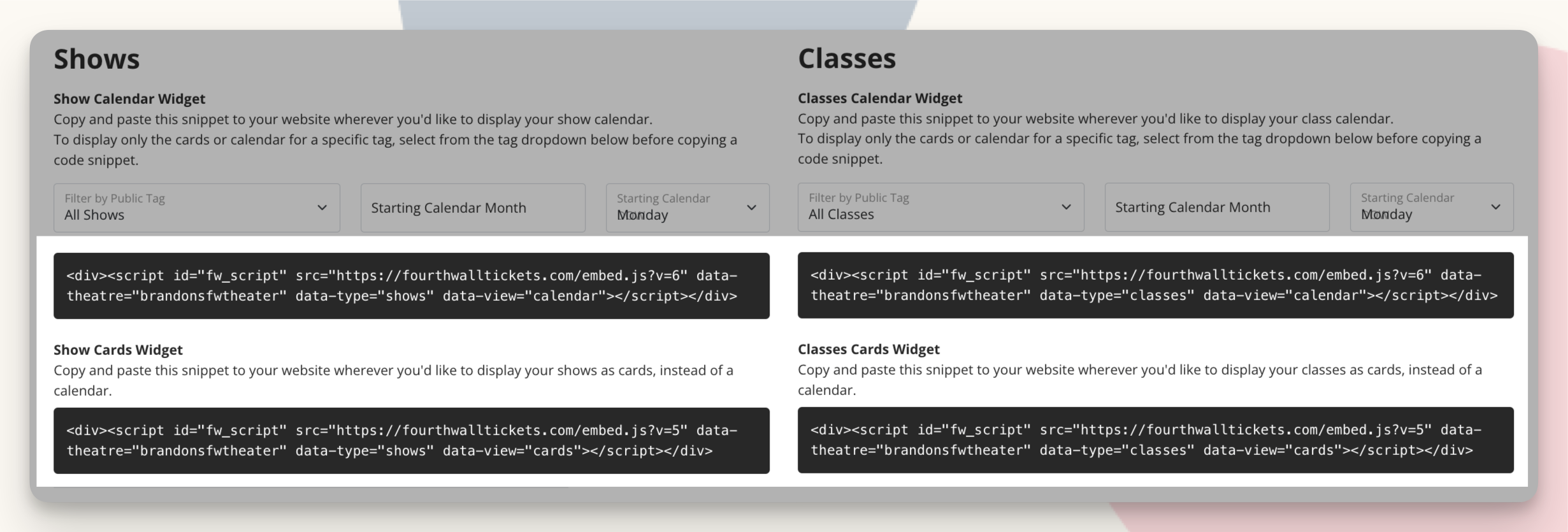
The Embed Widget code provided in the CrowdWork Dashboard
### 👾 Getting Your Widget Code
First, let's grab your widget code from CrowdWork:
1. Log in to your CrowdWork Dashboard
2. Navigate to [**Theatre > Embeds**](https://www.crowdwork.com/dashboard/embeds) in the left menu
3. Choose the widget type (Shows or Classes)
4. Select your preferred view (Calendar or Cards)
5. Customize any settings (tag filtering, start date, etc.)
6. Copy the code snippet provided in the box
{% hint style="info" %}
**Pro Tip!** Calendar views work great for comprehensive schedules, while Cards are perfect for highlighting featured events on your homepage!
{% endhint %}
{% hint style="success" %}
**See it in action!** Check out our [sample Google Sites page](https://sites.google.com/crowdwork.com/widgets/home) to see exactly how a CrowdWork widget looks when embedded.
{% endhint %}
### 🚀 Adding Your Widget to Google Sites
Google Sites uses a simple drag-and-drop interface that makes adding widgets straightforward:
#### Using the Embed Component (Recommended)
{% hint style="info" %}
**Google Sites Tip:** Have your widget code from the [**Theatre > Embeds Dashboard**](https://www.crowdwork.com/dashboard/embeds) ready to paste before starting.
{% endhint %}
1. **Open Google Sites editor**
* Go to [sites.google.com](https://sites.google.com) and open your site
* Click **Edit** to enter edit mode
2. **Navigate to your desired page**
* Select the page where you want to add your widget from the Pages menu
3. **Add an Embed component**
* From the **Insert** panel on the right, scroll down to find **Embed**
* Click on **Embed** to add it to your page
* You'll see a placeholder box appear on your page
* \\
4. **Configure the embed**
* If the popup did not immediately appear, click on the embed placeholder you just added
* In the popup, select **Embed code** (not URL)
* Paste your CrowdWork widget code into the text field
* Click **Next**, **Insert** or **Apply** (depending on your Google Sites version)
* \\
5. **Review the preview (if showing)**
* Some versions of Google Sites will show a preview of your embed
* Ensure it displays as you were expecting, if not hit the back button to edit the code
* When ready, click the **Insert** button
* \\
6. **Adjust size and position**
* Click and drag to move the widget to your preferred location
* Drag the edges and corners of the embed to resize it
* **For Calendar widgets:**
* **narrow containers** will display a list view
* **wider containers** will display a full calendar grid view
* the container will scroll to accommodate all your events list
* **For Card widgets:**
* adjust the width for how many columns of cards you would like to display
* adjust the height for how many rows of cards you would like to display
* the container will scroll to accommodate your events list
7. **Preview and publish**
* When satisfied, click **Publish** to make your changes live
{% hint style="success" %}
**Want to see the finished result?** Take a look at our [working example on Google Sites](https://sites.google.com/crowdwork.com/widgets/home) to see how your widget will look once embedded!
{% endhint %}
### 💄 Making Your Widget Look Amazing
Google Sites' clean design pairs beautifully with CrowdWork widgets:
#### Size and Spacing Tips
* **Width**: Most widgets look best spanning the full width of your content area
* **Height**: Calendar widgets need at least 400-500 pixels of height
* **Spacing**: Use Google Sites' spacing options to give your widget breathing room
* **Alignment**: Center alignment usually works best for widgets
#### Layout Considerations
* **Full-width sections**: Place widgets in full-width layout sections when possible
* **Mobile preview**: Always check how your widget looks on mobile using Google Sites' mobile preview
* **Content flow**: Position widgets logically within your page content
* **Visual hierarchy**: Use Google Sites' headers and text to introduce your widget
### 🔧 Troubleshooting
{% hint style="info" %}
**Quick Fix:** Most issues can be resolved by getting fresh widget code from your [**Theatre > Embeds Dashboard**](https://www.crowdwork.com/dashboard/embeds) and re-embedding it.
{% endhint %}
**Widget not showing up?**
* Make sure you selected **"Embed code"** not **"URL"** when configuring the embed
* Verify you pasted the complete code snippet without modifications
* Check that your site is published, not just saved
* Try refreshing your browser and clearing cache
**Widget appears cut off or too small?**
* Drag the corners of the embed box to make it larger
* For calendar widgets, ensure adequate height (try 500+ pixels)
* Check that the embed isn't constrained by your page layout
* Try switching to a full-width page layout
**Widget not responsive on mobile?**
* Use Google Sites' mobile preview to test your widget
* Widgets automatically adapt to smaller screens
* Consider using card view instead of calendar view for better mobile experience
* Adjust the embed size if needed for mobile optimization
**Getting security or loading errors?**
* Ensure your CrowdWork account is active and the embed code is current
* Check that you're using HTTPS (not HTTP) in your embed code
* Try creating a new embed component if the existing one seems corrupted
### 🎯 Creative Uses for Google Sites + CrowdWork
Make the most of your integration:
* **Homepage spotlight**: Feature upcoming events prominently on your site's homepage
* **Dedicated events page**: Create a comprehensive events page with calendar view ([see our example page](https://sites.google.com/crowdwork.com/widgets/home))
* **Class directory**: Build separate pages for different types of classes
* **About section**: Show your upcoming schedule alongside your theater's story
* **Contact page integration**: Display upcoming events near your contact information
### 🔄 Automatic Updates
Once your widget is embedded, it will automatically stay in sync with your CrowdWork account. Any changes you make to your shows or classes in CrowdWork will instantly appear on your Google Sites website without any additional work!
### 📱 Mobile & Responsive Design
Google Sites automatically handles mobile optimization:
* **Responsive layout**: Google Sites ensures your widgets look good on all devices
* **Touch-friendly**: All widget interactions work smoothly on mobile devices
* **Automatic adaptation**: Calendar widgets switch to mobile-friendly list format
* **Loading optimization**: Google Sites optimizes loading times across devices
### 🆘 Google Sites Specific Tips
Take advantage of Google Sites' unique features:
#### Integration with Google Workspace
* **Team collaboration**: Multiple team members can edit and add widgets
* **Version history**: Google Sites keeps track of changes automatically
* **Easy sharing**: Share editing access with staff members easily
#### Design Consistency
* **Theme matching**: Widgets inherit Google Sites' clean aesthetic
* **Typography**: Text in widgets complements Google Sites' typography
* **Color harmony**: Widgets blend well with Google Sites' color schemes
#### Performance Benefits
* **Fast loading**: Google Sites' infrastructure ensures quick widget loading
* **Reliable hosting**: Google's servers provide excellent uptime
* **Automatic updates**: Both Google Sites and your widgets update automatically
### 🎨 Styling and Branding
While Google Sites limits custom CSS, you can still optimize your widgets:
* **Strategic placement**: Use Google Sites' layout options to position widgets effectively
* **Content integration**: Surround widgets with relevant text and images
* **Section organization**: Group related content with your widgets
* **Visual flow**: Create logical content progression leading to your events
### 📊 Analytics and Tracking
Google Sites works well with event promotion:
* **Google Analytics**: Easy integration for tracking widget engagement
* **Search visibility**: Google Sites pages rank well in search results
* **Social sharing**: Easy social media integration for event promotion
### 🔒 Security and Reliability
Google Sites provides a secure platform for your widgets:
* **HTTPS by default**: All Google Sites use secure connections
* **Spam protection**: Built-in protection against malicious content
* **Automatic backups**: Google handles all backup and recovery
* **99.9% uptime**: Reliable hosting for your event promotion
**Need more help?** [Reach out to our support team](https://github.com/bp-crowdwork/cw-gitbook/blob/gitbook/contacting-support/README.md) - we love Google Sites' simplicity and can help you create beautiful widget integrations that work perfectly with Google's platform!